12 min read
What's Safe to Delete in the Mac Library Folder? (Folder by Folder)
A folder-by-folder guide to ~/Library on a Mac: what's safe to delete (Caches, Logs), what needs a second look, what you must never touch, and how to check.
- Caches
- How-to
- Storage
Your home Library folder is where apps keep everything that isn't a document: caches, settings, databases, chat histories, passwords and sync folders. Some of it is disposable and some of it is the only copy of your data, and the folder names don't tell you which. This guide goes through ~/Library folder by folder on macOS 27 Golden Gate, with a plain verdict for each: Safe, Careful or Never.
The short version
- Safe to clear:
Caches,Logs,Saved Application State, and Xcode'sDerivedData,iOS DeviceSupportand simulator caches. They rebuild themselves. Quit the app first. - Careful:
Application Support,ContainersandGroup Containershold real app data, sometimes years of chats. Delete only the folders of apps you've removed, or clean up from inside the app. - Never delete by hand:
Keychains,Mail,Messages,Accounts,Safari,Mobile Documents(iCloud Drive) andCloudStorage(Dropbox, Google Drive, OneDrive). You lose data, or delete it from the cloud on every device. - Measure first. One
ducommand shows which folders are actually big, and it's rarely the ones people guess. - Move things to the Trash rather than deleting outright, and empty it once you've checked your apps still work.
Three Library folders, and how to open yours
A Mac has three folders called Library:
~/Library, inside your home folder, belongs to your account. Almost all the reclaimable space is here, and it's what this guide covers./Library, at the top of the disk, is shared by all users: fonts, printer drivers, system-wide app support, and the launch daemons installers add. Changing it needs an admin password. Treat it as Careful, and remove only what you can trace to an app you've uninstalled./System/Libraryis part of macOS, on the sealed system volume guarded by System Integrity Protection. Never touch it. You can't change it anyway, and a tool that claims to "clean" it is misleading you.
Your home Library is hidden by default, and Apple's advice is not to keep your own files in it (Apple). To open it:
- In Finder, hold Option and open the Go menu, then choose Library.
- Or press ⇧⌘G (Go to Folder), type
~/Libraryand press Return. - To keep it visible: Go → Home, then View → Show View Options, and tick Show Library Folder.
Some items inside are hidden too. Press ⇧⌘. (Shift-Command-Period) in a Finder window to show or hide them.
See what's actually big first
Open Terminal and run:
du -shx ~/Library/* 2>/dev/null | sort -rh | head -20
It lists the 20 largest items, biggest first. The -x stops du from counting other file systems mounted inside Library. On the Mac we checked while writing this, the CoreDevice service that Xcode uses to talk to iPhones had mounted a virtual file system at ~/Library/Developer/CoreDevice/DeviceFS. Without -x, Developer showed as 66 GB. With it, the real figure was 22 GB.
Some folders come out smaller than they are because Terminal can't read them. macOS protects Mail, Messages, Safari and parts of Containers, and du reports "Operation not permitted" for them. To measure them, turn on Terminal in System Settings → Privacy & Security → Full Disk Access, then quit and reopen Terminal. Turn it off again when you're done.
To drill down, run the same command one level deeper:
du -shx ~/Library/Application\ Support/* 2>/dev/null | sort -rh | head -15
A handful of folders usually account for nearly everything. On that Mac, Application Support held 44 GB, 39 GB of it in two apps' folders, while most of the hundred-odd other folders were a few megabytes each. The folder sizes guide covers Finder's options and disk maps.
The folder-by-folder table
Where Apple documents a folder, its purpose comes from Apple's Library directory reference. That page is archived (last updated 2018), but the layout it describes still applies.
Folder in ~/Library | What it holds | Verdict | How to clean it |
|---|---|---|---|
Caches | Data apps can regenerate | Safe | Quit the app, empty its folder |
Logs, Saved Application State | Logs; windows to reopen at launch | Safe | Delete |
HTTPStorages | Each app's web storage, including cookies | Safe | Delete; the app may ask you to sign in again |
Developer/Xcode/DerivedData | Xcode build products | Safe | Delete; Xcode rebuilds |
Developer/Xcode/iOS DeviceSupport | Debug symbols copied from your devices | Safe | Delete; recopied when needed |
Developer/CoreSimulator/Caches | Simulator caches | Safe | Delete |
Developer/Xcode/Archives | Archived builds with their debug symbols | Careful | Keep archives of versions you still ship |
Developer/CoreSimulator/Devices | Every simulator and its apps | Careful | xcrun simctl delete unavailable |
Application Support | App data, which can include your data | Careful | Only folders of removed apps |
Application Support/MobileSync | iPhone and iPad backups | Careful | Delete backups from Finder |
Containers | Each sandboxed app's entire data | Careful | Only for removed apps |
Group Containers | Data an app shares with its extensions and sibling apps | Careful | Only for removed apps, or clean inside the app |
LaunchAgents | Helpers that start at login | Careful | Remove plists of removed apps |
Preferences (one .plist) | One app's settings | Careful | Quit the app first; it resets |
Preferences, Cookies (whole folder) | Settings and cookies for everything | Never | Remove single files only |
Keychains | Saved passwords, certificates, keys | Never | Leave alone |
Mail | Your mailboxes | Never | Use Mail |
Messages | Your messages and attachments | Never | Use Messages |
Accounts | Your Internet Accounts | Never | Use System Settings |
Safari | Bookmarks, history, Reading List | Never | Use Safari |
Photos | Data the Photos app keeps here | Never | Use Photos |
Mobile Documents | iCloud Drive's local copy | Never | Right-click → Remove Download |
CloudStorage | Dropbox, Google Drive, OneDrive | Never | Make files online-only |
Biome, IntelligencePlatform, Trial, UnifiedAssetFramework, Daemon Containers, com.apple.* | macOS service data | Never | Leave alone |
Safe to clear
Apple's rule for developers is blunt: "Apps should never rely on the existence of cache files." So with an app closed, its Caches folder can go. Empty the large subfolders, which are named by bundle ID (for example com.spotify.client), rather than deleting the Caches folder itself. The cache guide has the full method and the few caches worth keeping. Logs, Saved Application State and HTTPStorages are usually small.
On a developer's Mac, Xcode's folders are often the biggest. DerivedData, iOS DeviceSupport and the simulator caches rebuild on demand, but archives hold the debug symbols you need to read crash reports. The developer guide has the commands.
Careful: look inside first
Application Support
Apple describes this folder as "app-specific data and support files", which "can include files that contain user data." A game's folder may hold gigabytes of assets that will simply download again. A note-taking app's folder may be the only copy of your notes.
- A folder named after an app you've uninstalled is a leftover and can go.
- For an app you still use, look for a storage or cleanup option inside the app. Delete the folder by hand only if you're happy for the app to start from scratch.
MobileSync/Backupholds iPhone and iPad backups. Delete them from Finder, where you can see each device and date. The backups guide shows how.
Containers and Group Containers
Sandboxed apps, including everything from the Mac App Store, each get a folder in ~/Library/Containers named by bundle ID. Apple calls these "the home directories for any sandboxed apps." Settings, caches, databases, sometimes documents: it's all inside. Deleting an installed app's container deletes all its local data, and anything that wasn't synced is gone for good.
Group Containers holds data an app shares with its extensions or with other apps from the same developer (Apple). Chat apps often keep their whole message database here. In one Apple Community thread, a user found WhatsApp's group container at 76 GB. Deleting it would have wiped every chat stored on that Mac. Shrink something like that by deleting chats or media inside the app.
macOS also shields these folders from other apps. App containers have this protection, and group containers have it too since macOS 15 (Apple). If an app says it "would like to access data from other apps" while you're deleting, stop and check what you're removing.
Containers left behind by apps you've uninstalled are a different matter: they're pure leftovers, and you can delete them.
LaunchAgents
Each .plist here starts a helper at login. One left by an app you've removed is worth deleting, because its helper keeps trying to run. Leave agents for apps you still use, or their updaters and sync stop working.
Preferences, one file at a time
Deleting one .plist, such as com.example.app.plist, resets that app to its defaults, which is a common fix for a misbehaving app. Quit the app first. macOS caches preferences in memory, and Apple's defaults manual warns that a running app "might even overwrite" your change. The cleaner way:
defaults delete com.example.app
Never delete these (and what breaks)
Keychains: your passwords, certificates and keys. Any password not in iCloud Keychain is gone, and apps keep asking for passwords. Even Apple's own keychain reset deletes saved passwords, and Apple advises it only when Apple Support tells you to.Mail: your mailboxes. IMAP mail downloads again, but local mailboxes ("On My Mac") are lost. Shrink it from inside Mail instead.Messages: every conversation and attachment. If Messages in iCloud is off, this is the only copy. The Messages guide has the safe ways to shrink it.Accounts: the accounts in System Settings → Internet Accounts. Deleting it signs you out of all of them.Safari: bookmarks, history and Reading List.Photos: Photos app data. Your main library isn't here; it lives in~/Pictures.Mobile Documents: your iCloud Drive. Deleting here deletes from iCloud and every device. Right-click in iCloud Drive and choose Remove Download to free space while keeping the file in iCloud (iCloud Drive guide).CloudStorage: the live sync folders of Dropbox, Google Drive, OneDrive and other services built on Apple's File Provider system (Dropbox explains). Deleting here deletes from the service. Make files online-only instead.- The whole
PreferencesorCookiesfolder: every app, and much of macOS, resets at once. - Apple service folders (
Biome,IntelligencePlatform,DuetExpertCenterand the others in the table): data for macOS services that Apple doesn't document for users. Most can't even be read without Full Disk Access, and removing them can break the features behind them. If System Data is what's big, see the System Data guide.
Leftovers from apps you've uninstalled
After caches, this is usually the biggest safe win. Dragging an app to the Trash leaves its folders in Application Support, Containers, Group Containers, Caches, Preferences, HTTPStorages, Saved Application State and LaunchAgents.
Sort each folder by size and look for apps you no longer have. Most folders are named by bundle ID (com.company.app); group containers start with group. or the developer's 10-character team ID. Search the web for any name you don't recognise, and leave anything starting with com.apple.. The uninstall guide lists every location and covers awkward cases like Adobe, Microsoft Office and Docker.
How Disk Clean AI handles ~/Library
Disk Clean AI's safety policy labels every path:
- Safe: the contents of
Caches,Logs,Saved Application State,HTTPStoragesandApplication Support/CrashReporter, plus Xcode'sDerivedData,Archives,iOS DeviceSupportandCoreSimulator/Caches. The app counts archives as Safe; you should still keep the ones for versions you support. - Protected (never queued for removal):
Keychains,Mail,Messages,Photos,Accounts,Safari,CloudStorage,Application Support/MobileSync, iCloud Drive's own Trash folder, thePreferencesandCookiesfolders themselves, plus~/.sshand~/.gnupg. - Review: everything else in
~/Library, includingContainers,Application SupportandMobile Documents, plus~/.config. You can queue these, but they're flagged for a second look.
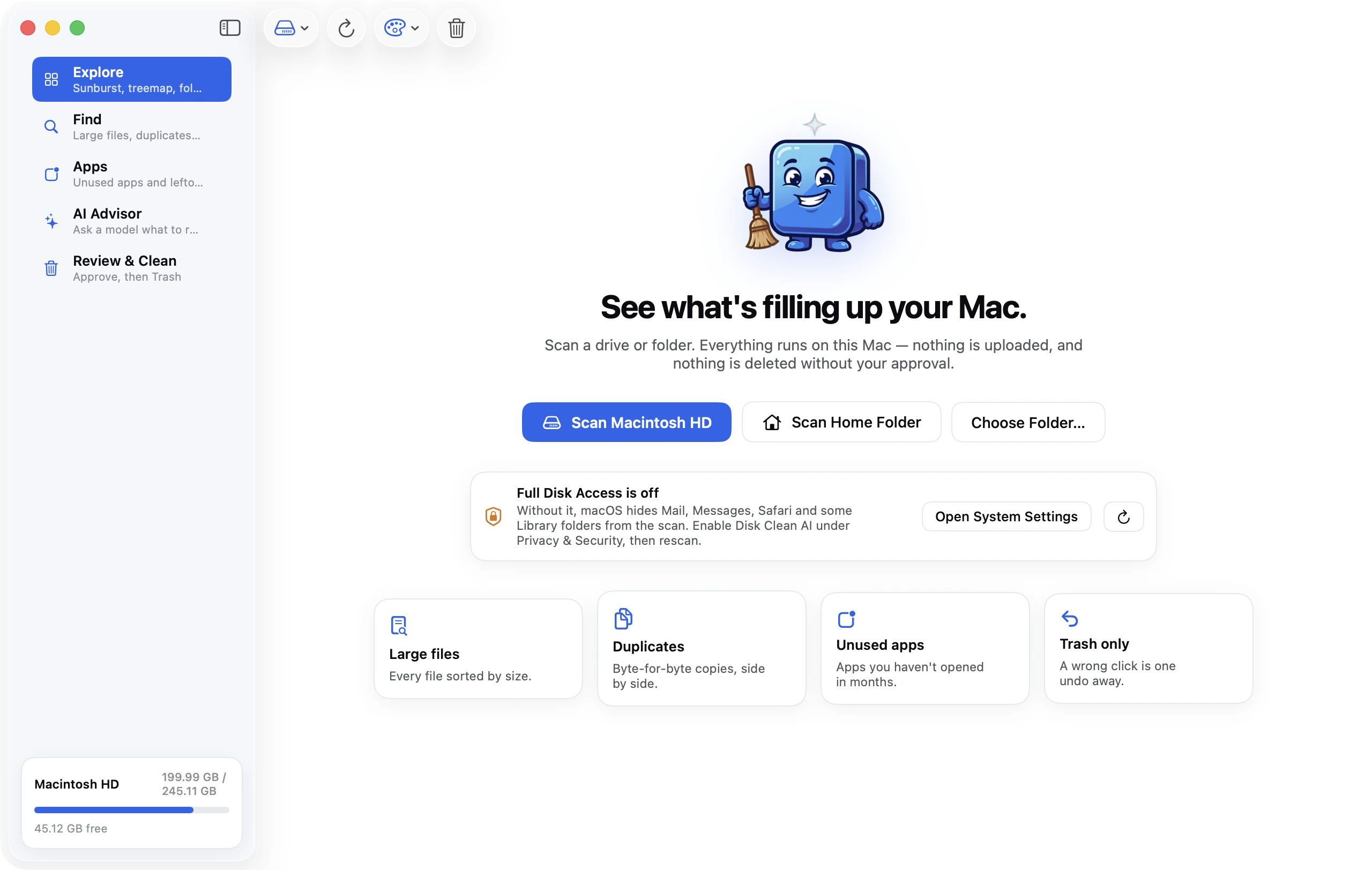
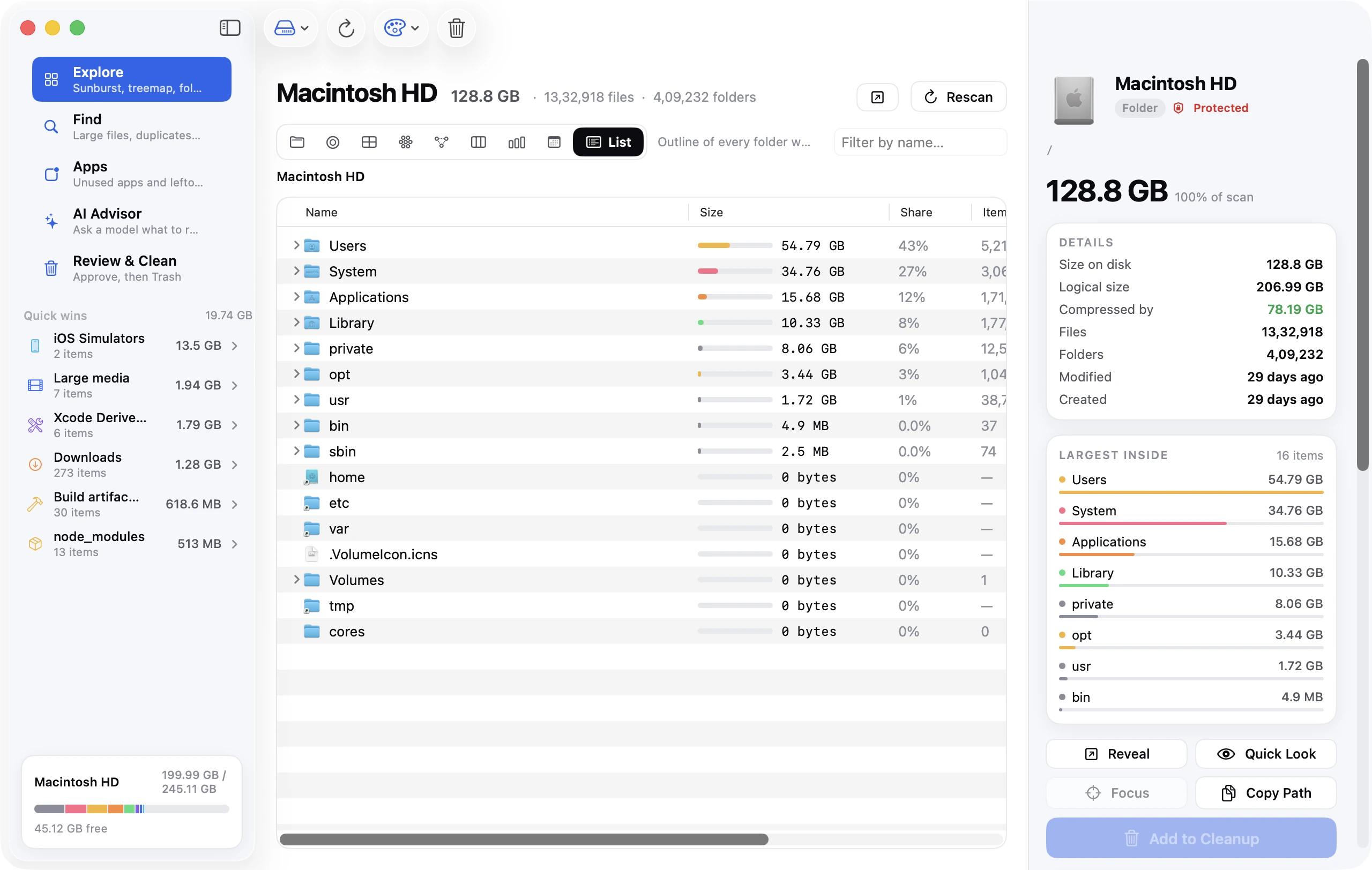
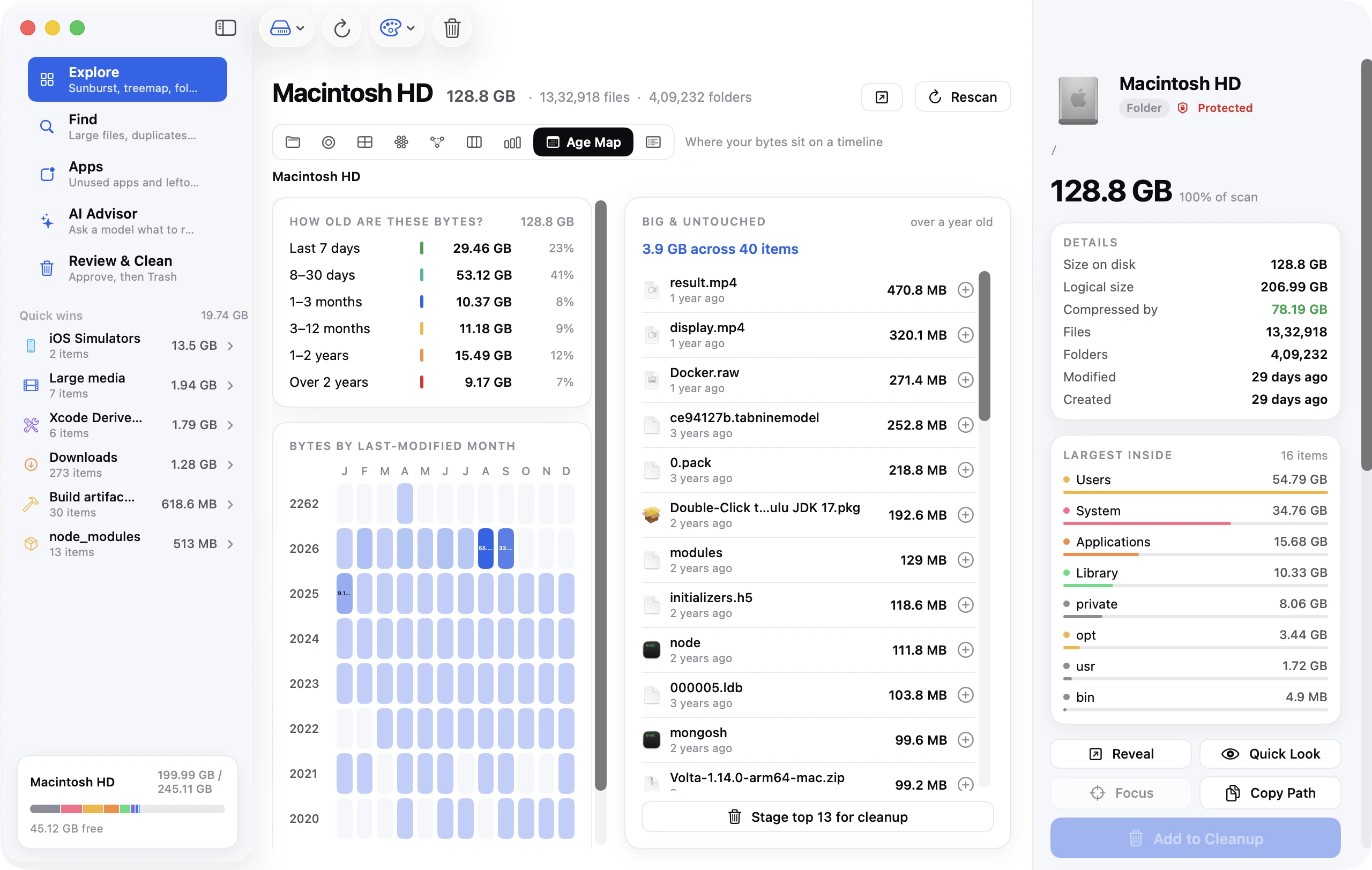
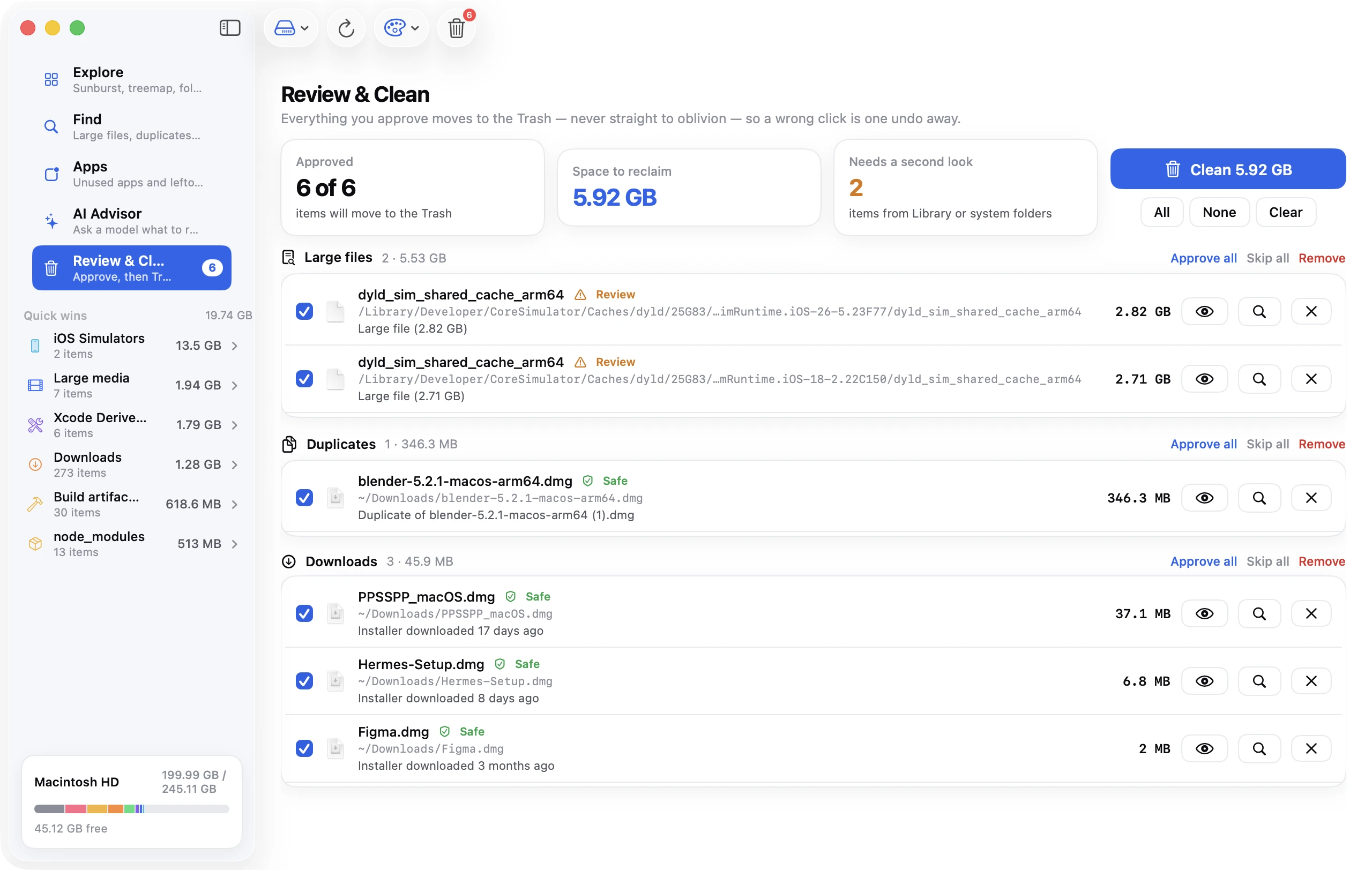
The app scans your home folder or whole disk, shows Library in its Sunburst, Top Sizes and List views, and offers Caches and Logs as a Caches & logs Quick Win. Its uninstaller finds each app's leftover support files, and the AI Advisor explains unfamiliar items from their paths, sizes, dates and types (never file contents), using a model you pick through your own OpenRouter key. Anything you approve moves to the Trash with one-click Undo. Like Terminal, the app needs Full Disk Access to see Mail, Messages and Safari.
FAQ
Can I delete everything in ~/Library/Caches?
Yes, with your apps closed. Everything there can be rebuilt; the cost is slower first launches and some re-downloading. Clearing the few largest subfolders is still better than wiping the lot, because some caches, like a big photo app's thumbnails, take a long time to rebuild.
Is it safe to delete folders in Application Support?
For apps you've uninstalled, yes. For apps you still use, the folder often holds their real data: databases, downloaded content, sometimes your documents. Deleting it resets the app and can lose that data.
Can I delete Containers or Group Containers?
Only those belonging to apps you've removed. For an installed app, the container is all of its local data, and its group container may hold your chat history. Either can be the only copy.
What's the difference between /Library and ~/Library?
~/Library is in your home folder and belongs to your account. /Library is shared by all users and needs an admin password to change. /System/Library is part of macOS and read-only.
How do I show the hidden Library folder?
In Finder, hold Option and choose Go → Library, or press ⇧⌘G and type ~/Library. To keep it visible, open your home folder, choose View → Show View Options and tick Show Library Folder.
Will deleting Preferences reset my apps?
Deleting one app's .plist resets that app, which is useful for troubleshooting; quit the app first. Deleting the whole Preferences folder resets every app and many macOS settings at once, so don't.