8 min read
How to Clear Cache on Mac Safely: User, System and Browser Caches
Which Mac caches are safe to clear, which ones macOS manages itself, and exactly how to empty Safari, Chrome, app and developer caches without breaking anything.
- How-to
- Caches
"Clear your cache" is the advice for every Mac problem from a full disk to a website that won't load, and it's often right — but a Mac has several different caches, they behave differently, and a couple of them should be left alone. This guide explains which is which, what's safe, and the exact steps for each.
The short version
- User app caches (
~/Library/Caches): safe to clear, rebuild automatically. This is where the gigabytes are. - Browser caches: safe, cleared from inside each browser.
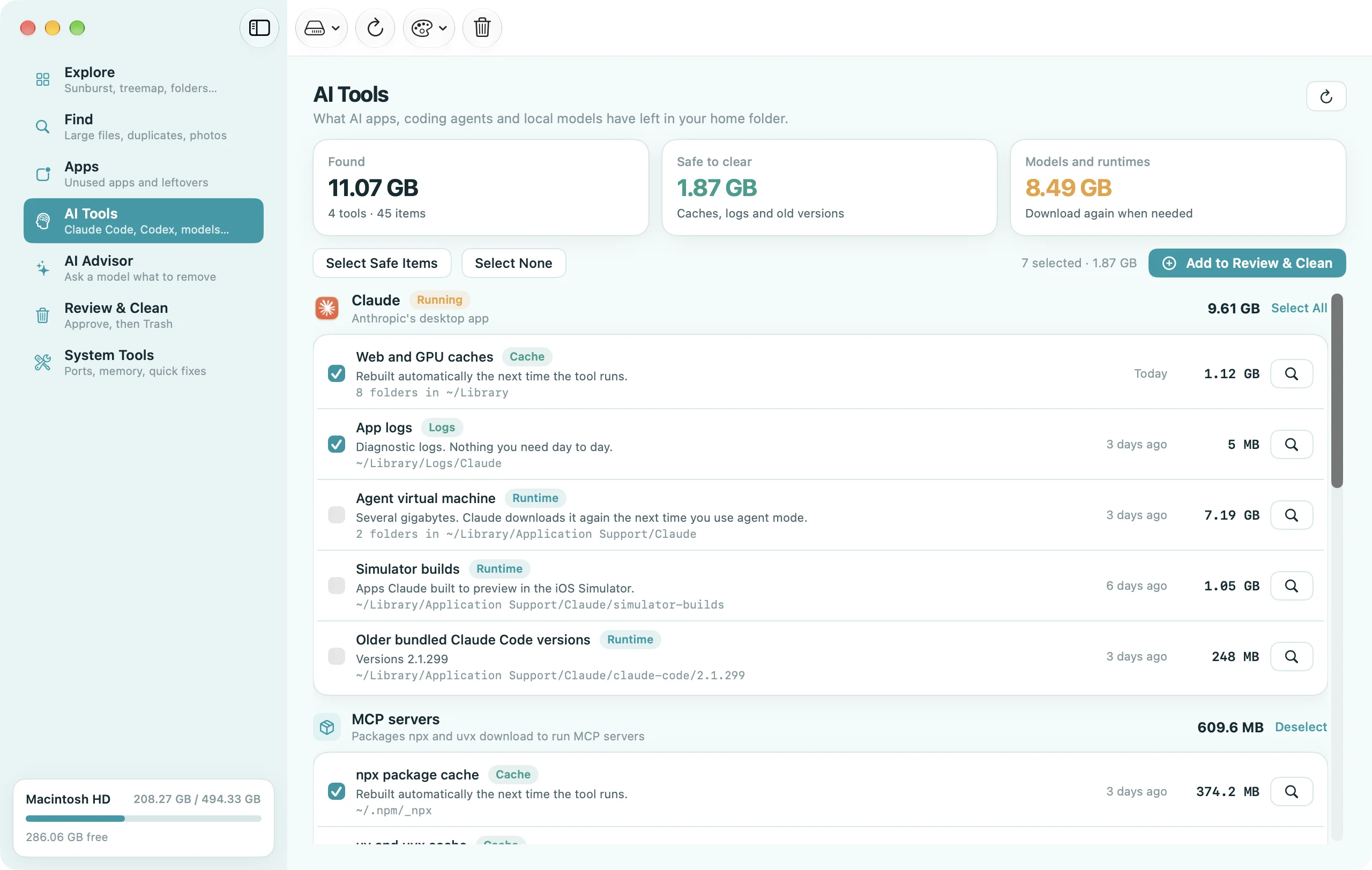
- Developer caches (Xcode, Homebrew, npm, pip, Docker): safe, often huge, cleared with one command each.
- System caches (
/System/Library/Caches,/private/var/folders): managed by macOS, protected — leave them. - DNS cache: tiny, only relevant when websites resolve to the wrong address.
Clearing caches doesn't make a Mac faster in general. It frees disk space and fixes apps that have cached something broken. If your Mac is slow for another reason, caches aren't it.
What a cache is, and why it's safe to delete
A cache is a copy of something that's expensive to fetch or compute — a downloaded image, a rendered thumbnail, a compiled shader, a decoded album cover — kept so it can be reused. By definition the original still exists somewhere else, so deleting the cache only costs the time to rebuild it. That's why every cache on this page is safe to remove while the app is closed.
The reason caches fill disks is that apps rarely clean them. macOS doesn't enforce a limit on ~/Library/Caches, and many apps treat it as free storage. Spotify, Slack, Discord, Teams, Chrome, Firefox, Adobe apps, Steam, Dropbox and any Electron-based app are regular offenders.
1. User app caches
This is the folder that matters: ~/Library/Caches, one subfolder per app (named by bundle id, like com.spotify.client).
Finder method
- Quit the apps whose cache you're going to clear.
- In Finder press ⇧⌘G, type
~/Library/Cachesand press Return. - Switch to list view (⌘2) and turn on View → Show View Options → Calculate all sizes so the Size column fills in. Sort by size.
- Open each big folder and move its contents to the Trash. Deleting the folder itself is usually fine too, but some badly written apps crash if their cache folder is missing — emptying it is the safer habit.
- Empty the Trash and relaunch the apps.
Terminal method
To see what's biggest:
du -sh ~/Library/Caches/* 2>/dev/null | sort -rh | head -20
To empty everything in one go (quit your apps first):
rm -rf ~/Library/Caches/*
This is safe but blunt. Some caches are worth keeping — the Photos thumbnail cache, for example, takes a while to rebuild on a big library — so most people are better off clearing the two or three biggest folders by hand.
There's a second, much smaller cache folder at /Library/Caches for system-wide apps. It's rarely worth touching.
2. Browser caches
Browsers keep their caches in their own places (some under ~/Library/Caches, some in ~/Library/Application Support) and it's simpler to clear them from inside the browser.
Safari: Safari → Settings → Advanced → tick Show features for web developers. Then Develop → Empty Caches (⌥⌘E). This clears the cache only, not history or cookies. To clear everything for a site: Safari → Settings → Privacy → Manage Website Data.
Chrome: paste chrome://settings/clearBrowserData into the address bar, choose All time, tick Cached images and files only, and click Clear data. Chrome's cache lives in ~/Library/Caches/Google/Chrome and can reach several gigabytes.
Firefox: Firefox → Settings → Privacy & Security → Cookies and Site Data → Clear Data… → tick Cached Web Content only. Firefox also has a Clear Data button that removes site data; leave that unticked unless you want to be logged out of everything.
Arc, Brave, Edge, Vivaldi: all Chromium-based; the same chrome://settings/clearBrowserData URL works with the browser's own scheme (brave://, edge://, and so on) or through their Settings.
3. Developer caches
If you write software, these are almost always bigger than every user-facing cache combined.
| Tool | Cache | Command |
|---|---|---|
| Xcode | ~/Library/Developer/Xcode/DerivedData | rm -rf ~/Library/Developer/Xcode/DerivedData |
| Xcode simulators | ~/Library/Developer/CoreSimulator | xcrun simctl delete unavailable |
| Homebrew | ~/Library/Caches/Homebrew | brew cleanup --prune=all |
| npm | ~/.npm/_cacache | npm cache clean --force |
| pnpm | ~/Library/pnpm/store (or ~/.pnpm-store) | pnpm store prune |
| Yarn | ~/Library/Caches/Yarn | yarn cache clean |
| pip | ~/Library/Caches/pip | pip cache purge |
| CocoaPods | ~/Library/Caches/CocoaPods, ~/.cocoapods/repos | pod cache clean --all |
| Gradle | ~/.gradle/caches | rm -rf ~/.gradle/caches |
| Cargo | ~/.cargo/registry | cargo cache -a (needs cargo install cargo-cache) |
| Go | ~/Library/Caches/go-build, ~/go/pkg/mod | go clean -cache -modcache |
| Docker | Docker.raw in ~/Library/Containers/com.docker.docker | docker system prune -a |
The developer Mac guide goes through each of these in detail, including the node_modules problem.
4. Caches you should leave alone
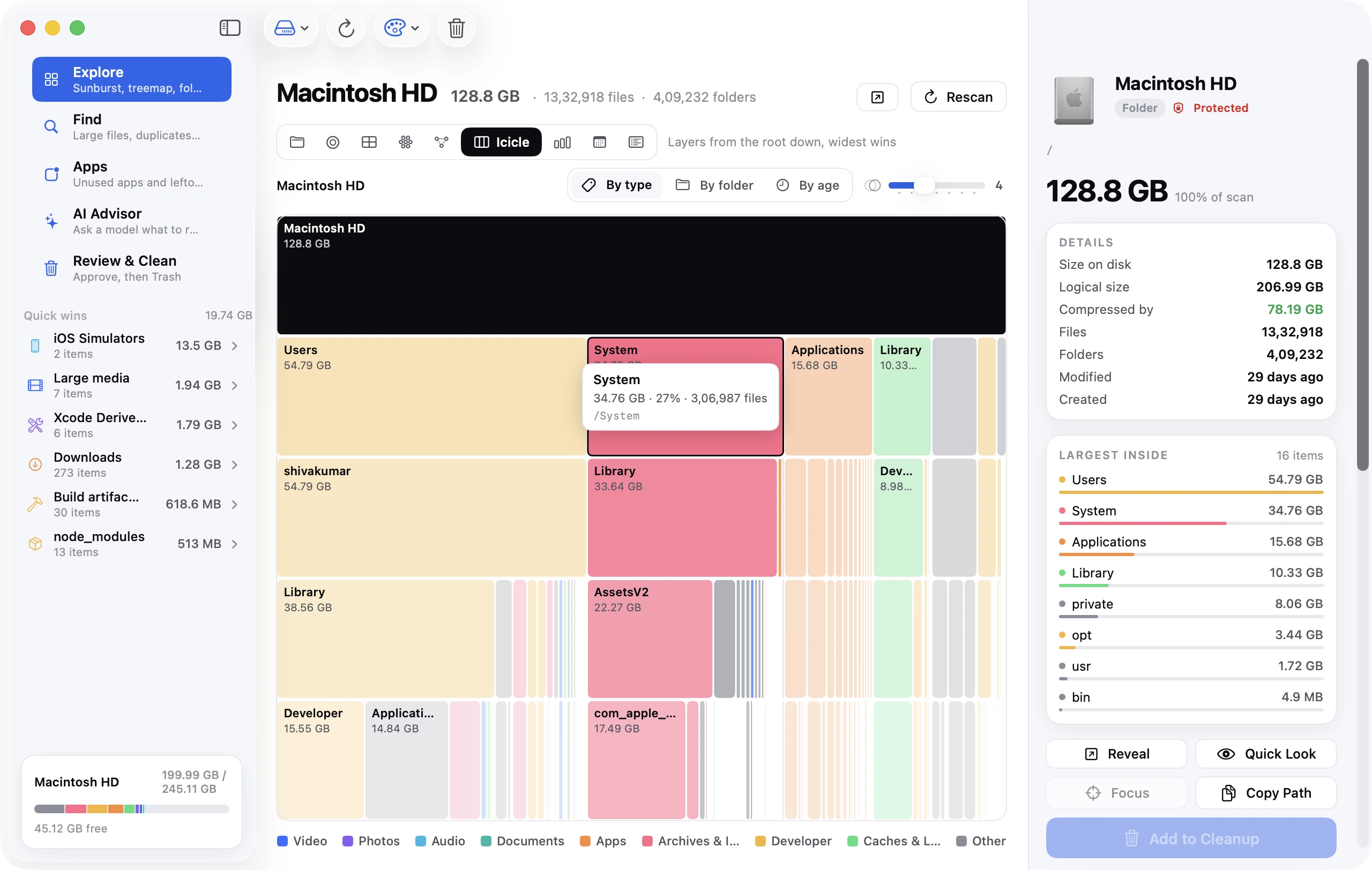
/System/Library/Cachesand anything under/System: part of the sealed system volume. You can't modify it and tools that claim to clean it are misleading you./private/var/folders: per-user temporary and cache files that macOS manages itself. It's cleaned on restart and when space is low. Deleting from it by hand can break running apps and, in the worst case, your login session. If it's huge, restart the Mac instead./Library/Caches/com.apple.*: system components. Harmless to clear, pointless in practice — they're small.- Spotlight index (
/.Spotlight-V100,~/Library/Metadata): rebuilding takes hours of CPU. Only rebuild (sudo mdutil -E /) if search is broken. - Photos caches inside
~/Pictures/Photos Library.photoslibrary: never touch anything inside the library package. Photos manages its own caches. - Font caches:
atsutil databases -removefixes garbled fonts, but there's no space to gain.
5. Two "caches" people ask about that aren't disk space
DNS cache: a list of recently looked-up website addresses. It's kilobytes. Flush it only when a site resolves to the wrong server after a DNS change:
sudo dscacheutil -flushcache; sudo killall -HUP mDNSResponder
RAM / "purge memory": apps that clear "inactive memory" free nothing useful — macOS already reclaims it the moment another app needs it. There's no disk space involved either. Skip these.
How often should you clear caches?
For disk space: when you're short on it, or once every few months as part of a routine clean-up. Clearing caches every week just makes apps re-download the same things.
For fixing a misbehaving app: clear that app's cache folder only, after quitting it. If the problem persists, the cache wasn't the cause.
Doing it in one place
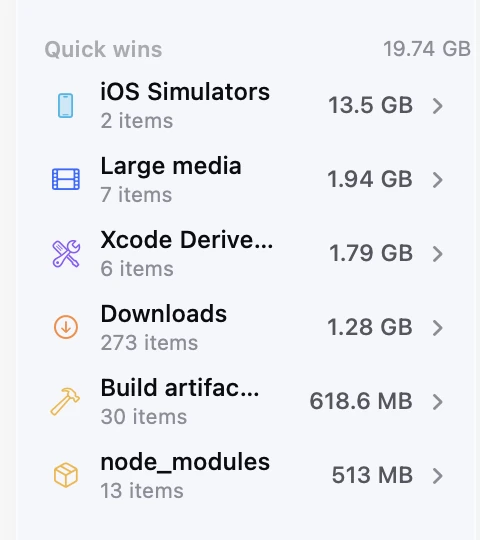
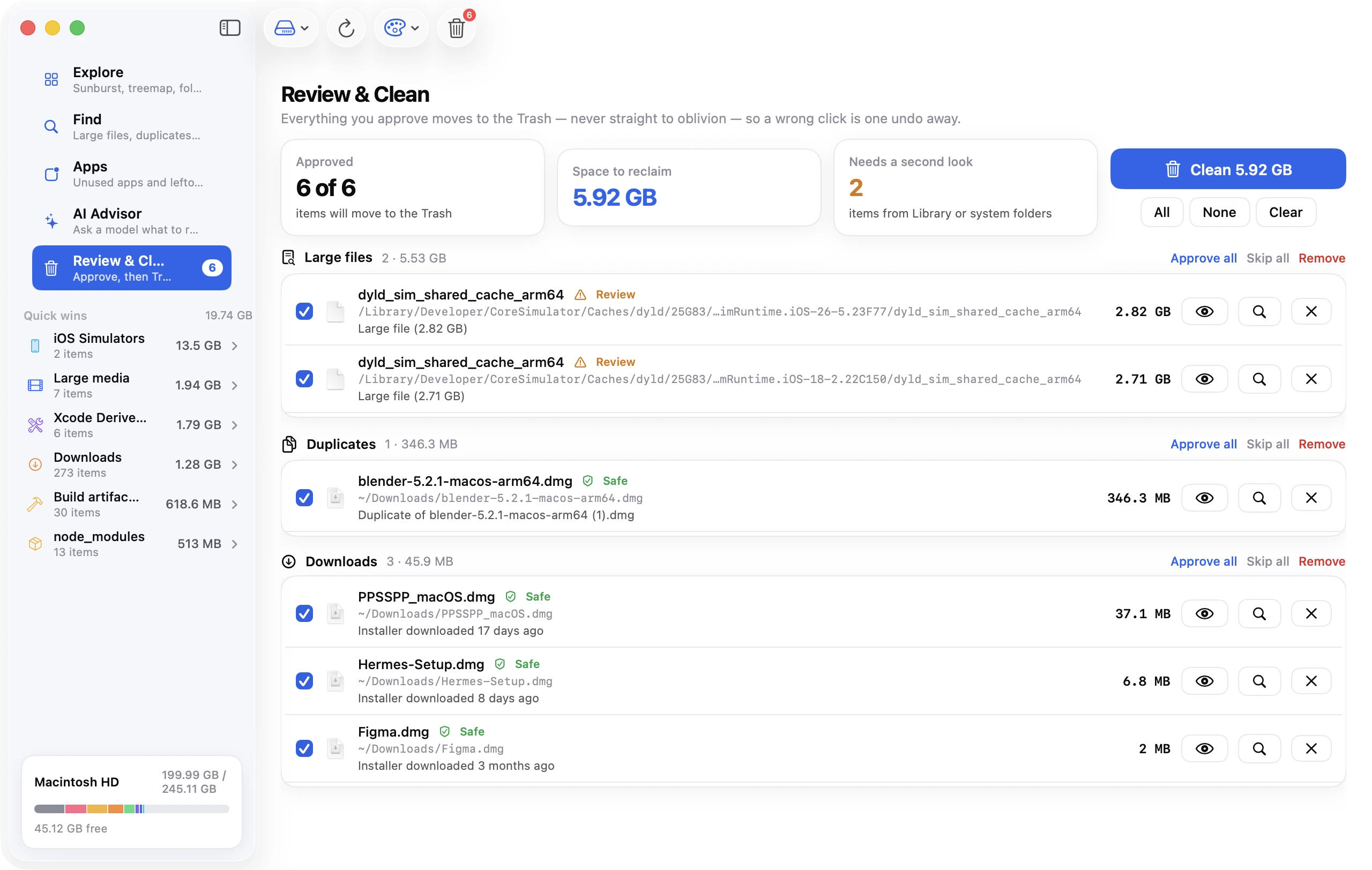
Disk Clean AI's scan shows ~/Library/Caches and ~/Library/Logs as a Caches & logs Quick Win, with each app's cache folder listed by size, and its Explore treemap draws the whole Library so the developer caches and any unusual cache location stand out too. Everything you tick is moved to the Trash, not deleted, and system-managed locations are marked protected so they can't be selected by accident.
FAQ
Is it safe to delete everything in ~/Library/Caches?
Yes, with the relevant apps closed. Every file there is a rebuildable copy of something. The cost is that apps start slower once and re-download what they need.
Will clearing caches speed up my Mac?
Only if an app was slow because of a corrupt or oversized cache. In general, no — caches exist to make things faster. Clearing them frees disk space, which helps only when the disk is nearly full.
How do I clear the cache for one specific app?
Quit the app, open ~/Library/Caches in Finder (⇧⌘G) and delete the contents of the folder named with the app's bundle id (for example com.spotify.client). Some apps also keep a cache under ~/Library/Application Support/<App>/Cache — check there too.
Why is my cache back the next day?
Because that's the job of a cache. Apps rebuild it as you use them. If one app's cache grows to gigabytes within days, look for a setting inside the app to limit it (Spotify, Slack and most browsers have one).