10 min read
Why iCloud Drive Takes Up Space on Your Mac (and How to Free It Without Deleting Anything)
iCloud Drive keeps a full local copy of your files by default. How Optimise Mac Storage really works, how to evict folders instantly with Remove Download, and what to do about Desktop & Documents.
- iCloud
- Storage
- How-to
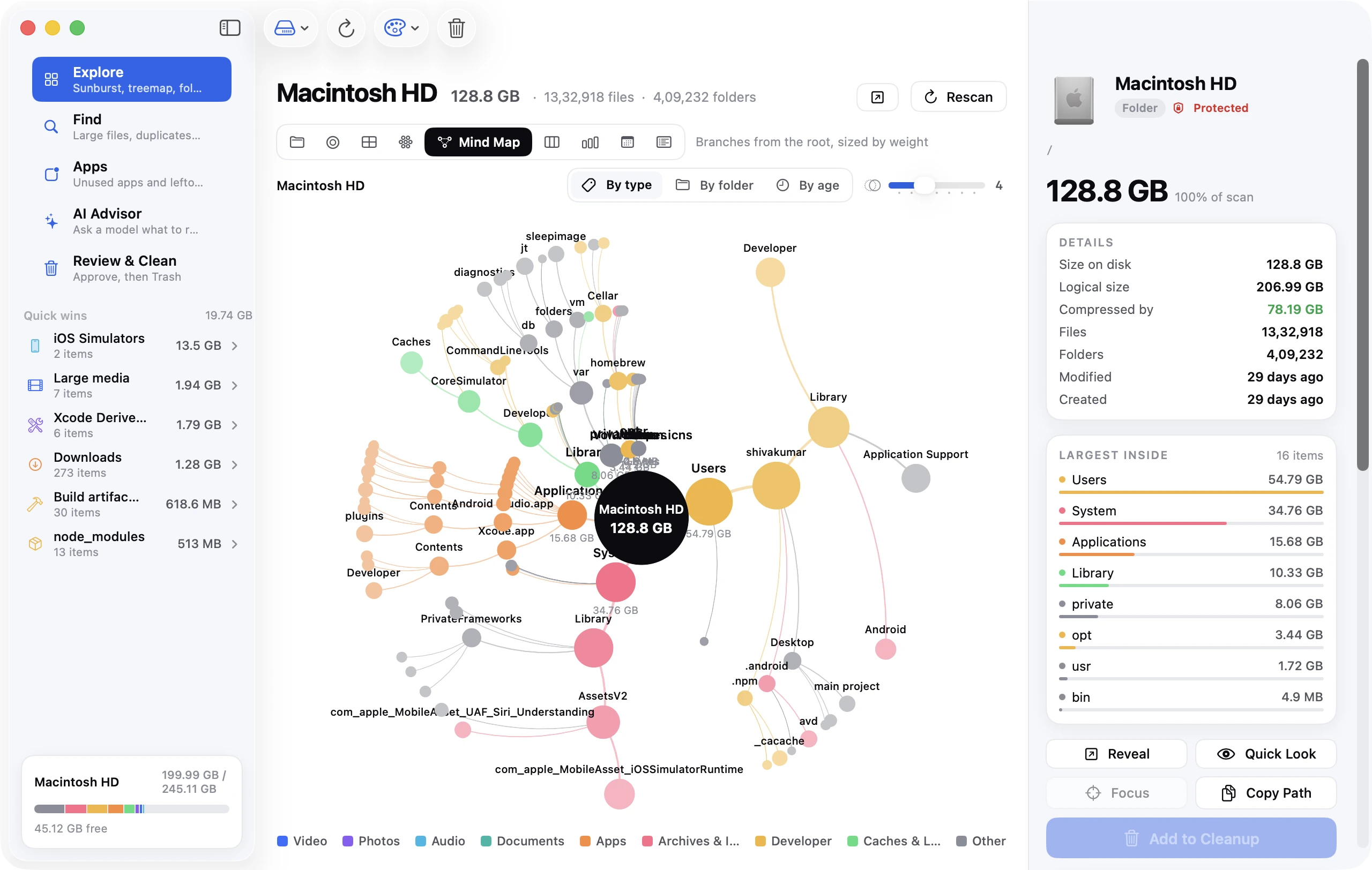
The whole point of iCloud Drive, as most people understand it, is that files live in the cloud. So it's a surprise when System Settings → General → Storage shows iCloud Drive using 80 GB of a 256 GB Mac, or when the Documents folder you moved "to iCloud" still fills the same space it did before. This guide explains what iCloud Drive actually keeps on your Mac, why it keeps it, how to evict files from the disk without deleting them, and how to set things up so a small SSD stays small.
The short version
- iCloud Drive is a sync service, not remote storage. By default every file in it is also stored on your Mac, in
~/Library/Mobile Documents/, so "in iCloud" and "on my disk" are the same thing until you tell it otherwise. - Optimise Mac Storage (System Settings → your Apple Account → iCloud → Drive) lets macOS remove local copies when space runs low. It works slowly and only under pressure.
- To free space right now: right-click any file or folder in iCloud Drive and choose Remove Download. The file stays in iCloud, shows a cloud icon, and re-downloads when you open it. From Terminal,
brctl evictdoes the same thing. - Desktop & Documents Folders is the setting that catches most people. It puts your two busiest folders into iCloud Drive, and therefore into the local mirror.
- iCloud Drive isn't a backup. Deleting a file locally deletes it everywhere after 30 days in Recently Deleted.
Where iCloud Drive files live on your Mac
All of it is here:
~/Library/Mobile Documents/
The folder com~apple~CloudDocs inside it is what Finder shows as "iCloud Drive". The other folders (iCloud~com~apple~Pages, iCloud~is~workflow~my~workflows, and so on) are the iCloud containers of individual apps that store their documents in iCloud.
To see how much of it is actually downloaded:
du -sh ~/Library/Mobile\ Documents/com~apple~CloudDocs 2>/dev/null
Then compare with the total iCloud Drive size in System Settings → your name → iCloud → Manage (or on iCloud.com). If the local figure is close to the cloud figure, nearly everything is downloaded. If it's much smaller, files are already being evicted and the space you're looking for is somewhere else.
Why iCloud Drive takes up space on your Mac
Sync, not offload. iCloud Drive's design goal is that every device has the same files available instantly, including offline. On a Mac with a large disk that's ideal. On a 256 GB MacBook Air with a 300 GB iCloud Drive, it's impossible, and macOS handles the impossibility by downloading what fits and evicting only when it has to.
Desktop & Documents Folders. This option, offered during setup and buried under the iCloud Drive settings, moves your Desktop and Documents folders into iCloud Drive. That's often where the bulk of a user's files are, so turning it on doesn't add anything to the disk, but it means those folders are now governed by iCloud's rules, and turning it off later has consequences (see below).
Optimise Mac Storage is conservative. Even with optimisation on, macOS only evicts files when free space drops below a threshold it doesn't publish, and it prefers to evict files you haven't opened recently. On a disk that's 70 percent full it may do nothing. That's why "I turned on Optimise Mac Storage and nothing changed" is one of the most common complaints.
Other apps' containers. Apps that store documents in iCloud (Pages, Numbers, Keynote, GoodNotes, Notability, many note-taking and PDF apps) each keep a local copy of their entire iCloud document set. A note-taking app with a few years of scanned lecture notes can hold 20 GB in Mobile Documents that never appears under "iCloud Drive" in Finder.
Step 1: Turn on Optimise Mac Storage
This is the baseline. Without it, macOS will never evict anything on its own.
- System Settings → click your name at the top → iCloud.
- Click Drive (on older versions, click the ⓘ or Options… beside iCloud Drive).
- Turn on Optimise Mac Storage.
On macOS Sequoia and later there's also a general Optimise Mac Storage switch at the bottom of the iCloud pane that governs the whole account; make sure that's on too.
Then wait. Eviction happens in the background over hours or days, mostly when the Mac is idle and plugged in. It's the right long-term setting, but it isn't a button that frees space today.
Step 2: Evict files manually (the immediate fix)
You don't have to wait for macOS. Any file or folder in iCloud Drive can be evicted on demand.
In Finder:
- Open iCloud Drive in the sidebar (or the Desktop or Documents folder if those are in iCloud).
- Right-click a file or an entire folder.
- Choose Remove Download.
The item gets a cloud icon and the local space is freed within seconds. Nothing is deleted; opening the file downloads it again. Right-clicking a large, rarely used folder (an old projects archive, a folder of raw photos, last year's client work) is the single fastest way to reclaim tens of gigabytes from iCloud Drive.
The opposite command, Keep Downloaded (the pin icon), marks something as always local, which stops Optimise Mac Storage from evicting it. Use it on the handful of files you truly need offline, not on entire folders.
From Terminal, for whole trees or scripting:
brctl evict ~/Library/Mobile\ Documents/com~apple~CloudDocs/Archive
brctl is Apple's iCloud Drive command-line tool. brctl download <path> fetches something back. To evict everything under a folder recursively, pass the folder; brctl handles the contents.
Step 3: Decide about Desktop & Documents
If Desktop and Documents are in iCloud Drive and that's where your space is going, you have three options.
Leave it on and evict. Step 2 works on those folders just like any other. This keeps the convenience of having your Desktop on your iPhone and iPad.
Turn it off and keep local copies. System Settings → your name → iCloud → Drive → turn off Desktop & Documents Folders. When you do, macOS creates new, empty Desktop and Documents folders on the Mac and leaves the old contents in iCloud Drive under a folder named Desktop and one named Documents. Nothing is deleted, but your files will appear to vanish from the Desktop until you move them back from iCloud Drive → Desktop into the local Desktop folder. Drag them across in Finder; it copies them and, once complete, you can delete the iCloud copies if you don't want them synced.
Turn it off on this Mac, keep it on elsewhere. Same switch; the other Macs keep syncing. Useful for a small-disk laptop when your main Mac has room for everything.
Step 4: Check app containers
If the iCloud Drive folder is small but Mobile Documents is large, an app container is responsible:
du -sh ~/Library/Mobile\ Documents/* 2>/dev/null | sort -rh | head
For apps that support it, eviction works the same way from inside the app or by right-clicking the container's contents in Finder (some containers are visible under iCloud Drive as app folders). For apps that don't, the only ways to reduce the local footprint are to delete documents inside the app or to sign the app out of iCloud sync.
Step 5: Clean up iCloud Drive itself
Everything above frees local space. It's also worth trimming what's in iCloud, because a smaller iCloud Drive means less to mirror and a cheaper plan.
- On iCloud.com or in Finder, sort iCloud Drive by size and delete what you no longer need. Deleted items go to Recently Deleted (iCloud.com → Drive → Recently Deleted, or Finder's Trash) for 30 days.
- Check System Settings → your name → iCloud → Manage for a breakdown by app. Old device backups and Messages in iCloud are often bigger than iCloud Drive itself.
- Empty the Trash on the Mac. Files deleted from iCloud Drive sit in the Trash, still counted, until you do.
What "Optimise Mac Storage" won't do
It won't free space instantly, it won't evict files marked Keep Downloaded, it won't evict files opened recently, and it won't touch anything outside iCloud Drive. If you enable it and your disk is still full a week later, the space is being used by something iCloud Drive doesn't manage: the Photos library (which has its own Optimise setting inside Photos), Mail, Messages, caches, backups or snapshots. The complete guide to freeing up space on a Mac walks through those in order.
Frequently asked questions
Does iCloud Drive take up space on my Mac? Yes, by default. Every file in iCloud Drive is also stored locally unless it's been evicted (cloud icon). Optimise Mac Storage allows eviction; Remove Download does it immediately.
How do I stop iCloud Drive from taking up space on my Mac? Turn on Optimise Mac Storage, then right-click large folders you rarely open and choose Remove Download. Consider turning off Desktop & Documents Folders on a small-disk Mac.
Will Remove Download delete my files? No. It removes the local copy only. The file stays in iCloud and on your other devices, and downloads again when you open it. Deleting (moving to Trash) is the action that removes it from iCloud.
Why is iCloud Drive taking up space even with Optimise Mac Storage on? Because optimisation only evicts when the disk is under pressure and only for files you haven't used recently. It's a safety valve, not a cleaner. Evict manually if you need space now.
Is iCloud Drive a backup? No. It mirrors changes. Delete or corrupt a file on one device and the change syncs everywhere. Keep Time Machine or another backup for anything important, and don't rely on the 30-day Recently Deleted window.
Where is the iCloud Drive folder on Mac?
~/Library/Mobile Documents/com~apple~CloudDocs/. Finder shows it as "iCloud Drive" in the sidebar. The Library folder is hidden; press ⇧⌘G in Finder and paste the path to get there.
Can I move iCloud Drive to an external drive? Not supported. The local mirror has to be on the startup disk. If your iCloud Drive is larger than your Mac can hold, the answer is eviction, not relocation.
The mental model that makes this simple
Think of iCloud Drive as a folder that's also on your Mac, with a per-file switch between "downloaded" and "in the cloud only." Optimise Mac Storage lets macOS flip switches to "cloud only" when it must; Remove Download lets you flip them whenever you want; Keep Downloaded locks a switch on. Once you see it that way, a 300 GB iCloud Drive on a 256 GB Mac stops being a contradiction and becomes a question of which folders you want local this month.