12 min read
Apple Intelligence Taking Up Space on Mac? What You Can Do (macOS 27 Golden Gate)
Apple says up to 14 GB; owners see 20 to 30 GB. Where macOS 27 keeps Apple Intelligence models, what you can turn off, and what removal tools really risk.
- macOS
- Storage
- AI tools
You updated to macOS 27 Golden Gate and 20 GB of your Mac's storage disappeared. Much of it went to Apple Intelligence: the on-device models behind Siri AI, Writing Tools, summaries and Image Playground now download automatically, and the switch that used to stop them is gone. This guide shows how to read the real figure, what you can turn off, what the unofficial removal routes involve, and where to get the same space back without touching the system.
The short version
- Apple says Apple Intelligence needs up to 14 GB on Macs with M3 or later and at least 12 GB of memory, and up to 8 GB on other supported Macs. On Golden Gate, the Storage pane has shown 20 to 30 GB on some Macs.
- Check yours in System Settings → General → Storage, then the ⓘ button next to macOS. The figure runs high during and shortly after an update.
- There's no master switch in macOS 27. You can turn off Siri and individual features, but the models stay on disk.
- The models live in
/System/Library/AssetsV2, protected by System Integrity Protection. You can't delete them in normal use, and you can't move them to another drive. - RemoveMacAI, a free open-source tool, removes them with a configuration profile. It's unofficial, turns off the features whose models it removes, and stalled the 27.2 update for some users.
- For most people the better move is to reclaim the same space elsewhere: snapshots, old installers, iPhone backups, caches and local AI models.
How much space Apple Intelligence uses in macOS 27
Apple's Apple Intelligence support page, published on 22 October 2026, gives two tiers for the Mac:
- Up to 14 GB on Macs with M3 or later and at least 12 GB of unified memory.
- Up to 8 GB on every other Mac that supports Apple Intelligence: M1 and M2 Macs, M3-or-later Macs with 8 GB of memory, and the MacBook Neo.
The same page adds that storage used by Apple Intelligence "may temporarily exceed" these figures during and shortly after a software update. For comparison, Apple's figure under macOS 26 was up to 7 GB, according to 9to5Mac.
What people actually see in the Storage pane is often higher:
| Mac | Apple Intelligence in Storage | Reported by |
|---|---|---|
| M1 MacBook Air, MacBook Neo | about 14 GB | Ars Technica, via MacRumors |
| M4 Pro Mac mini | 20.67 GB | MacRumors |
| M3 MacBook Air (fresh install, 27.0 beta 7) | 22.42 GB | Ars Technica, via MacRumors |
| MacBook Pro with M3 Pro | 24.35 GB | User report, via MacRumors |
| AppleInsider's test Mac | 27.59 GB | AppleInsider |
| Mac on the 27.0 release candidate | 30.16 GB | Reddit user, via MacRumors |
Three things explain the spread. Your chip and memory decide which of Apple's tiers you're in. A recent update inflates the number for a while, which Apple acknowledges. And the Storage pane's attribution isn't exact: when AppleInsider deleted the main model folder, the pane's figure dropped by 24.52 GB but free space rose by only about 14 GB.
On a 256 GB Mac, 14 to 30 GB is 5 to 12 percent of the drive, so it hurts most on base models. If you're choosing a new Mac, see the storage buying guide.
How to see the figure on your Mac
- Choose Apple menu → System Settings → General → Storage.
- Wait for the bar at the top to finish calculating.
- Click the ⓘ button next to macOS. Apple Intelligence has its own line in the window that opens.
Apple Intelligence is counted under macOS, not under System Data. If System Data is the category that's huge, that's a different problem, covered in the System Data guide. For a tour of the whole Storage pane, see how to check storage on Mac.
Because Apple says the figure can run high for a while after an update, check again a day or two after updating, and after a restart, before deciding anything.
You can also look at the folders in Terminal:
ls -d /System/Library/AssetsV2/com_apple_MobileAsset_UAF_*
du -sh /System/Library/AssetsV2/com_apple_MobileAsset_UAF_FM*
com_apple_MobileAsset_UAF_FM_GenerativeModels is the big one; AppleInsider measured 23 GB on its test Mac. If Terminal doesn't have Full Disk Access, du may answer "Operation not permitted" for that folder. The Storage pane figure is enough for most people.
Why there's no off switch any more
Earlier versions had one Apple Intelligence switch, and you could keep the models from downloading. In macOS 27, Apple removed that toggle, and the models download automatically after the update. Using the features is optional. Downloading them isn't.
Apple's macOS 27 guide, Turn off and restrict access to Apple Intelligence features, now works feature by feature, starting from Siri.
What Apple lets you turn off
| Feature | Where to switch it off in macOS 27 |
|---|---|
| Siri, including Siri AI | System Settings → Siri → Turn Off Siri, then confirm |
| Siri without AI answers | Turn Siri off, click Turn On Siri and choose Use Siri Classic |
| Message summaries | Messages → Settings → turn off Summarize Messages |
| Mail summaries | Mail → Settings → Viewing → turn off Summarize Message Previews |
| Notification summaries | System Settings → Notifications → Summarize Notifications |
| Smart Replies in Mail | Mail → Settings → Composing → turn off Personalize Smart Replies |
| Journal writing prompts | Journal → Settings → General → turn off Get Writing Prompts |
| Siri version and AI capabilities, lockable | System Settings → Screen Time → Content & Privacy Restrictions → Siri |
The Screen Time page lets you set Allowed Siri Version to Don't Allow Siri, Siri AI or Siri Classic, and mark capabilities such as Writing Assistance and Image Creation as Blocked (Apple's guide). It's the closest thing to a master switch, and the way to keep the features off on a child's account.
Where the models live, and why deleting them by hand is a bad idea
The models sit in folders named com_apple_MobileAsset_UAF_* inside /System/Library/AssetsV2: FM_GenerativeModels (the language model), FM_Visual, Siri_Understanding, Photos_SpatialPhotosRelive and others.
Despite the /System path, this folder isn't on the read-only system volume. macOS maps it to your Data volume, which is why it eats into your free space. It also carries the restricted flag that System Integrity Protection enforces, so sudo rm fails in a normal session. You can see the flag yourself:
ls -lOd /System/Library/AssetsV2
AppleInsider tested the hard way round: start up in Recovery, mount the Data volume, and delete the GenerativeModels folder from Terminal. The Mac started normally, the Storage figure fell from 27.59 GB to 3.07 GB, and about 14 GB came back. We wouldn't do it:
- It's an
rm -rfin Recovery against a volume path you have to check by hand. There is no Trash and no undo. - Apple doesn't document it, and macOS can download the models again. AppleInsider turned on Low Data Mode for its Wi-Fi network to discourage that, which also slows other background downloads.
- You lose the same features as with any removal method.
There's no supported way to move the models to an external drive either; they live on the startup disk.
RemoveMacAI: the unofficial tool
RemoveMacAI is a free, MIT-licensed app and command-line tool by Om Lahore for Apple silicon Macs. It was widely covered in early October 2026, for example by Help Net Security. According to its README:
- It installs a configuration profile that you approve in System Settings, which applies Apple's own restriction keys for Apple Intelligence.
- It removes the models through Apple's asset service, and the profile points their downloads at a closed local port so macOS can't fetch them again.
- System Integrity Protection stays on and nothing under
/Systemis edited directly.
The developer and press reports put the saving at about 12 GB. The README also warns that Storage keeps listing Apple Intelligence until macOS gets round to deleting the files.
What stops working: Siri, Writing Tools, Genmoji, Image Playground, ChatGPT, summaries in Mail, Messages, Safari, Notes and notifications, inline predictions, Spatial Photos, Photos Clean Up, Xcode predictive completion, Visual Intelligence, natural-language editing in Calendar, and any app built on Apple's Foundation Models framework, including the Shortcuts Use Model action. Dictation keeps working. You can keep chosen features with --keep.
The trade-offs, at the time of writing (October 2026):
- It's unofficial and works around Apple's design, so any macOS update can change the picture. Cult of Mac reports the developer's warning that some restriction keys it relies on were deprecated in macOS 26.4.
- The README lists testing on 27.0 and 27.0.1. After 27.2 shipped, several users reported in issue #109 that Software Update stalled partway through the download while waiting on the blocked models. Their fix was removing the profile in System Settings → General → Device Management, restarting and updating; at least one user updated without trouble.
- The app isn't notarized, so macOS asks you to approve it in Privacy & Security.
- It has grown into a general "debloat" tool. Its Recommended preset also turns off analytics and ads, and other sections change Finder, Dock and background items. Review each change rather than accepting a preset blind.
If you use it, back up with Time Machine first, read the install script before piping it into a shell, and keep the undo command handy:
removemacai status   # each feature and the size of its models
removemacai revert   # undo everything RemoveMacAI changed
Get the space back elsewhere instead
If Apple Intelligence took 20 GB, the easier fix is to find 20 GB that nothing needs. These are the quickest places to look:
- Time Machine local snapshots. Often several gigabytes, and they also hold on to files you've already deleted.
tmutil listlocalsnapshots /lists them; the snapshots guide shows how to remove them. - Old macOS installers. An
Install macOS ….appleft in Applications is a full installer and runs well over 10 GB. Once you're on Golden Gate it's safe to delete. Check withls -d /Applications/Install\ macOS*. - iPhone and iPad backups in
~/Library/Application Support/MobileSync/Backup. Backups of phones you no longer own often run to tens of gigabytes and are safe to delete. - App caches in
~/Library/Caches. Safe to clear with the apps closed; they rebuild as you use the apps. - Your own AI models. Ollama (
~/.ollama/models), LM Studio (~/.lmstudio/models) and Hugging Face (~/.cache/huggingface) can easily match or beat Apple Intelligence if you run local models. The AI tools guide covers each one.
To size the usual suspects in one go:
df -h /
du -sh ~/Library/Caches ~/Library/Application\ Support/MobileSync/Backup ~/.ollama/models ~/.lmstudio/models ~/.cache/huggingface 2>/dev/null
If you're trying to install an update and keep hitting the space limit, the update space guide has a step-by-step clearing order.
What Disk Clean AI can and can't do here
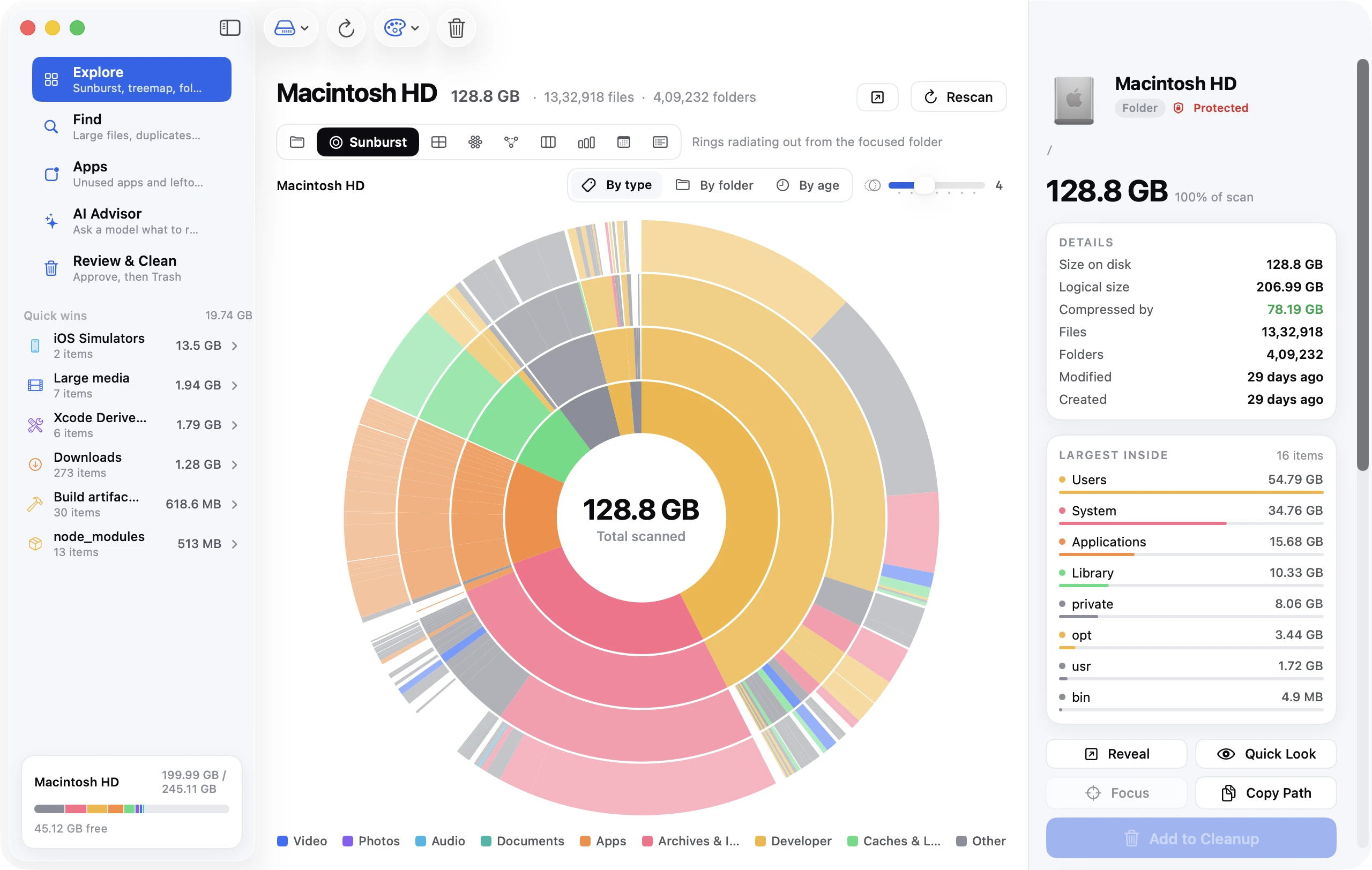
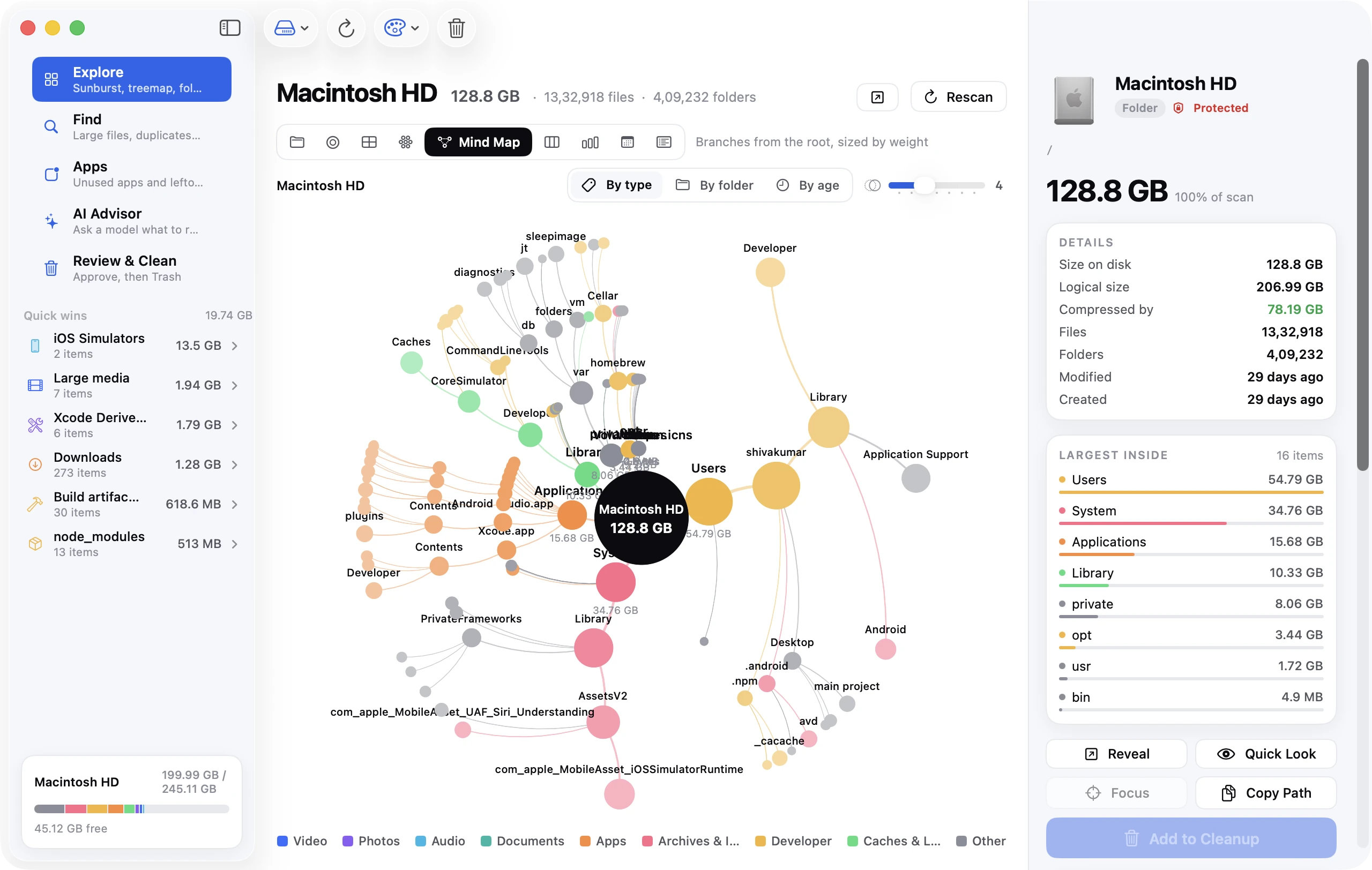
Disk Clean AI can't remove Apple Intelligence, and won't try. Its safety policy marks everything under /System as Protected, including AssetsV2, so those folders can never be selected for cleaning. A scan still shows AssetsV2 under System with its size, so you can see where the space went.
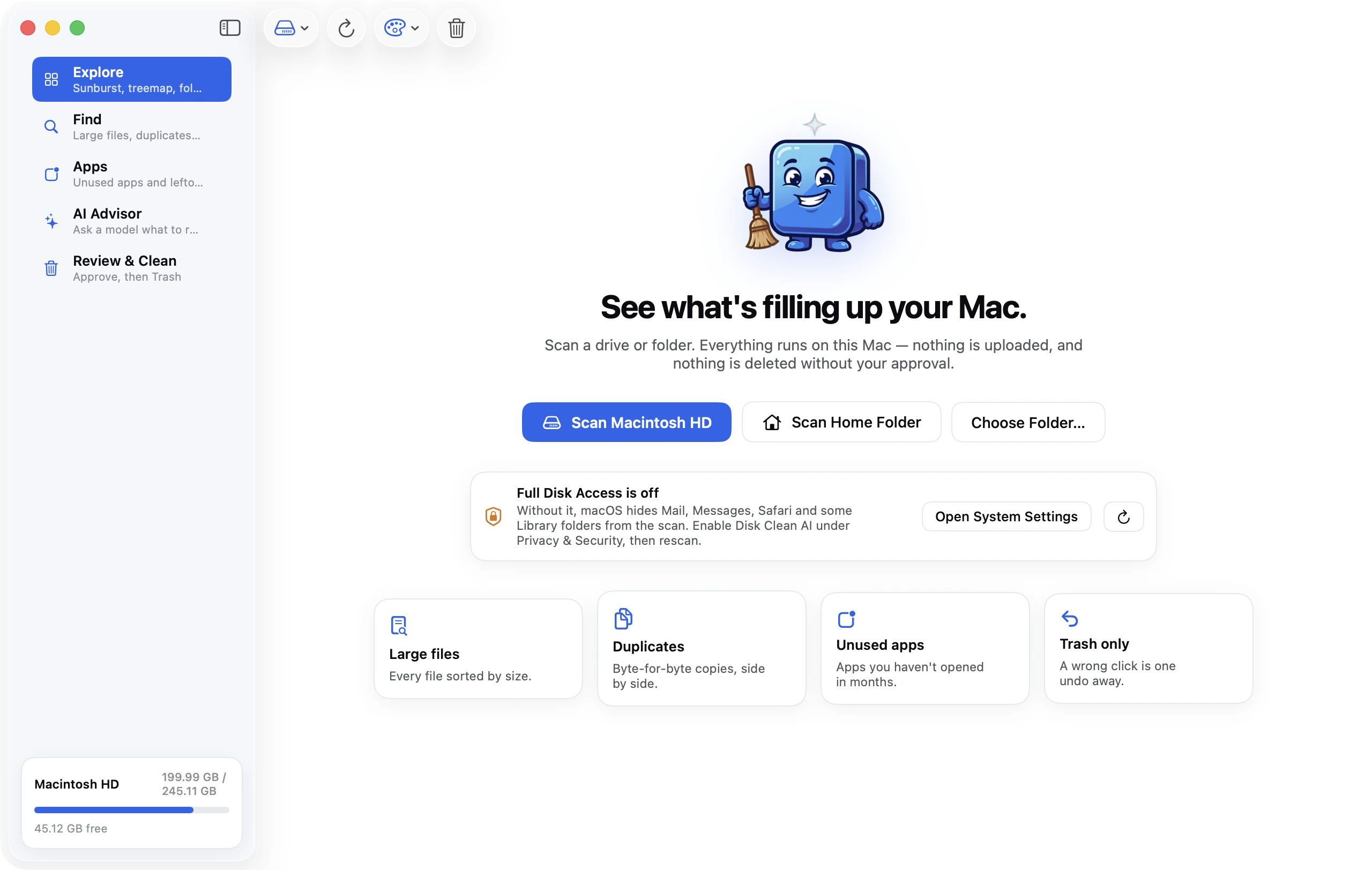
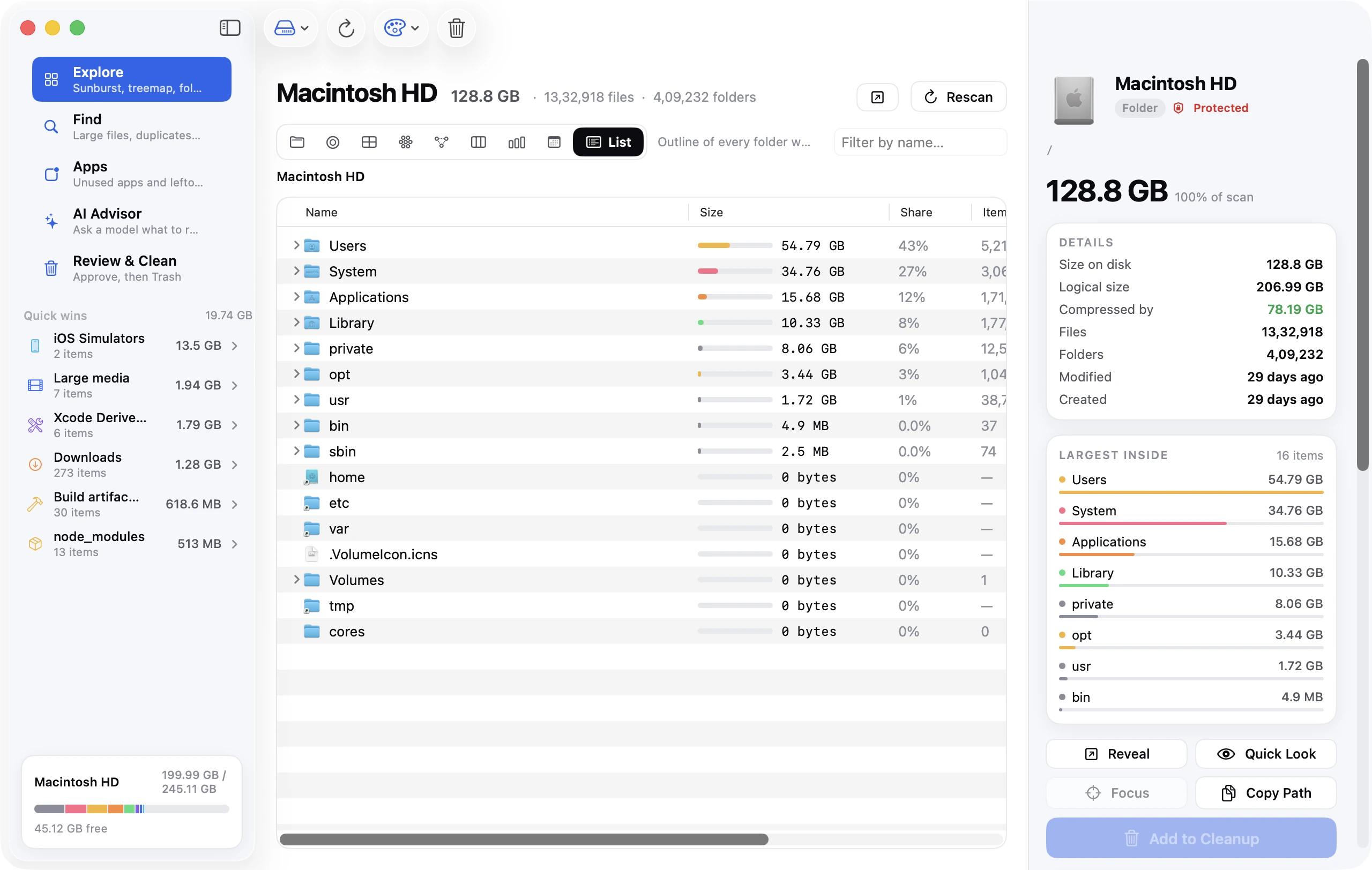
What it does help with is the rest of the disk. It scans your Mac, shows it in the Sunburst, Top Sizes and List views, and lists Quick Wins such as caches and logs, Downloads, the Trash, large media and developer build folders. Everything you approve goes to the Trash with one-click Undo. Its AI Tools screen shows how much space third-party AI apps and models use (Claude Code, Codex, Cursor, Ollama, LM Studio, Hugging Face), which is a separate thing from Apple Intelligence, and clears the items you approve. Every feature is included in the 7-day free trial; after that, a license is a one-time purchase.
FAQ
How much storage does Apple Intelligence use on a Mac?
Apple says up to 14 GB on Macs with M3 or later and at least 12 GB of memory, and up to 8 GB on other supported Macs. In practice, the Storage pane on macOS 27 has shown anywhere from about 14 GB to over 30 GB, and Apple says the figure can run high during and just after updates.
Can I delete Apple Intelligence from my Mac?
Not with any Apple setting in macOS 27. The models are protected by System Integrity Protection. The only routes are unofficial: RemoveMacAI's configuration profile, or deleting the model folder from Recovery as AppleInsider tested. Both cost you the features that depend on those models, and neither is supported by Apple.
How do I turn off Apple Intelligence in macOS 27?
There's no single switch. Turn off Siri in System Settings → Siri, then turn off summaries and Smart Replies in Messages, Mail and Notifications. To lock it down, use System Settings → Screen Time → Content & Privacy Restrictions → Siri and set the capabilities you don't want to Blocked.
Does turning off Siri free up the space?
No. Turning off Siri, switching to Siri Classic or blocking features in Screen Time stops the features from running, but the downloaded models stay on disk and still count in Storage.
Is RemoveMacAI safe to use?
It's open source, keeps System Integrity Protection on, and has a revert command, which puts it ahead of deleting files by hand. But it's unofficial and not notarized, and it caused stalled 27.2 downloads for some users until they removed its profile. Back up first, review every change it proposes, and check its issue tracker after each macOS update.
Why does Storage show more than Apple's 14 GB?
Apple says the figure can temporarily exceed its requirements during and shortly after a software update. The Storage pane's attribution also isn't exact: in AppleInsider's test, the Apple Intelligence figure dropped by 24.5 GB but free space rose by only 14 GB. Restart, wait a day after updating, and check again.