12 min read
How to See Folder Sizes on Mac (Finder, Terminal, and Why the Numbers Differ)
Finder hides folder sizes by default. How to show them with Calculate all sizes, Get Info and du, and why Finder, Terminal and disk tools disagree on size.
- How-to
- Storage
- Large files
Open a Finder window in list view and the Size column shows "--" for every folder. Finder can work folder sizes out; it just doesn't by default, because adding up thousands of files for every folder you open is slow. This guide shows the five ways to see folder sizes on macOS 27 Golden Gate, from one checkbox in Finder to a one-line Terminal command, and then explains the part other guides skip: why Finder, Terminal and disk tools so often give different numbers for the same folder.
The short version
- In Finder: switch to list view (⌘2), choose View → Show View Options (⌘J), tick Calculate all sizes, then click the Size column header to sort. Use as Defaults applies it to other folders in list view.
- For one folder: select it and press ⌘I (Get Info). Hold Option and open the File menu for Show Inspector, a single window that follows your selection.
- In Terminal:
du -sh ~/Downloadsgives one folder's total.du -h -d 1 ~ | sort -rhranks every folder inside your home folder, hidden ones included. - The numbers differ for real reasons: size versus size on disk, compression, APFS clones, hard links, sparse files, iCloud placeholders and 1,000 versus 1,024.
- To compare Terminal with Finder, add
--sitoduso both use decimal units, and compare it with the "on disk" figure in Get Info.
Method 1: Calculate all sizes in list view
- Open the folder and choose View → as List (⌘2).
- Choose View → Show View Options (⌘J).
- Tick Calculate all sizes. If there's no Size column, tick Size under Show Columns.
- Click the Size column header to sort largest first. Click again to reverse.
- To use the same settings in other folders, click Use as Defaults at the bottom of the panel.
Apple's guide to changing how folders are displayed explains the scope of that last button: it sets the default for folders shown in the same view that don't have their own custom settings. A folder you've customised before keeps its own settings, so if one still shows "--", open it and tick the box there too.
Expect it to be slow on big folders. Finder has to visit every file in every subfolder, so on a home folder with hundreds of thousands of files the sizes can take minutes to fill in.
Method 2: Get Info, Inspector and Summary Info
Get Info (⌘I) opens a window for the selected folder. Next to Size you'll see something like "1,234,567,890 bytes (1.24 GB on disk) for 4,321 items" once the calculation finishes. The first number is the total size of the files; the second is the space they occupy on the disk. They're often different, and the second half of this guide explains why.
Show Inspector works the same way but uses one floating window that updates as you click different items. Hold Option and open the File menu: Get Info turns into Show Inspector (⌥⌘I).
Get Summary Info (⌃⌘I) gives one combined total for several selected folders, which plain Get Info can't do.
Method 3: The preview pane
Choose View → Show Preview (⇧⌘P). Select a folder and its size appears in the preview pane under its name. This works in every view, including column view, where the Size column doesn't exist. To trim what the pane shows, choose View → Show Preview Options.
Method 4: The File Browser in Storage settings
Go to System Settings → General → Storage, click the ⓘ next to Documents, and choose File Browser. It's a column browser with a size for every folder, and you can sort by size. Apple's Storage guide notes that folders already counted in other categories, such as Mail or Photos, are dimmed. It's handy for a quick look around your home folder, but slow to drill into. The guide to checking storage explains what the other categories mean.
Method 5: Terminal and du
du ("disk usage") is built into macOS, sees hidden folders that Finder doesn't show, and doesn't depend on anything Finder has cached. To avoid typing paths, type du -sh and drag the folder into the Terminal window.
One folder's total
du -sh ~/Downloads
-s prints a single total and -h uses readable units. If a path contains spaces, put it in quotes: du -sh "$HOME/Library/Application Support".
Rank the folders inside a folder
du -h -d 1 ~ 2>/dev/null | sort -rh | head -20
-d 1 stops one level down, sort -rh puts the largest first, and 2>/dev/null hides permission errors. On a developer's Mac this is where hidden folders such as ~/.npm, ~/.cache or ~/.gradle show up with several gigabytes each. Finder doesn't list them, so their space is easy to miss.
Only folders over a threshold
du -h -d 1 -t 1G ~/Library 2>/dev/null | sort -rh
-t 1G prints only entries larger than 1 GB, which keeps the output readable when you go deeper.
Match Finder's units, or measure logical size
du -sh --si ~/Downloads
du -shA --si ~/Downloads
--si switches to powers of 1,000, like Finder. -A reports the apparent (logical) size instead of the space on disk, which is the number to compare with the first figure in Get Info.
The whole disk
sudo du -xh -d 1 /System/Volumes/Data 2>/dev/null | sort -rh | head -15
/System/Volumes/Data holds everything that isn't macOS itself. -x stops du crossing into other mounted volumes, so external drives under /Volumes aren't counted. sudo lets it read other users' and system-owned folders. On a 280 GB volume it took us under a minute.
"Operation not permitted"
macOS privacy protection blocks Terminal from folders like ~/Library/Mail, ~/Library/Messages and ~/Library/Safari, and du prints "Operation not permitted" for each one. sudo doesn't get around this. Give Terminal access in System Settings → Privacy & Security → Full Disk Access, then quit and reopen Terminal. Without it, every total that includes those folders comes up short.
Why Finder, Terminal and disk tools give different numbers
Every file has two sizes: its logical size (how many bytes of data it holds) and its allocated size (how many blocks it occupies on the disk). Get Info shows both. du reports allocated size unless you add -A. Most disagreements come from the gap between the two, or from how a tool counts files that share storage.
To see it in action, we made a test folder on a Mac running 27.2 with a 50 MB file, an APFS clone of it (made with cp -c), a hard link to it, and an empty 1 GB sparse file:
| Command | Result | What it counted |
|---|---|---|
ls -lh | 50M, 50M, 50M, 1.0G | Logical size of each name |
du -sh | 100M | Allocated, hard link once, clone in full |
du -shl | 150M | Allocated, hard link counted again |
du -shA | 1.1G | Logical size, sparse file at full size |
du -sh --si | 105M | Same as du -sh, in decimal units |
Free space (df) | Down 4 KB after cloning | What the disk actually lost |
The real cost of the clone was 4 KB, yet every per-file count said 50 MB. Here's what each cause does.
Size versus size on disk
APFS stores data in 4 KB blocks, so a 100-byte file still occupies 4 KB. A folder of thousands of tiny files, such as a source code tree or a node_modules folder, takes noticeably more space on disk than its logical size. The reverse happens with compression and sparse files, below.
Transparent compression
macOS stores many of its own files compressed. ls -lO marks them compressed. Those files are much smaller on disk than their logical size: on our test Mac, du -sh /Applications/Xcode.app reported 4.0G and du -shA 9.6G. Get Info shows the logical size first and the compressed on-disk size in brackets.
APFS clones
When you duplicate a file in Finder (⌘D) or copy it within the same APFS volume, macOS can create a clone. The clone shares the original's blocks until one of them changes, so it costs almost nothing. But Finder and du count every clone at full size. The Eclectic Light Company found that Get Info's "on disk" figure "takes no account" of space saved by clones, while Disk Utility's free space usually does. Two consequences:
- A folder full of clones looks far bigger than the space it uses.
- Deleting a clone frees almost nothing, because the original still uses those blocks.
Developers see this a lot: pnpm's default import method on macOS clones packages from its shared store, so adding up node_modules across projects overstates the real cost.
Hard links
A hard link is a second name for the same file. du counts it once per run, as man du documents, and -l makes it count every link. Finder counts each link as a separate file. In one Eclectic Light test, Get Info reported 70 GB for files holding 10 GB of data. Hard links are rare in a normal home folder; they're common in old Time Machine backups on Mac OS Extended drives.
Sparse files
Virtual machine disks, Docker's Docker.raw, and some disk images are sparse: they have a large nominal size but only use blocks for data actually written. ls -l shows the nominal size, while du and Get Info's "on disk" figure show the real use. Docker's own Mac FAQ warns that other tools may show the file's maximum size rather than its actual size.
iCloud placeholders
When iCloud Drive removes a downloaded copy, the file stays in Finder with its full size, but its data is gone from the disk. The Eclectic Light Company measured a folder of evicted files at under 100 KB on disk. Totals of iCloud Drive folders can therefore show tens of gigabytes that aren't on your Mac, while du counts almost nothing for them. The iCloud Drive guide shows how to tell which files are local.
1,000 versus 1,024
Apple counts in decimal units: 1 GB is 1,000,000,000 bytes (Apple's explanation). du -h uses powers of 1,024 and labels them G, so its numbers come out about 7 percent smaller at the gigabyte scale. Add --si and the two agree.
Stale or partial totals
Finder calculates folder sizes in the background and shows "Calculating…" until it finishes, so a size can lag behind a big change. Get Info also leaves out some extended attributes, which the Eclectic Light Company found can make individual file sizes too low. And any tool without Full Disk Access silently skips protected folders.
See every folder at once
When you don't know where to look, a disk map is faster than checking folders one by one: it draws every folder as a ring or rectangle sized by its contents, so the heavy branches stand out. The disk space analyzer comparison covers the free and paid options. For individual files rather than folders, see the large files guide.
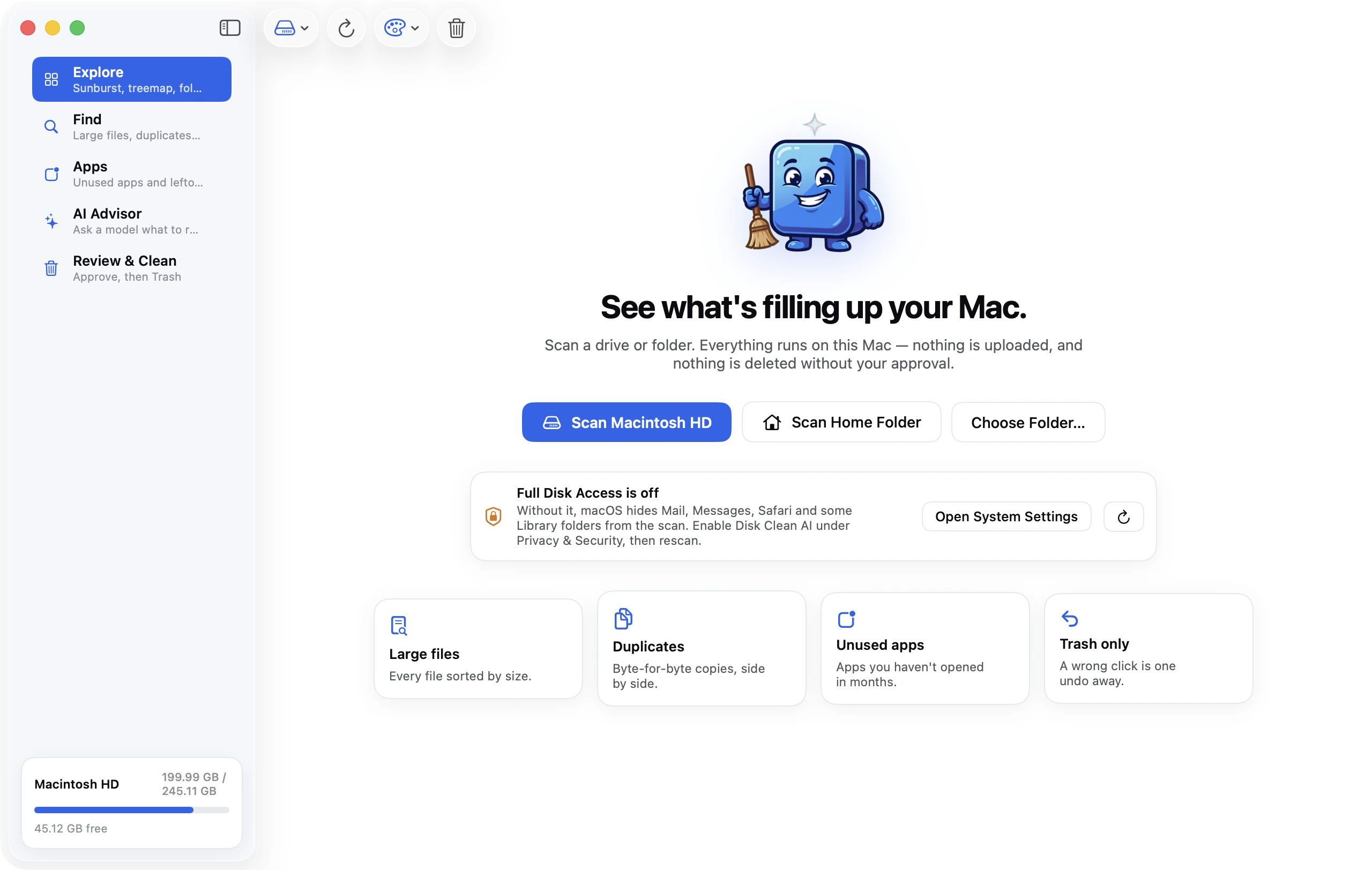
Folder sizes in Disk Clean AI
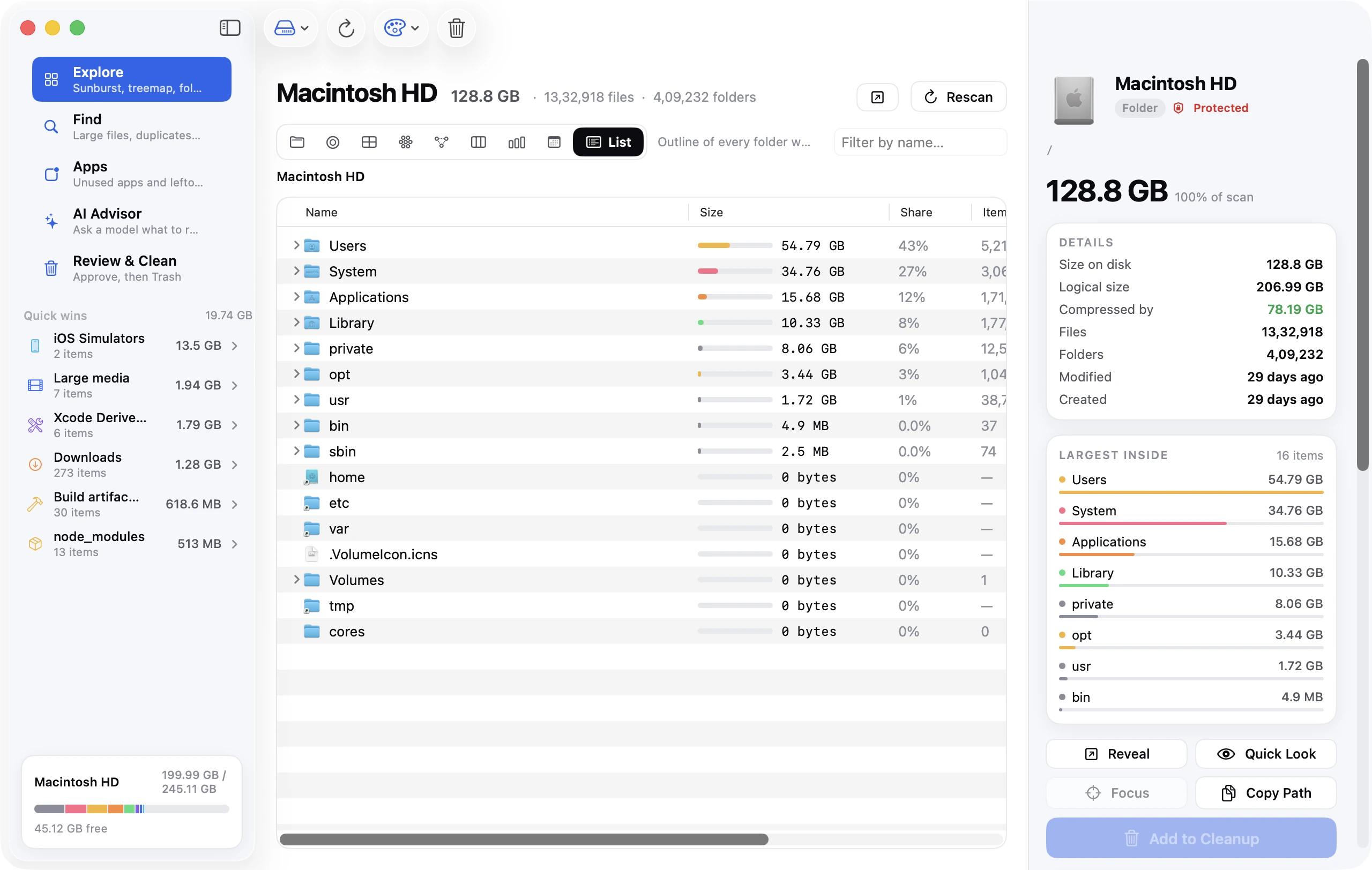
Disk Clean AI's scan measures a folder, your home folder or the whole startup disk once, then lets you browse the result without waiting for Finder. The List view is an outline of every folder sorted by size, with each one's share of the folder you're viewing. Select any item and the details panel shows Size on disk and Logical size side by side, plus the difference when they diverge. The Top Sizes and Sunburst views show the same scan as a ranking and as rings.
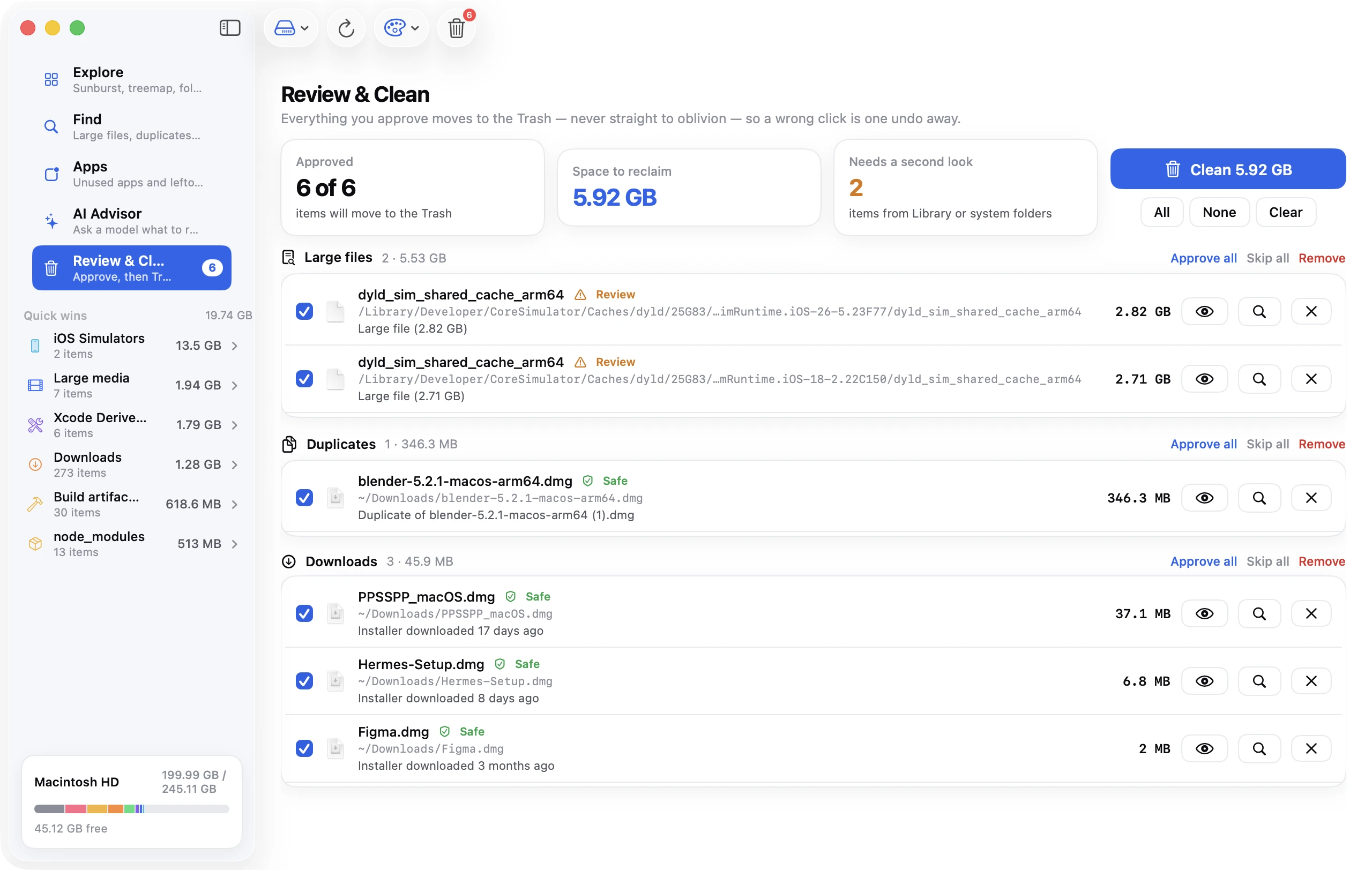
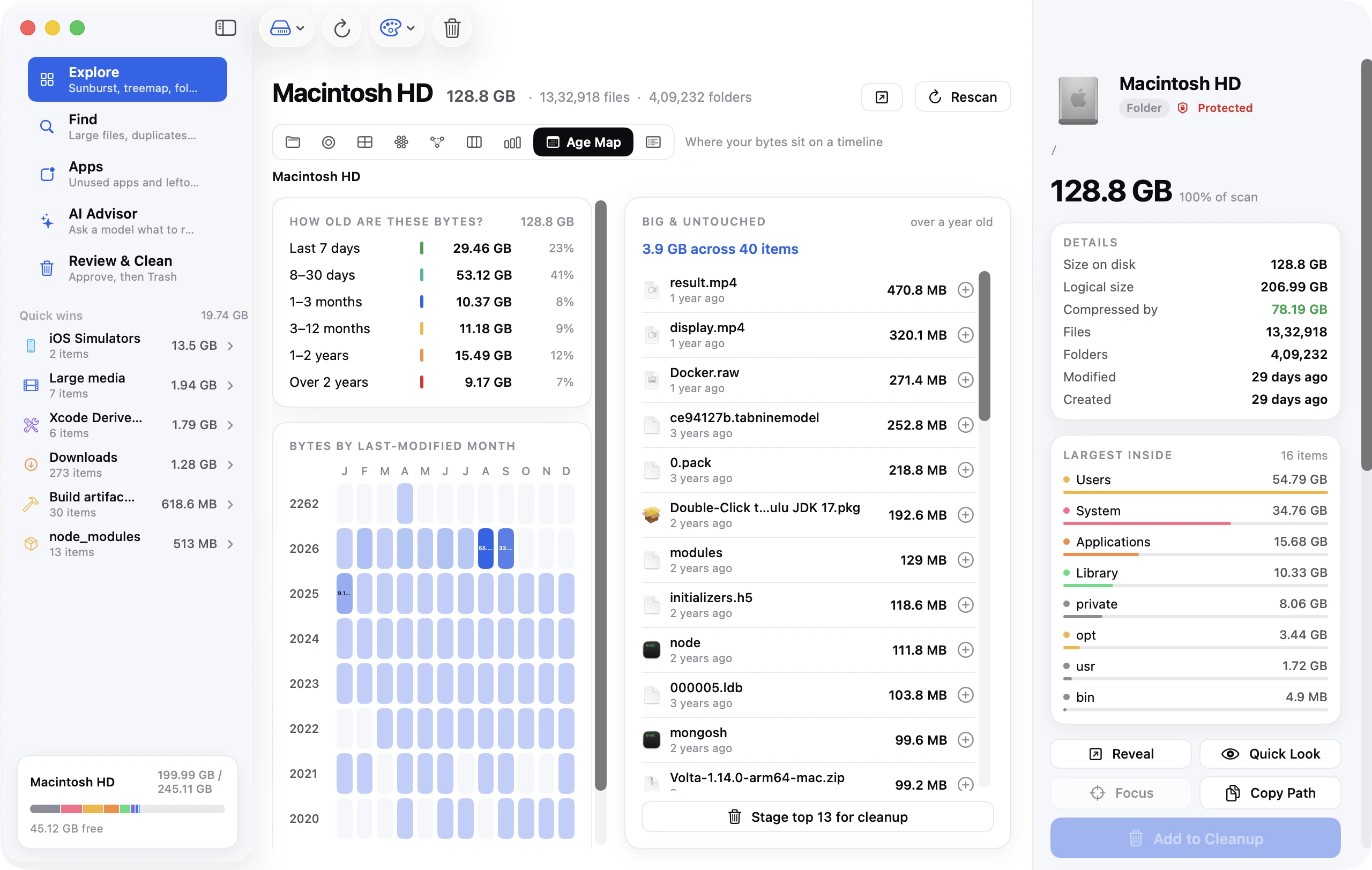
The scan counts each hard-linked file once and reports sizes in decimal units, like Finder. Like most file-by-file scanners, it can't see that two clones share blocks. Anything you choose to clean goes to the Trash, with one-click Undo. There are six more views too, including Treemap and Age Map, plus colour and depth controls. Every feature is included in the 7-day free trial; after that, a license is a one-time purchase.
FAQ
How do I show folder sizes in Finder?
Switch to list view (⌘2), press ⌘J, and tick Calculate all sizes. Click Use as Defaults to apply it to other folders in list view. For a single folder, select it and press ⌘I.
How do I sort folders by size on a Mac?
Turn on Calculate all sizes in list view, then click the Size column header. In Terminal, du -h -d 1 . | sort -rh lists the folders inside the current folder from largest to smallest.
Why is "Calculate all sizes" slow or not working?
Finder has to read every file in every subfolder, which can take minutes on large folders. If a folder still shows "--", it's either still calculating or has its own view settings: open it, press ⌘J and tick the box there.
How do I check a folder's size in Terminal?
Run du -sh followed by the folder's path, for example du -sh ~/Movies. Add --si to get decimal units that match Finder. If you see "Operation not permitted", give Terminal Full Disk Access in Privacy & Security.
Why does Get Info show a different size from du?
Get Info's first figure is the logical size, while du reports space on disk in 1,024-based units. Compare du -sh --si with the "on disk" figure instead. Any remaining gap usually comes from hard links (Finder counts each one) or protected folders du couldn't read.
Why does Finder show "--" for folders?
"--" means Finder hasn't calculated the folder's size, because Calculate all sizes is off for that window. Turn it on in View Options (⌘J), or use Get Info for one folder at a time.