12 min read
How to Check Storage on Mac (and What Each Category Really Means)
Four ways to check storage on a Mac running macOS 27, what each Storage category really contains, and why Finder, Disk Utility and System Settings disagree.
- Storage
- How-to
- macOS
A "Your disk is almost full" warning sends most people to the same place: a coloured bar in System Settings that tells you how much is used but not much about why. macOS gives you four ways to check storage, and each answers a slightly different question. This guide covers all four on macOS 27 Golden Gate, explains what every Storage category actually contains, and why the tools so rarely agree with each other.
The short version
- Quickest view: Apple menu → System Settings → General → Storage. The bar shows used and free space, and the list below splits it into categories, each with an ⓘ button for details.
- Free space at a glance: in Finder, choose View → Show Status Bar (⌘/). Every Finder window then shows how much space is available on that disk.
- Most precise: Disk Utility, or
df -h /System/Volumes/Datain Terminal. Both keep true free space separate from Finder's purgeable estimate. - Categories aren't folders. "Documents" means every file in your home folder that doesn't fit another category, and "System Data" is whatever is left once everything else has been counted.
- The tools disagree for known reasons: purgeable space, Time Machine snapshots, decimal versus binary gigabytes, and figures that take time to recalculate.
- Keep at least 10 to 15 percent of the disk free, and never less than about 20 GB, so swap, updates and snapshots have room.
Method 1: Storage settings
Choose Apple menu → System Settings, click General in the sidebar, then Storage. Apple's own walkthrough is Change Storage settings on Mac.
The pane has three parts:
- The bar at the top shows used space as coloured segments, one per category, and the free space that's left. All Volumes shows a separate bar for each volume.
- Recommendations: Store in iCloud (Desktop and Documents, Photos and Messages), Optimize Storage (removes Apple TV movies and shows you've watched and keeps only recent Mail attachments when space is needed), and Empty Trash Automatically (erases items that have been in the Trash for more than 30 days).
- The category list, each with a size and an ⓘ button. While macOS works out the sizes you'll see "Calculating…", so give it a minute before you trust the totals.
There's a shortcut to the same numbers: Apple menu → About This Mac → More Info opens System Settings → General → About, whose Storage line reads "X available of Y" and has a Storage Settings button.
Method 2: Finder
The status bar
Choose View → Show Status Bar (⌘/). The bottom of each window now shows the number of items and the space available on the disk that window is on. It's the fastest way to watch free space change while you clean up.
Get Info on the disk
Choose Go → Computer (⇧⌘C), select Macintosh HD, then File → Get Info (⌘I). The General section lists Capacity, Available and Used. Available often carries a note such as "210.4 GB (63.2 GB purgeable)".
That purgeable part is space macOS says it could free by removing local copies of iCloud files and similar data it can download or rebuild. Finder counts it as available; df in Terminal doesn't, installers are more cautious, and the estimate is often too high until you restart. The purgeable space guide explains how to turn it into real free space.
Method 3: Disk Utility
Open Disk Utility from Applications → Utilities and select Macintosh HD in the sidebar. You get a usage bar that separates used space, space taken by other volumes in the same container, and free space, with any purgeable amount noted.
Two View-menu options make it more useful:
- View → Show All Devices shows the physical disk, the APFS container on it, and every volume inside.
- View → Show APFS Snapshots lists the snapshots on the selected volume with their sizes, including Time Machine's local snapshots (see Apple's guide to viewing APFS snapshots).
The Eclectic Light Company's explainer on Storage settings calls Disk Utility the benchmark for accuracy, because it shows snapshots and purgeable space, and Storage settings shows neither.
Method 4: Terminal
Three commands give you numbers that don't depend on any app's cached estimate.
df -h /System/Volumes/Data
/System/Volumes/Data is the volume that holds your files, apps and settings. Avail is real free space, not counting anything purgeable. -h reports binary units (Gi); use df -H for the decimal gigabytes Finder shows. If you run df -h / instead, Used looks tiny (about 13 Gi on our 27.2 test Mac) because / is only the sealed, read-only system snapshot. Every volume shows the same Size and Avail because they all share one pool of space.
diskutil info / | grep -E "Container (Total|Free) Space"
This prints the container's total and free space in decimal GB, so it lines up with Finder and Disk Utility.
diskutil apfs list
This shows the container and every volume in it, each with a role:
- System: macOS itself, sealed and read-only.
- Preboot and Recovery: files needed to start up and to run Recovery.
- Data: everything that's yours, plus app data and caches.
- VM: swap files, 1 GB each, in
/System/Volumes/VM.
The "Capacity Consumed" figures add up, roughly, to the container's "Capacity In Use By Volumes".
What each Storage category means
Apple describes the categories in Find and delete files on your Mac. Here's what each one holds on Golden Gate, and where to go next.
| Category | What's in it | What to do |
|---|---|---|
| Applications | Apps you installed. Apps that come with macOS are excluded. The ⓘ list shows size and last-accessed date. | Remove apps you don't use; leftover support files stay behind. See uninstalling apps completely. |
| Documents | Files in your home folder that aren't in another category. | Use the ⓘ tabs (below), or check folder sizes and find large files. |
| iCloud Drive | iCloud Drive files currently downloaded to this Mac. | Right-click → Remove Download. See iCloud Drive taking up space. |
| iOS Files | iPhone and iPad backups and firmware files. | Delete backups for devices you no longer have. See deleting iPhone backups. |
| Music, TV, Books, Podcasts | Downloaded purchases and episodes. | Remove downloads; purchases can be downloaded again. |
| Music Creation | GarageBand, Logic and MainStage content. | The ⓘ offers Remove GarageBand Sound Library; it can be reinstalled later. |
| Messages and downloaded attachments. | See Mail taking up space. | |
| Messages | Conversations and attachments. | See Messages taking up space. |
| Photos | Your System Photo Library only. Other libraries count elsewhere. | See Photos library too big. |
| Developer | Appears on Macs with Xcode: build data, device support files, archives. | See the developer Mac guide. |
| Trash | Items you've moved to the Trash. | Empty it; if that fails, see Trash won't empty. |
| Other Users & Shared | Other accounts' files and shared files. | Sign in as that user, or remove accounts you no longer need. |
| macOS | The operating system and its own apps, plus Apple Intelligence models. | Nothing to delete here. See Apple Intelligence taking up space. |
| System Data | Everything not counted above: caches, logs, local snapshots, app support files and anything else macOS can't attribute. | See what System Data is. |
Two notes on the table. Apple's Apple Intelligence page puts the models at up to 14 GB on Macs with M3 or later and at least 12 GB of memory, and up to 8 GB on other supported Macs, and says the figure can run higher during and shortly after an update. And "Other" storage no longer exists: since macOS Monterey it has been called System Data.
Why "Documents" is bigger than your Documents folder
Documents is a category, not the ~/Documents folder. Apple defines it as files in your home folder that aren't included in other categories, so it picks up:
- Downloads, and anything on your Desktop.
- Videos in
~/Moviesand screen recordings. - Images in
~/Picturesthat aren't in your System Photo Library, including old or second Photos libraries. - Disk images, installers and archives you've saved in your home folder.
That's why Apple Community threads keep finding the same mismatch: one reports about 22 GB of Documents while the ⓘ lists added up to under 200 MB.
The Documents ⓘ has tabs for Large Files, Downloads, Unsupported Apps and File Browser. The first three show only part of the category. File Browser is the useful one: it shows folders sized by contents, and Apple's guide notes that folders already counted in other categories are dimmed. If it's still unclear, measure your home folder directly:
du -h -d 1 ~ 2>/dev/null | sort -rh | head -15
The folder sizes guide explains that command and the Finder equivalents.
Why the numbers don't match
Check the same disk in four places and you'll often get four answers. The usual reasons:
- Purgeable space. Finder's Available includes it, while
dfdoesn't. Covered in the purgeable space guide. - Time Machine local snapshots. A snapshot taken before you delete a file still holds that file's blocks, so the space doesn't come back until the snapshot goes. Run
tmutil listlocalsnapshots /to check; the snapshot guide covers removal. - One container, several volumes. System, Data, Preboot, Recovery and VM all draw on the same free space. Tools that report one volume's used space look wrong next to tools that report the container.
- Decimal versus binary. Apple measures storage in decimal units, where 1 GB is a billion bytes (Apple's explanation). Terminal's
-huses 1,024-based units. A disk Finder calls 494.3 GB is 460 GiB todf -h, and nothing is missing. - Allocated versus nominal size. Storage settings counts the space files actually occupy. A sparse virtual machine disk that Finder describes as 100 GB may use far less, and is counted that way.
- Stale figures. Storage settings recalculates in the background, and Finder's purgeable estimate can be badly off. The Eclectic Light Company once caught Finder reporting 83.71 GB purgeable that disappeared after a restart.
When the numbers matter, for an update or a big copy, trust df or Disk Utility.
How much free space to keep
Aim for 10 to 15 percent of the disk, and at least 20 GB on small drives. That headroom isn't arbitrary:
- Swap: when memory runs short, macOS writes 1 GB swap files to the VM volume. On a busy 8 or 16 GB Mac that can reach 10 GB or more (
ls -lh /System/Volumes/VMshows them). - Updates: a major macOS upgrade needs tens of gigabytes of working space. The update space guide suggests 50 GB free before you start.
- Snapshots and caches grow quietly between cleanups.
If you're already short, the complete guide to freeing up space goes in order of what usually returns the most.
Seeing folders instead of categories
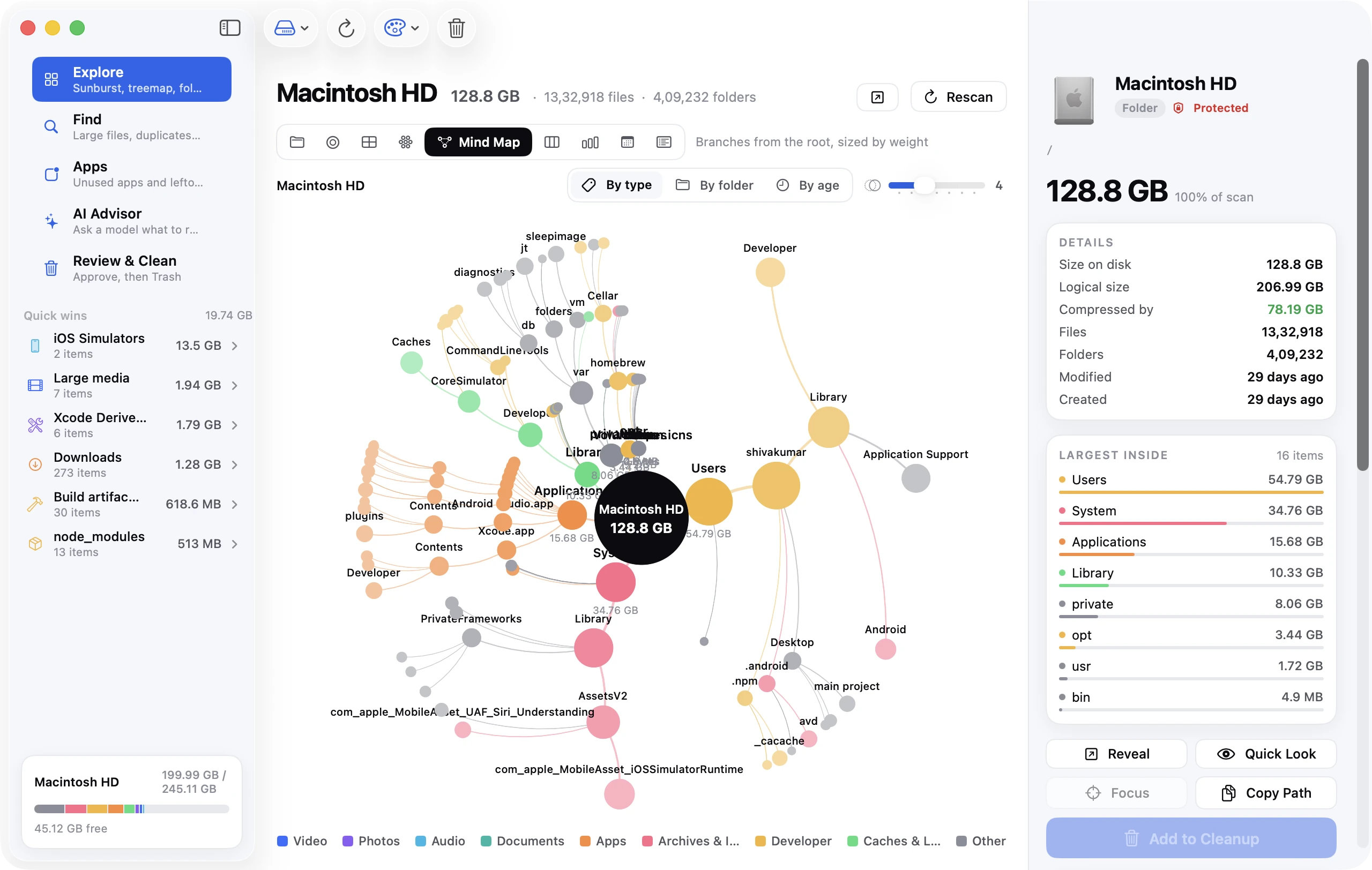
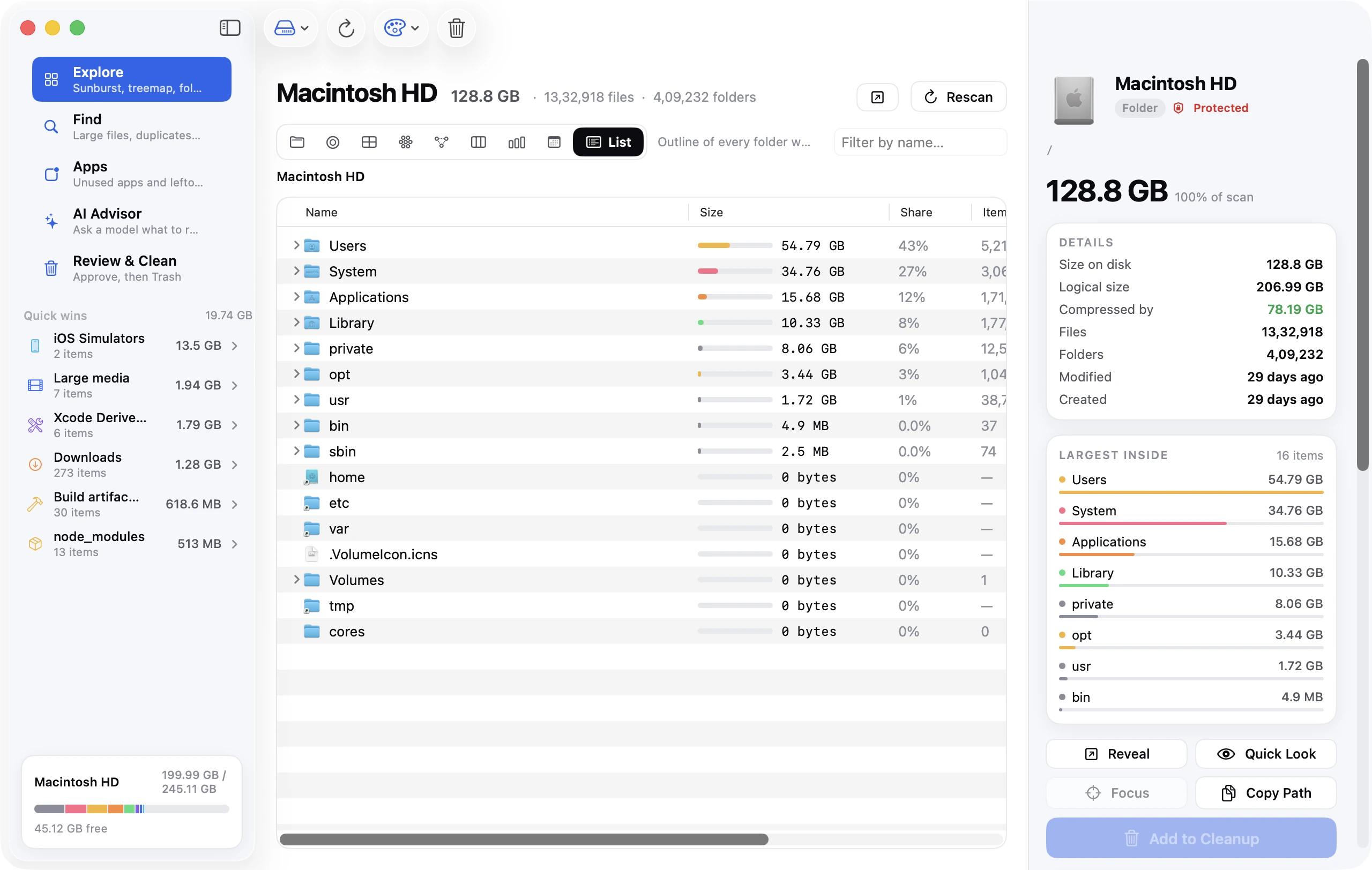
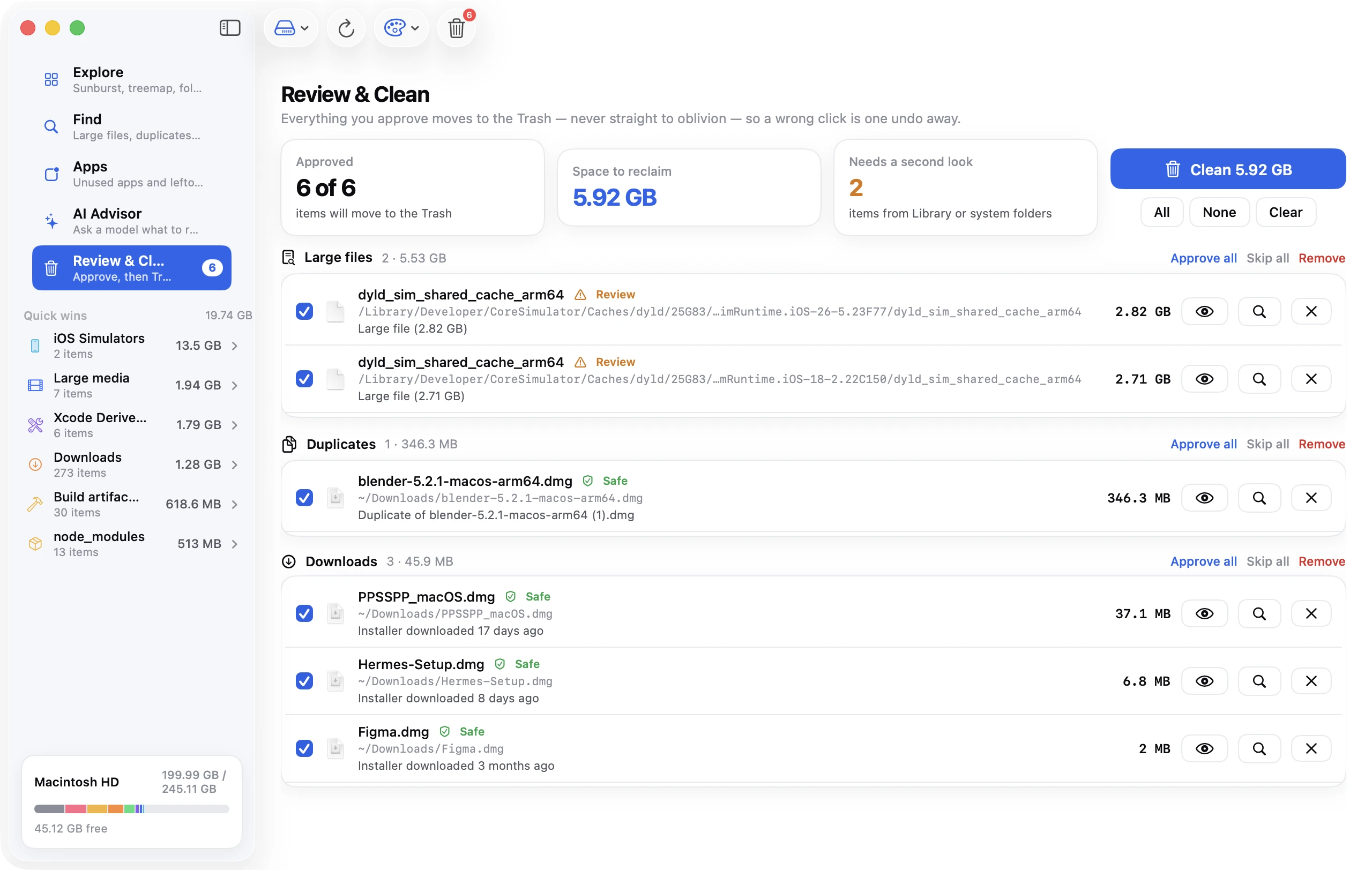
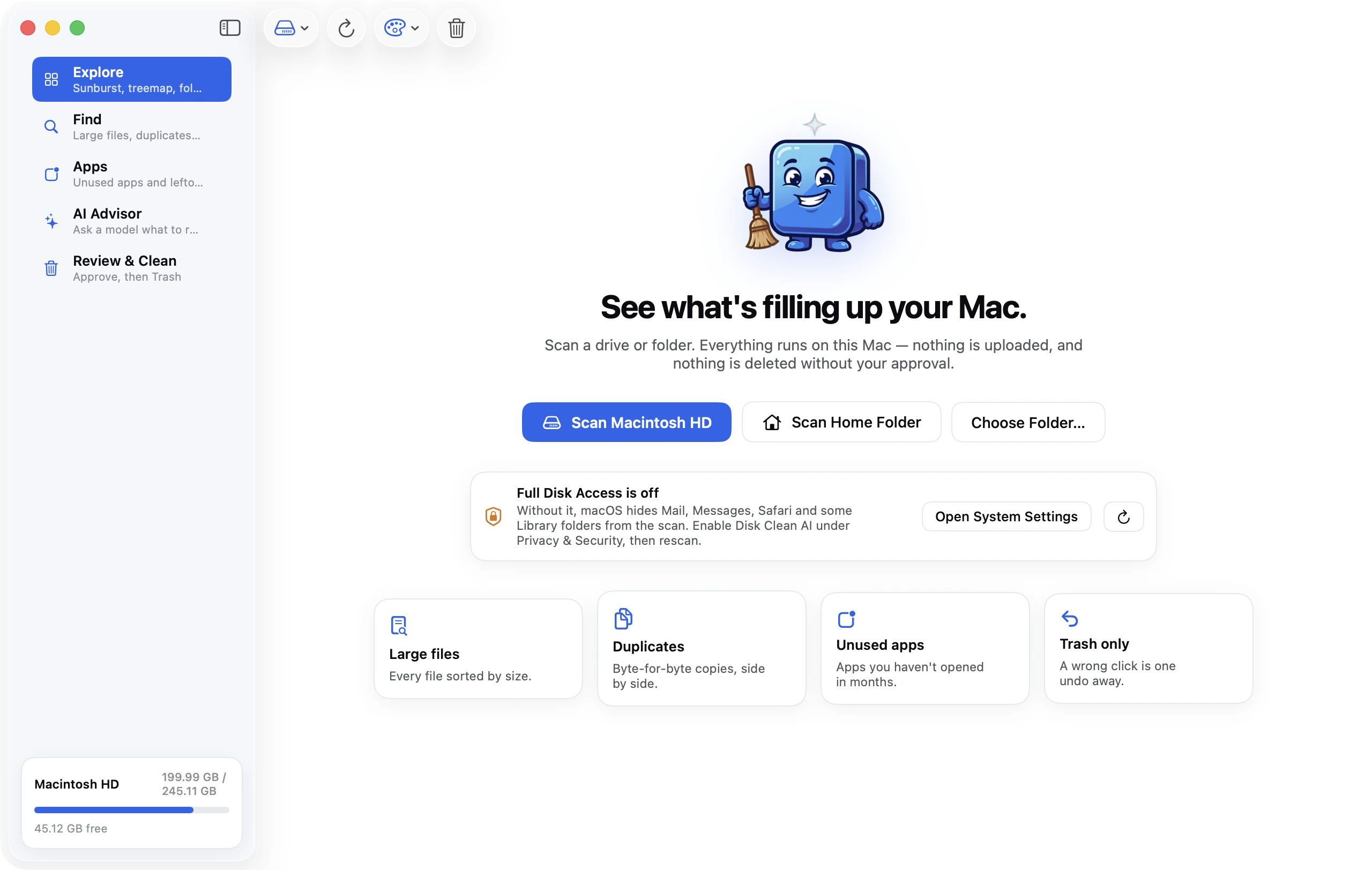
Storage settings tells you which category is big, not which folder. Disk Clean AI's scan works the other way round: scan the startup disk, your home folder or any folder, and the Sunburst, Top Sizes and List views show where the space actually is, folder by folder. The start screen also tells you if Full Disk Access is off. Without it, macOS hides Mail, Messages, Safari and some Library folders from any scanning app, so the totals come up short. The Quick Wins list picks out caches and logs, Downloads, the Trash and developer build folders. Anything you approve goes to the Trash, with one-click Undo. It also has six more Explore views, a duplicate finder and an app uninstaller. Every feature is included in the 7-day free trial; after that, a license is a one-time purchase.
FAQ
How do I see what is taking up storage on my Mac?
Open System Settings → General → Storage for the category view, then click the ⓘ next to the largest category. To see actual folders, use the Documents ⓘ → File Browser, run du -h -d 1 ~ | sort -rh in Terminal, or use a disk map app.
Why does my Mac say Documents is so big?
Because Documents counts every file in your home folder that doesn't fit another category, including Downloads, Desktop, videos, disk images and Photos libraries other than your main one. Use the File Browser tab in the Documents ⓘ to find which folders hold it.
What are iOS Files on Mac, and can I delete them?
They're iPhone and iPad backups made through Finder, plus firmware files downloaded for updates or restores. Delete backups for devices you no longer own, or for devices that now back up to iCloud. Firmware is downloaded again when needed. The backups guide shows the safe way.
What happened to "Other" storage on Mac?
It was renamed System Data in macOS Monterey and still exists under that name. It's the remainder after every named category is counted: caches, logs, local snapshots, app support files and similar data.
Why does Finder show different free space than Storage settings?
Finder's Available figure includes purgeable space, which macOS only frees when it has to, and that estimate is often stale until you restart. For the strict figure, use Disk Utility or df -h /System/Volumes/Data.
How much free space should a Mac have?
At least 10 to 15 percent of the disk, and no less than about 20 GB. Below that, swap, updates and snapshots compete for the last few gigabytes, and you'll start seeing "disk almost full" warnings and failed installs.