9 min read
How to Completely Uninstall Apps on Mac (and Remove Leftover Files)
Dragging an app to the Trash leaves caches, support files and launch agents behind. Here's where macOS keeps them, how to remove them safely, and how to spot apps you haven't opened in months.
- How-to
- Apps
On a Mac, uninstalling an app is supposed to be as simple as dragging it to the Trash. That does remove the app — the .app bundle in /Applications — but it leaves behind everything the app wrote to your Library folder while you used it: settings, caches, databases, saved windows, login items, sometimes the app's entire document store. For a chat app that's a few hundred megabytes of message history; for Adobe or a game launcher it can be tens of gigabytes.
This guide shows where those leftovers live, how to remove them safely, and how to find the apps you should probably be uninstalling in the first place.
What "uninstall" actually leaves behind
macOS apps store their data in a handful of standard locations under ~/Library (your user Library, hidden by default) and occasionally /Library (the system-wide one). Every one of these can hold files for an app you removed years ago:
| Folder | What's in it | Safe to delete after uninstall? |
|---|---|---|
~/Library/Application Support/<App> | Databases, plug-ins, downloaded content, licences | Yes — but this is where the app's data lives, so export anything you want first |
~/Library/Caches/<bundle id> | Cached downloads and thumbnails | Yes |
~/Library/Containers/<bundle id> | Everything for sandboxed (App Store) apps, including their documents | Yes, after checking Data/Documents inside it |
~/Library/Group Containers/<team id>.<group> | Data shared between an app and its extensions | Yes |
~/Library/Preferences/<bundle id>.plist | Settings | Yes |
~/Library/Saved Application State/<bundle id>.savedState | Window positions for reopening | Yes |
~/Library/Logs/<App> | Log files | Yes |
~/Library/HTTPStorages/<bundle id>, ~/Library/Cookies | Web storage and cookies used by the app | Yes |
~/Library/WebKit/<bundle id> | Embedded browser data | Yes |
~/Library/LaunchAgents/<bundle id>.plist | Background helpers that start at login | Yes — and you want these gone |
~/Library/Application Scripts/<bundle id> | Automation scripts the app was granted | Yes |
/Library/LaunchDaemons, /Library/LaunchAgents, /Library/PrivilegedHelperTools | System-level helpers installed with an admin password | Yes, carefully — needs your password |
/Library/Application Support/<App> | Shared support files for apps installed for all users | Yes |
The bundle identifier is the reverse-DNS name the developer gave the app — com.spotify.client, com.microsoft.VSCode, com.adobe.Photoshop. Most leftovers are named with it or with the app or company name, which is how you find them.
First: which apps should go?
Before uninstalling anything, find the candidates. System Settings → General → Storage → Applications ⓘ lists every app with its size and a Last Accessed column. Sort by that column and you'll usually find:
- Apps you tried once and never opened again.
- Old versions kept alongside a newer one (two Xcodes, two Photoshops).
- Utilities that came with a peripheral you no longer own (printer suites, mouse drivers, webcam software).
- Games.
- Anything labelled Unsupported — 32-bit apps that can't run on modern macOS at all.
The Last Accessed date comes from Spotlight metadata and is occasionally blank for apps launched only by a helper; treat it as a strong hint, not proof.
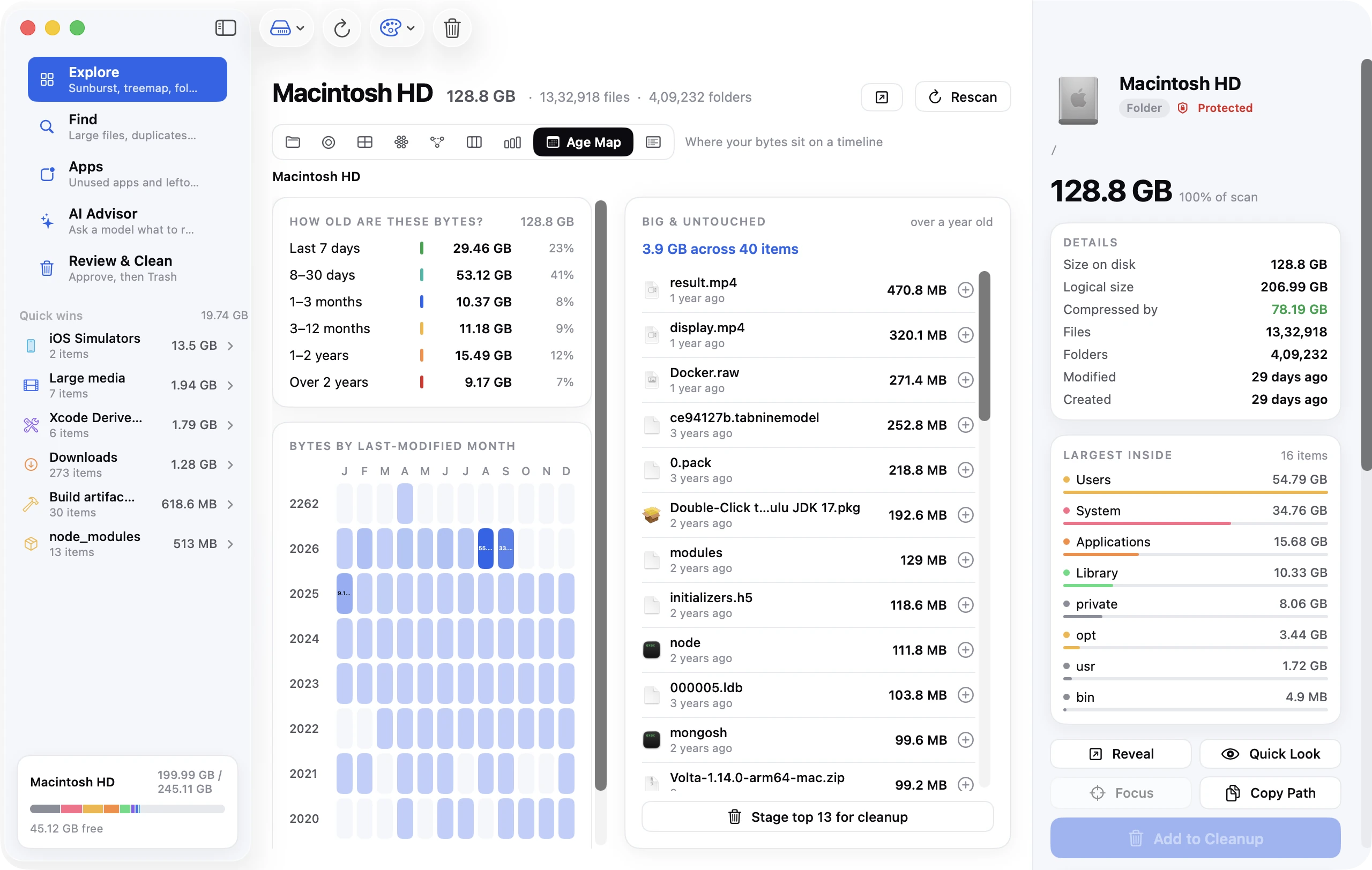
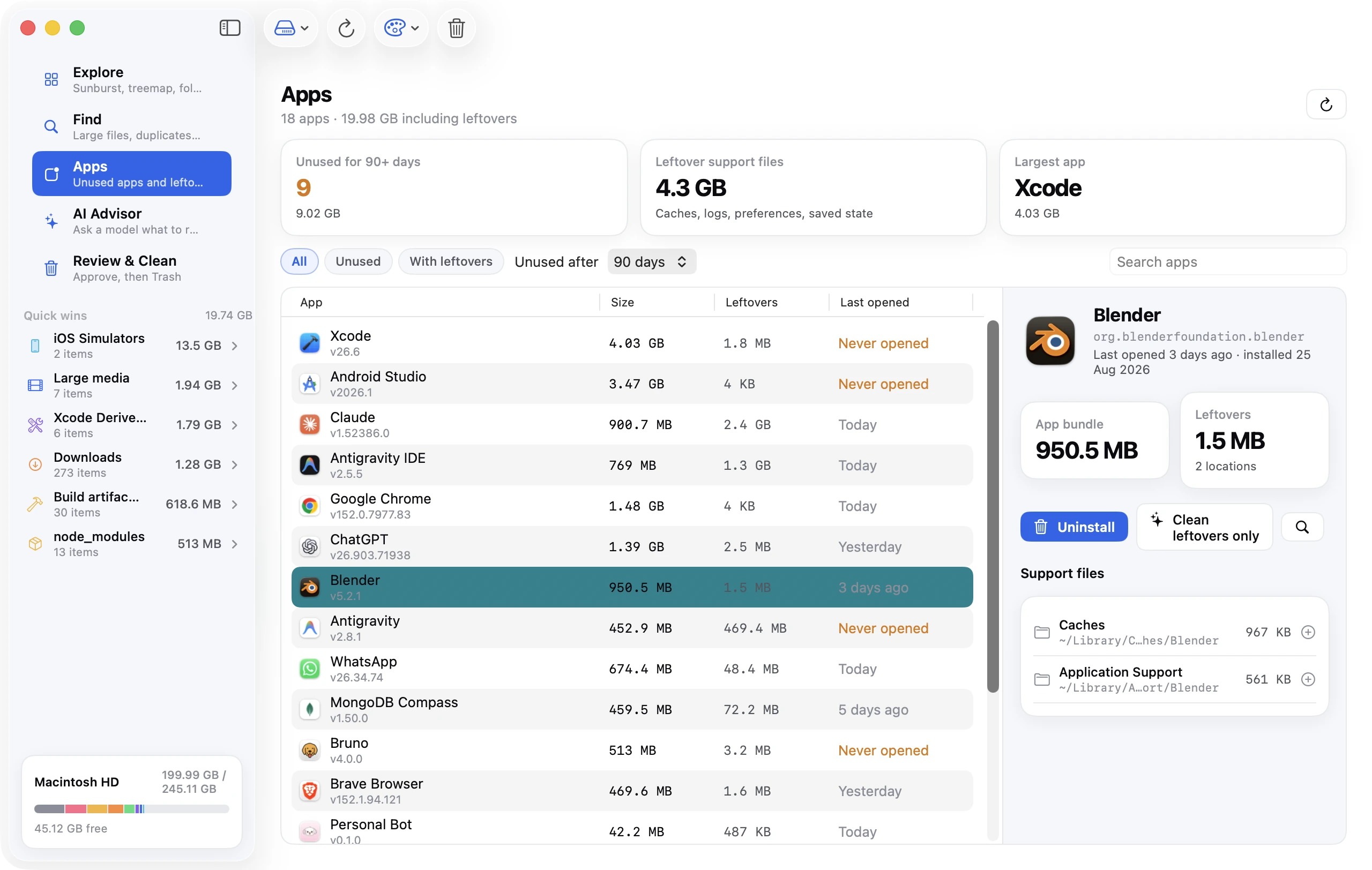
Disk Clean AI's Apps tool shows the same list with one extra column that Storage settings doesn't: the size of the support files each app has accumulated in the Library locations above. An app that's 200 MB on its own and 6 GB in leftovers is a different decision from one that's 200 MB in total.
How to uninstall — four ways
1. Launchpad (App Store apps)
Open Launchpad, click and hold an app until the icons wiggle, and click the ✕ on any app that has one. This works only for apps installed from the Mac App Store, and it removes the app's sandbox container too — which makes it the cleanest method for those apps.
2. The app's own uninstaller
Apps that install system-level components usually ship an uninstaller, and it's the only thing that knows about all of them. Look for:
- An Uninstall item in the app's menu, Help menu or Settings.
- An Uninstaller in the original
.dmgor in/Applications/<App>/(Adobe Creative Cloud, Microsoft's Remove Office tool, Parallels, VMware, antivirus suites, VPN clients, Logitech Options, Wacom drivers all do this). - A
.pkgyou installed originally:pkgutil --pkgsin Terminal lists installed packages andpkgutil --files <package id>lists what one put where.
Use the uninstaller first, then check the Library for anything it missed.
3. Trash and hand-clean the Library
For everything else:
- Quit the app (⌘Q), and check the menu bar for a helper icon — quit that too. An app that's still running can't be fully removed and will recreate files.
- Drag the app from
/Applicationsto the Trash. If macOS says the app is in use, use Activity Monitor to quit its processes. - Open Finder, press ⇧⌘G, type
~/Libraryand press Return. (The user Library is hidden; this is the fastest way in. To keep it visible, in Finder choose View → Show View Options while in your home folder and tick Show Library Folder.) - Search each folder in the table above for the app's name and bundle id, and move matching items to the Trash. Finder's search box with Library selected as the scope and the app's name is a decent shortcut, though Finder search skips some Library folders — check
Application Support,CachesandContainersby eye. - Check
~/Library/LaunchAgentsand, with your password,/Library/LaunchAgents,/Library/LaunchDaemonsand/Library/PrivilegedHelperToolsfor anything with the app's name. These keep running after the app is gone. - Open System Settings → General → Login Items & Extensions and remove the app from Open at Login and Allow in the Background if it's listed.
- Empty the Trash.
4. An uninstaller app
The manual method is thorough but tedious, which is why most people who do this regularly use a tool. Disk Clean AI's Apps tool lists the support files it found for each installed app, grouped by Library folder with sizes, with filters for Unused (not opened in months) and With leftovers, and moves the app and everything you tick to the Trash in one step. Apps like AppCleaner (free) and the uninstall modules in general cleaners do the same job by different means; what they have in common is that they search the standard locations by bundle id and app name, so a well-behaved app is removed completely and a badly behaved one (custom folder names, files in odd places) may still leave a trace.
Whatever you use, remove to the Trash rather than deleting outright, so a mistake is recoverable for a few days.
Cleaning up after apps you removed long ago
The bigger prize is usually not the app you're uninstalling today but the dozens you removed over the years. To find their leftovers:
- Open
~/Library/Application Supportand sort by size. Anything named after an app you no longer have is a leftover. - Do the same in
~/Library/Containersand~/Library/Caches, where folders are named by bundle id. If a bundle id doesn't ring a bell, search the web for it before deleting — some belong to system components (com.apple.*— leave those). - Check
~/Library/LaunchAgentsfor.plistfiles referencing apps that are gone.
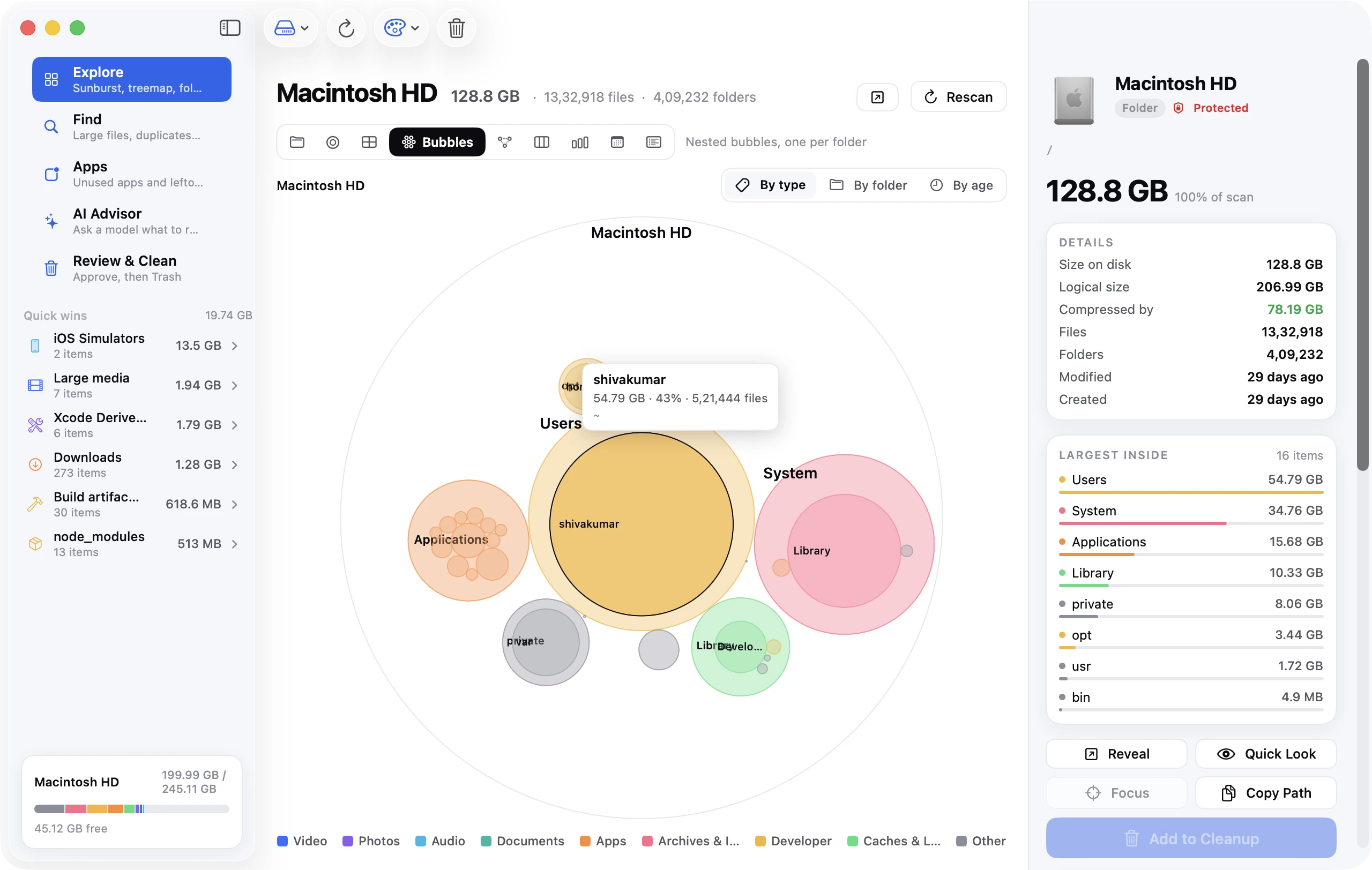
In Disk Clean AI, the quickest way to do this is the Explore treemap: open ~/Library/Application Support and ~/Library/Containers and the folders are drawn sized by bytes, so the big ones from long-gone apps stand out immediately.
Special cases
Adobe Creative Cloud: use Creative Cloud's own uninstaller for each app, then the Creative Cloud Uninstaller for the desktop app. Adobe leaves ~/Library/Application Support/Adobe (often several GB of fonts, caches and media cache) and /Library/Application Support/Adobe, both safe to remove once every Adobe app is gone.
Microsoft Office: drag the apps to the Trash, then remove ~/Library/Containers/com.microsoft.*, ~/Library/Group Containers/UBF8T346G9.* and, if present, /Library/LaunchDaemons/com.microsoft.autoupdate.helper.plist.
Xcode: dragging it to the Trash leaves ~/Library/Developer (simulators, DerivedData, device support — often 20–60 GB). Remove it too unless you use another IDE that relies on it. The developer guide covers this in depth.
Docker Desktop: use the Troubleshoot → Uninstall button inside Docker Desktop first; it removes the virtual disk in ~/Library/Containers/com.docker.docker, which can be over 60 GB.
Antivirus, VPNs and security tools: always use their uninstaller. They install system extensions and network filters that a Trash drag can't remove, and leftover filters can break networking.
Built-in Apple apps: Safari, Mail, Photos and the other apps that ship with macOS are on the sealed system volume and can't be deleted. Hide them from Launchpad if you like; you can't reclaim their space.
FAQ
Does dragging an app to the Trash uninstall it?
It removes the app itself but not its settings, caches and support files in ~/Library. For most small apps that leaves a few megabytes; for large apps it can leave gigabytes and background helpers.
Where are app leftovers stored on a Mac?
Mostly in ~/Library/Application Support, ~/Library/Caches, ~/Library/Containers, ~/Library/Group Containers, ~/Library/Preferences, ~/Library/Saved Application State and ~/Library/LaunchAgents, plus /Library equivalents for apps installed for all users.
Is it safe to delete files in Application Support?
Yes for apps you've removed. For apps you still use, the folder contains their data — delete it and the app starts from scratch, possibly losing documents, chat history or licences.
How do I see when I last used an app?
System Settings → General → Storage → Applications ⓘ shows a Last Accessed date. Finder's Get Info (⌘I) on the app shows Last opened. Disk Clean AI's Apps tool shows it alongside the app's leftover size.