11 min read
Best Disk Space Analyzers for Mac (DaisyDisk, GrandPerspective and Free Alternatives)
DaisyDisk, GrandPerspective, OmniDiskSweeper and more compared: price, views, last update, how they delete, and why their totals differ from Storage settings.
- Comparison
- Apps
- Large files
A disk space analyzer scans a drive and draws where the space went, so the 40 GB folder you'd forgotten about jumps out at you. The Mac has good options, from a free open-source treemap to a $9.99 classic and fast Terminal tools, but they disagree with each other and with System Settings more than you'd expect. Here's how the main ones compare at the time of writing (October 2026), and how to get numbers you can trust. We make Disk Clean AI, which is in the list, and we've described it in the same terms as the others.
The short version
- Best overall: DaisyDisk. It costs $9.99 once for up to 5 Macs, and it can scan as administrator and show local snapshots and purgeable space.
- Best free: GrandPerspective (an open-source treemap, macOS 14 or later), or OmniDiskSweeper if you'd rather have a sorted list.
- Looking for WinDirStat? There's no Mac version. GrandPerspective is the closest match. The original Disk Inventory X hasn't been updated since 2019 and is Intel-only.
- In Terminal:
ncdu,gduordustfrom Homebrew, or the built-indu. - Expect different totals. Without Full Disk Access, analyzers skip protected folders, and snapshots and the hidden APFS volumes show up as a gap at best.
What a disk analyzer shows (and what it can't)
An analyzer walks the folder tree, adds up what each file uses, and draws the result as rings, rectangles or a sorted list. That works well for your own files, and it gets confused by a few things APFS does.
- Allocated vs logical size. A file's size isn't always what it takes on disk. Sparse files (virtual machine disks, Docker's
Docker.raw) and compressed files use less. A good analyzer reports allocated space, which is closer to what you get back when you delete. - Clones. When you duplicate a file on APFS, the copy can share the original's blocks. Eclectic Light cloned a 107 GB virtual machine: Finder's figures implied about 108 GB used, while Disk Utility showed about 55 GB. Any tool that adds up per-file sizes will count shared blocks twice.
- Permissions. Without Full Disk Access, an app can't read Mail, Messages, Safari data and some app containers. Other users' folders and some system folders need administrator rights on top of that.
- Space that isn't in any folder. Time Machine local snapshots and the other APFS volumes (Preboot, Recovery, the VM volume for swap) don't show up as files you can scan, and Finder counts purgeable data as free. Analyzers show the difference as a gap or "hidden space". Storage settings folds much of it into System Data. See System Data explained, local snapshots and purgeable space.
- iCloud placeholders. Files that Optimise Mac Storage has evicted still appear in folders but take almost no local space.
What to look for
- Honest sizes: allocated space, and handling of hard links and clones.
- Access: a prompt for Full Disk Access, and ideally an administrator scan.
- A view that suits you: treemaps pack the most detail in, sunbursts are easier for many people to read, and lists are fastest to scan.
- Safe deletion: does it move files to the Trash or delete them permanently?
- Active maintenance: Apple says Rosetta 2 stays available as a general-purpose tool only through macOS 27, so an Intel-only analyzer is on borrowed time.
- Price and licence: one-time, subscription or free.
Comparison table
Prices and versions are from each vendor's site at the time of writing (October 2026).
| Tool | Price | Latest release | macOS | Main view | Deleting | Stand-out |
|---|---|---|---|---|---|---|
| Storage settings | Built in | Part of macOS | Any | Categories and file lists | Delete button | Nothing to install |
| DaisyDisk | $9.99 once, 5 Macs | 4.34.2, Jul 2026 | 10.13+ | Rings (sunburst) | Permanent, 5-second cancel | Admin scan, snapshots, cloud drives |
| GrandPerspective | Free (GPL); $2.99 App Store | 3.8.1, Sep 2026 | 14+ | Treemap | From the view | Filters, saved scans, hard-link aware |
| OmniDiskSweeper | Free | 1.16, Sep 2025 | 11 to 26 (official) | Sorted columns | To the Trash | Simplest list |
| Disk Inventory X | Free | 1.3, Dec 2019 | Intel build, needs Rosetta 2 | Treemap | — | Unmaintained |
| Inspector (Nektony) | Free; Pro $9.99/yr or $19.99 once | 6.0.3, Oct 2026 | 11+ | Sunburst | Pro only | Mac App Store |
| Disk Clean AI (ours) | $19 once (launch), 3 Macs; 7-day free trial | 1.2.1, Oct 2026 | 14+ | 9 views: Sunburst, Treemap, List and more | To the Trash, with Undo | Cleanup suggestions |
| ncdu | Free (MIT) | 2.9.2 | Via Homebrew | Terminal list | d key | Works over SSH |
The built-in option: Storage settings
System Settings → General → Storage shows a bar by category, and an ⓘ button beside most categories. According to Eclectic Light's walkthrough, the Documents ⓘ lists your largest files and older downloads and includes a simple file browser sorted by size. Sizes are allocated space, which is good. The limits: System Data has no ⓘ at all, other volumes get no detail, and the browser is basic. It's the right first look, and our storage check guide explains each category. When you need to see the whole folder tree, use a real analyzer.
DaisyDisk
DaisyDisk draws your disk as concentric rings: click a segment to zoom in, and drag what you don't need to the Collector. At the time of writing it's $9.99 for a lifetime licence covering up to 5 personal Macs, and it isn't a subscription. Version 4.34.2 came out in July 2026, runs on macOS 10.13 or later and supports Apple silicon.
Where it stands out is the space other tools can't explain. It can scan as administrator to reach restricted folders. It lists local snapshots and purgeable space under "hidden space" and can force-purge them. It can also scan Dropbox, Google Drive, OneDrive and Box remotely (not iCloud, which third-party apps can't scan remotely).
Best for: anyone who wants one polished, cheap analyzer and doesn't mind paying once.
Know before you buy: DaisyDisk deletes permanently rather than moving files to the Trash, with 5 seconds to cancel. The Mac App Store edition can't scan as administrator, purge, or estimate snapshot sizes, so buy direct if you want those.
GrandPerspective
GrandPerspective draws a treemap, where every file is a rectangle sized by the space it uses. It's open source under the GPL and free from SourceForge, or $2.99 on the App Store for the same app. Version 3.8.1 came out on 13 September 2026. It needs macOS 14 or later and runs on Apple silicon and Intel.
It goes deeper than it looks. You can colour by file type, folder, age and more, filter what a scan includes, compare scans before and after a cleanup, and save scans to reopen later. It handles Time Machine hard links and cloud placeholder files, and it checks for Full Disk Access and prompts you if it's missing.
Best for: a free, accurate, actively maintained treemap. It's also the nearest thing to WinDirStat on a Mac.
Know before you use it: a treemap of ~/Library is a wall of bundle IDs. It shows you what's big, not what's safe to delete.
OmniDiskSweeper
The Omni Group's free utility lists every folder on a drive sorted by size, in Finder-style columns. Version 1.16 (September 2025) explains when a size is incomplete because of permissions and links straight to the Full Disk Access setting. Its Trash button moves files to the Trash, which is the safer default.
Best for: people who find charts harder to read than a list.
Know before you use it: Omni's release notes list support for macOS 11 through 26, so on Golden Gate you're running it outside its official range.
Disk Inventory X and its community forks
Disk Inventory X was the classic Mac treemap, but version 1.3 dates from December 2019 and is built for Intel, so it runs only through Rosetta 2 on Apple silicon. Homebrew disabled its cask on 1 September 2026 because it fails Apple's Gatekeeper check.
Two community projects at diskinv.github.io carry it on. Disk Inventory Xs is the original code updated to run natively on Apple silicon (GPL-3.0, last release May 2026). Disk Inventory Y is a Swift rewrite (v1.0, January 2026). Both are young, small projects, and Xs is billed as Sonoma-compatible, with no Golden Gate claim yet. If you like the Disk Inventory X look, try Xs. Otherwise, GrandPerspective is the safer free choice.
Others in brief
- Inspector (Nektony, Mac App Store): a free sunburst analyzer for internal and external drives. Removing, moving or copying files needs Pro ($4.99 a month, $9.99 a year or $19.99 once).
- Space Lens in CleanMyMac: a good map, but it's part of a subscription. Our CleanMyMac alternatives guide covers the cost.
- Sensei (Cindori): a disk scanner in a wider cleaner and hardware-monitoring suite, $59 once or $29 a year for 3 Macs.
For the Terminal
macOS ships with du. These commands show the 20 biggest folders in your home folder, then compare allocated and logical size for one folder:
du -h -d 1 ~ 2>/dev/null | sort -rh | head -20
du -sh ~/Library/Containers      # space actually used
du -A -sh ~/Library/Containers   # apparent (logical) size
For an interactive browser, install one of these with Homebrew:
brew install ncdu && ncdu -x ~     # -x stays on one volume
brew install gdu && gdu-go ~       # installed as gdu-go to avoid clashing with coreutils
brew install dust && dust -d 2 ~   # a tree of the biggest folders
ncdu is the veteran and can delete from inside the browser. gdu is very fast on SSDs. dust prints a one-shot tree instead of an interactive view. The open-source Mole CLI's mo analyze is another option, and its file-by-file scans count fully shared APFS clones once. Give Terminal Full Disk Access first, or protected folders are silently skipped. Our folder sizes guide covers du in more depth.
Getting accurate numbers
- Grant Full Disk Access to the analyzer: System Settings → Privacy & Security → Full Disk Access, add the app, then quit and reopen it.
- Scan as administrator where the tool offers it (DaisyDisk's direct version does) to include other users and restricted folders.
- Treat the gap as real. If the analyzer finds 150 GB but the disk shows 190 GB used, the difference is usually snapshots, swap, other volumes and folders the app couldn't read. Check
tmutil listlocalsnapshots /before hunting for phantom files. - Trust Disk Utility over Finder when they disagree on totals, because Disk Utility accounts for clones.
- Rescan after deleting, and empty the Trash. Space from a deleted file can stay allocated until a snapshot that references it expires.
Which one to use
- You just want to see what's big: Storage settings first, then GrandPerspective, or DaisyDisk if you prefer its interface and want hidden space explained.
- Free and nothing else: GrandPerspective on macOS 14 or later. On older macOS, OmniDiskSweeper.
- Developers:
ncdu,gduordust, plus our developer storage guide for what's safe to remove in Xcode, Docker andnode_modules. - You need cleanup as well as a map: a tool that groups safe removals and moves them to the Trash. Our Mac cleaner comparison covers that category, and Disk Clean AI is described below.
Where Disk Clean AI fits
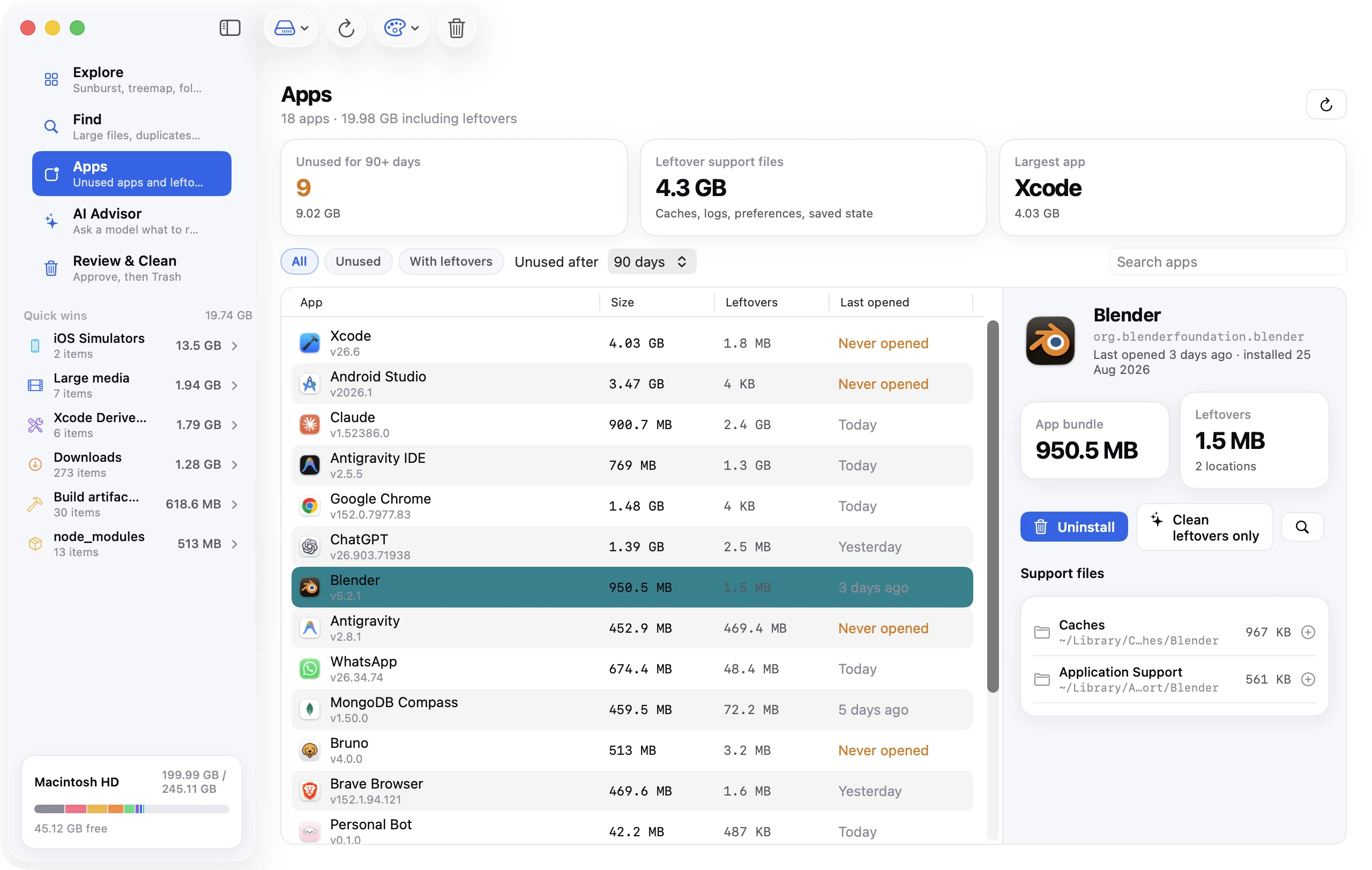
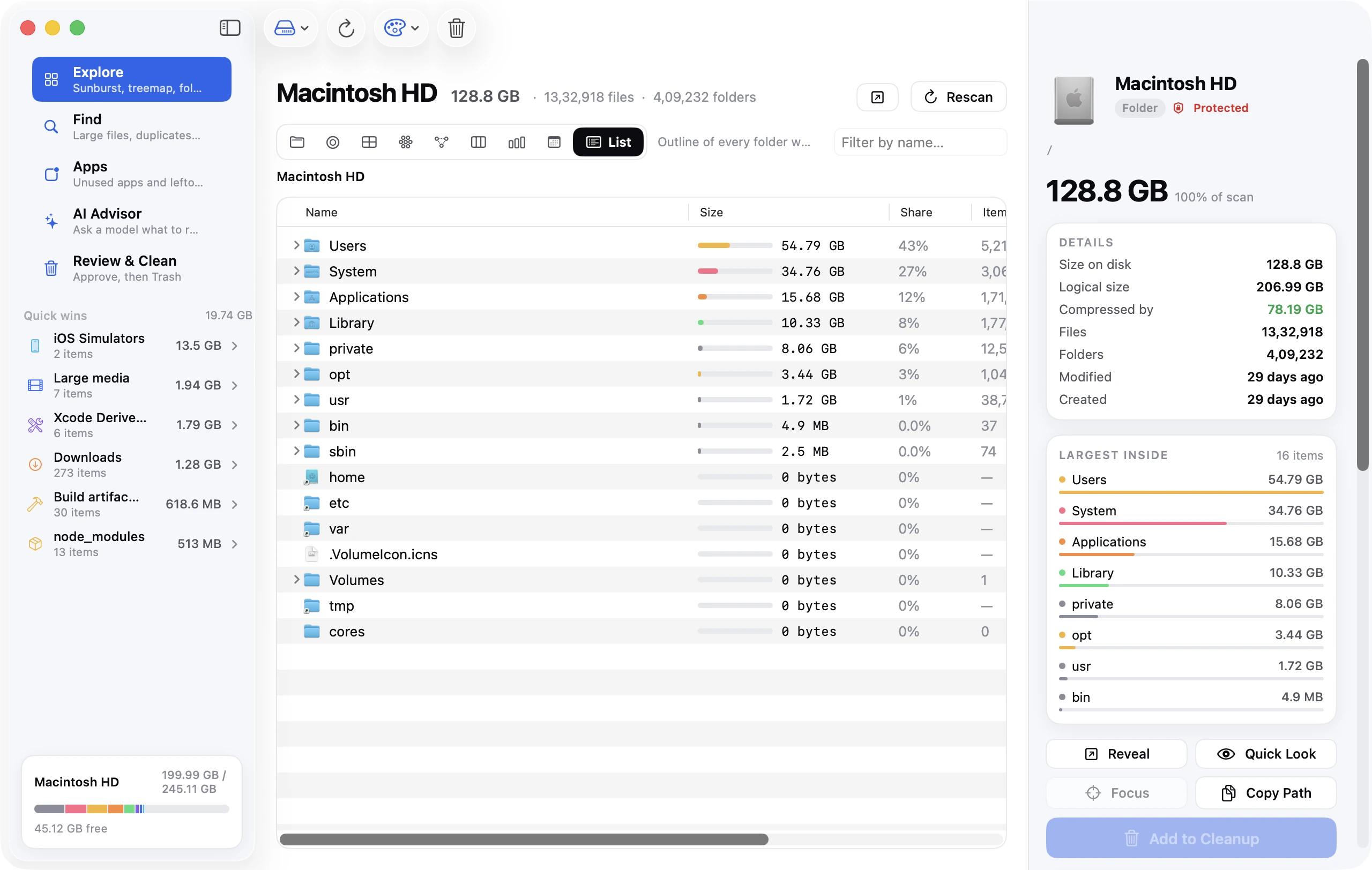
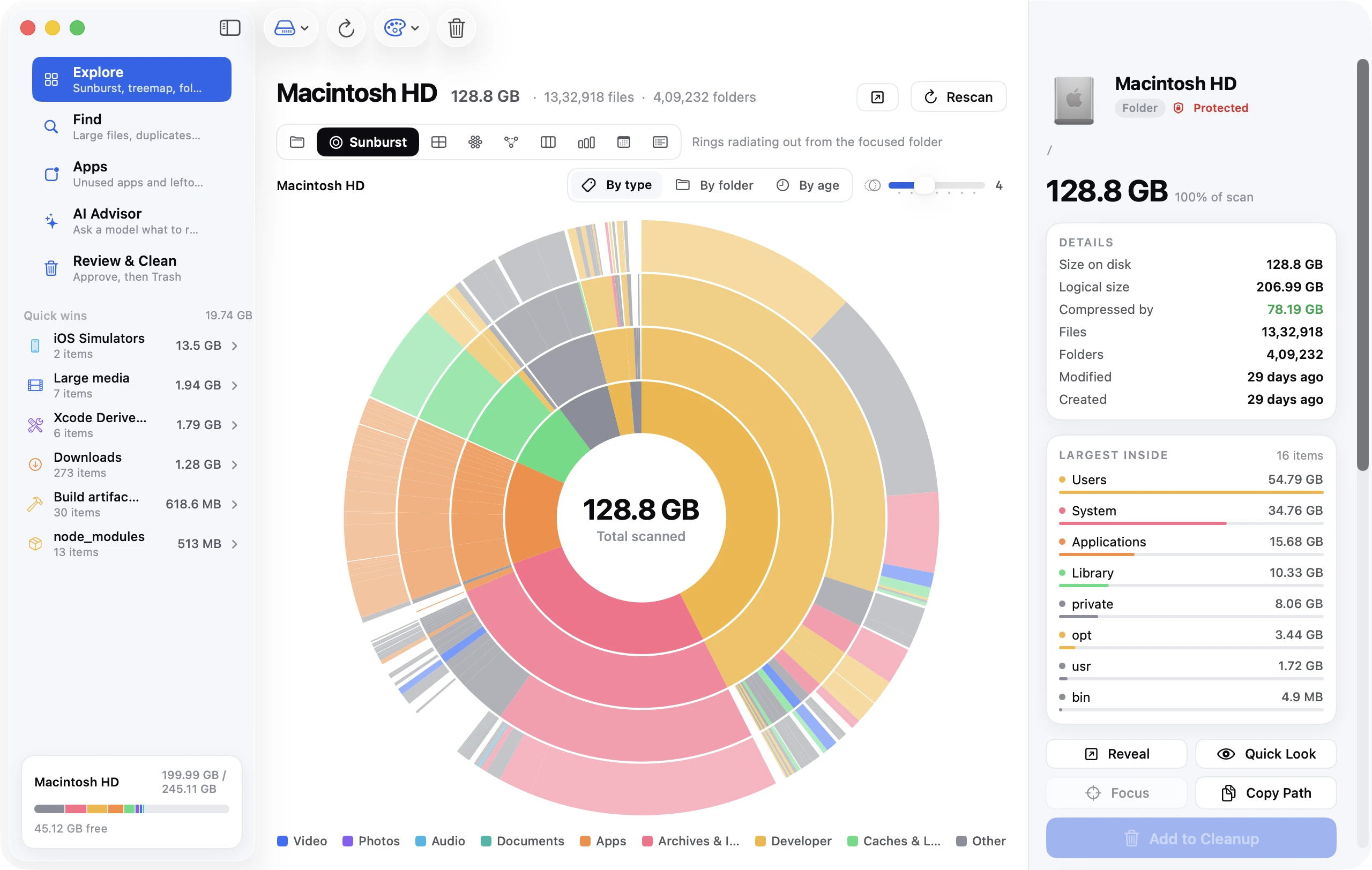
Disk Clean AI is our app. It scans your startup disk, home folder or any folder and shows nine views: Sunburst, Top Sizes, List, Folders, Treemap, Bubbles, Mind Map, Icicle and Age Map, with colouring by type, folder or age and a depth control. Unlike a pure analyzer, it also cleans. Quick Wins groups caches and logs, Downloads, Trash, large media and developer folders like node_modules and Xcode DerivedData, and there's a Find Large Files tool too. Everything you approve goes to the Trash with one-click Undo, and protected locations such as keychains and the Mail and Photos libraries can't be selected at all.
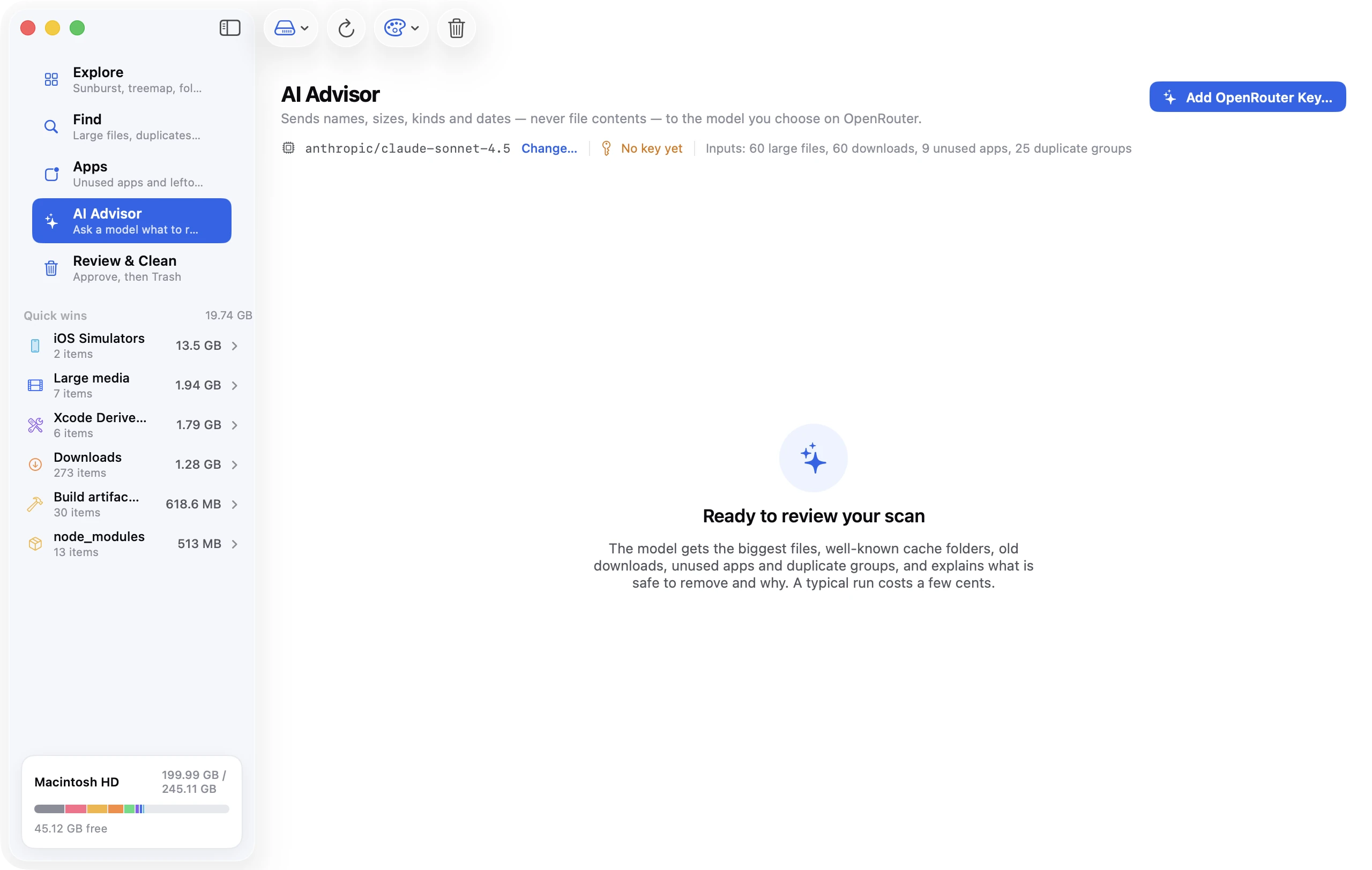
It's a paid app with a 7-day free trial that includes every feature. After that, a license is a one-time $19 at launch (usually $39), for up to 3 Macs, with no subscription and no account. It also has duplicate and similar-photo finders, an app uninstaller and an optional AI Advisor that sees file metadata only, among other tools. It needs macOS 14 or later. If all you want is a map, the free tools above may be all you need.
FAQ
What is the best free disk space analyzer for Mac?
GrandPerspective, if you're on macOS 14 or later. It's open source, actively maintained, Apple silicon native and accurate about hard links. OmniDiskSweeper is the best free list-style alternative. In Terminal, ncdu is the standard.
Is DaisyDisk worth it?
For most people, yes. $9.99 once for up to 5 Macs is cheap for a polished analyzer that also explains hidden space, snapshots and purgeable space. Buy it from the developer rather than the App Store if you want the administrator scan, and remember that its deletions skip the Trash.
Is there a WinDirStat for Mac?
No. WinDirStat is Windows-only. GrandPerspective gives you the same kind of treemap for free, and Disk Inventory X was the original Mac equivalent but is no longer maintained.
Does Disk Inventory X work on Apple silicon?
Only through Rosetta 2, because version 1.3 is an Intel build from 2019. Apple has said Rosetta remains a general-purpose tool only through macOS 27. The community fork Disk Inventory Xs runs natively.
Why does an analyzer show less than Storage settings?
The analyzer only counts files it can read. Folders blocked by permissions, local snapshots, swap and the other APFS volumes don't appear as scannable files. Grant Full Disk Access, scan as administrator if possible, and treat the remaining gap as system-managed space.
Do disk analyzers need Full Disk Access?
To see everything, yes. Without it, macOS hides Mail, Messages, Safari and some app data from the analyzer, so those folders look empty or are skipped. It's a broad permission, so grant it only to apps you trust; you can switch it off again in the same pane.