11 min read
“Your System Has Run Out of Application Memory” on Mac (Causes and Fixes)
What “Your system has run out of application memory” really means, why a nearly full disk triggers it, and how to read memory pressure and free up RAM on a Mac.
- Troubleshooting
- macOS
- How-to
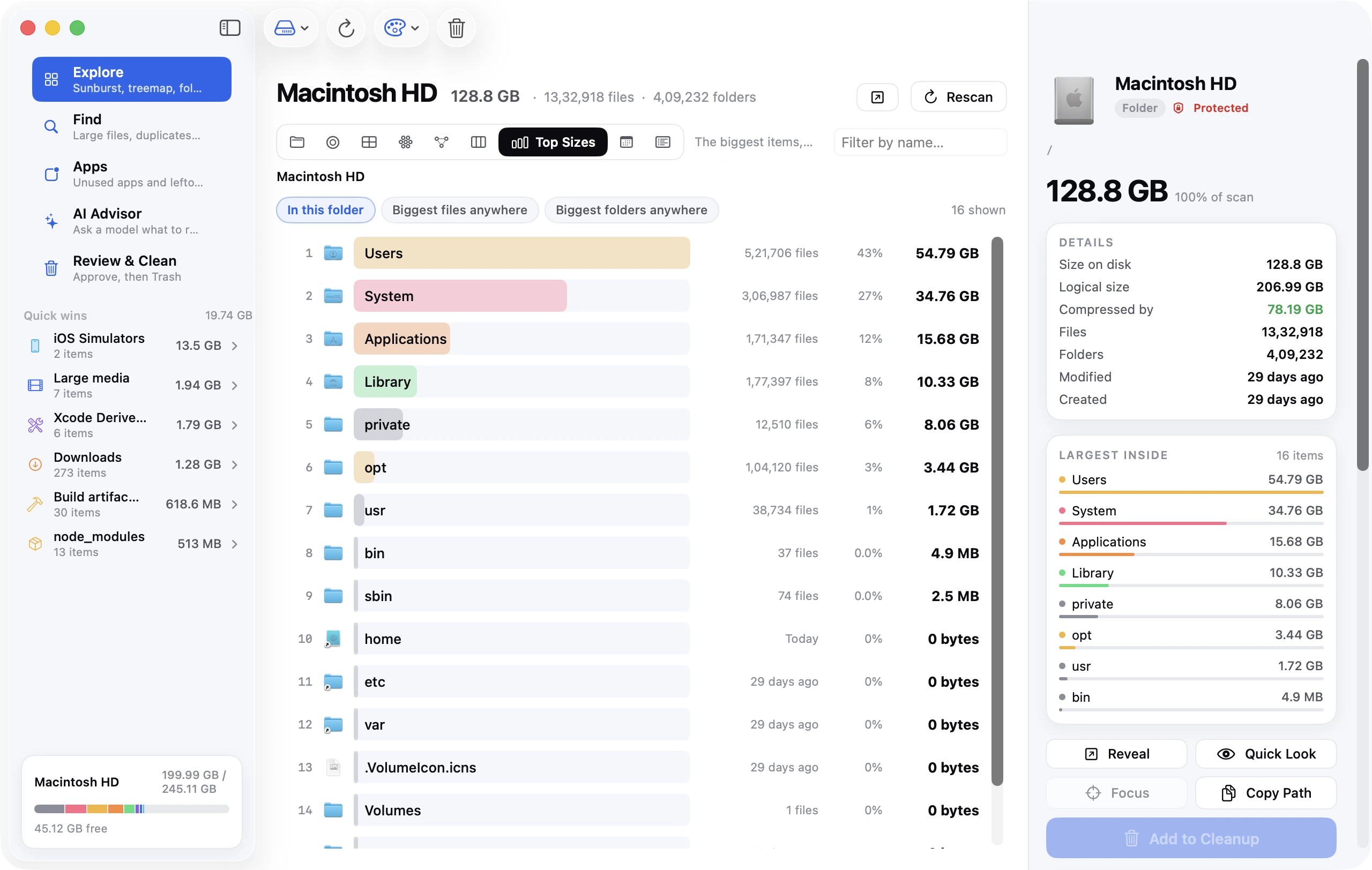
A Force Quit Applications window pops up with the message "Your system has run out of application memory", and one or more apps are marked Paused. It looks like a RAM problem, and sometimes it is. But on many Macs, especially ones with small SSDs, the real cause is storage: the startup disk is too full for macOS to grow its swap files. This guide explains the two causes, how to tell them apart in Activity Monitor and Terminal, and which fixes work.
The short version
- The message means macOS has run out of room for memory, not just RAM. It compresses memory and swaps it to the startup disk, and when both are nearly exhausted it asks you to quit apps.
- Cause 1: the startup disk is too full. Swap files live on the startup disk, so a nearly full disk stops swap from growing. Freeing disk space fixes it.
- Cause 2: one process is using far more memory than it should, such as a leaking app, a runaway browser tab or a virtual machine. Find it in Activity Monitor → Memory and quit it.
- Right now: save what you can, force quit the paused or largest app (⌥⌘Esc), then restart.
- "Free RAM" buttons and
sudo purgedon't fix this. They empty the file cache, which macOS gives up on demand anyway. - If memory pressure stays yellow or red with plenty of free disk, you need a lighter workload or a Mac with more memory.
What the message actually means
Your Mac's memory is more than its RAM. When RAM fills up, macOS first compresses memory that apps aren't actively using. When compression isn't enough, it writes compressed memory to swap files on the startup disk and reads it back when needed. Together, RAM, compression and swap are what apps actually draw on.
Apple's published kernel source spells out what happens when that runs low. When the compressor or swap is low on space, macOS first ends idle background processes. If one process holds more than half of all compressed memory, it is terminated outright. Otherwise the kernel puts up the "Out of Application Memory" dialog and asks you to pick apps to force quit. Apps it has suspended to stop things getting worse show as Paused.
The same source shows why storage matters. One of the conditions for "swap low on space" is that macOS recently failed to create a new swap file, which a code comment says is likely due to "disk space exhaustion".
What to do right now
- Don't panic. Your files are safe. The risk is unsaved work in the apps you force quit.
- Switch to any app that still responds and save your work.
- In the Force Quit window, select the app marked Paused or the one you suspect is the biggest, and click Force Quit. You can reopen the window any time with ⌥⌘Esc or Apple menu → Force Quit (Apple's guide).
- Once things respond again, restart. A restart empties swap and starts memory fresh, which buys you time to find the cause.
Cause 1: the startup disk is too full for swap
Swap lives on its own APFS volume, /System/Volumes/VM. It shares free space with everything else on the drive, so when your Data volume fills up, swap has nowhere to grow. You can see the files and the totals in Terminal:
ls -lh /System/Volumes/VM
sysctl vm.swapusage
df -h /
On the 16 GB Mac (macOS 27 Golden Gate 27.2) we checked while writing this, /System/Volumes/VM held nine 1 GB swapfile files, and sysctl reported:
vm.swapusage: total = 9216.00M used = 8498.62M free = 717.38M (encrypted)
That's over 8 GB of swap on an ordinary working day. On a 256 GB Mac with 5 GB free, there's simply no room for it.
How much free space to keep
Apple doesn't publish a number. Our rule of thumb: keep at least 20 GB free, and closer to 10 percent of the drive if you run memory-hungry apps such as video editors, virtual machines or dozens of browser tabs. Swap is only one consumer; macOS also needs room for caches, updates and Time Machine's local snapshots.
Measure free space with the Avail column of df -h /, not the Finder's "Available" figure, which includes purgeable space that may not really be there (why the two differ). How to check storage on Mac walks through each place macOS reports it.
Freeing space fast
The quickest wins are usually the Trash, the Downloads folder, Time Machine local snapshots, app caches and old iPhone backups. The complete guide to freeing up space covers each one. If you delete files and the free space doesn't move, a local snapshot is probably still holding them; see startup disk full even after deleting files.
Cause 2: one app is eating memory
If you have plenty of free space and still see the message, look for a single process that's out of control.
- Open Activity Monitor (Applications → Utilities) and click the Memory tab.
- Choose View → All Processes so background agents and helpers are included.
- Click the Memory column header to sort largest first.
Look for one process using far more than everything else, or one whose number keeps climbing while you watch. That steady climb is the signature of a memory leak. Usual suspects:
- Browser tabs. Each tab runs as its own process (Safari Web Content, Google Chrome Helper (Renderer)), so dozens of tabs add up. Chrome's Memory Saver (Settings → Performance) deactivates tabs you aren't using.
- Electron apps such as Slack, Discord and many editors, each running its own copy of a browser engine.
- Virtual machines and containers. Docker, Parallels and UTM reserve memory for the guest system. On the Mac we checked, a virtual machine process was the single largest at 4.1 GB.
- Creative and developer tools with very large projects, plus their helper processes.
To stop one, select it and click the Stop button in the toolbar. Quit is the same as choosing File → Quit in the app; Force Quit ends it immediately and can lose unsaved changes (Apple's guide). If the same app balloons every day, update it or report it to its developer.
How to read Activity Monitor's memory panel
The panel at the bottom of the Memory tab is where most confusion starts. Apple's definitions, from its Activity Monitor guide, with what to look for:
| Reading | What it is | What to look for |
|---|---|---|
| Memory Pressure | A graph of how well memory meets demand, based on free memory, swap rate, wired memory and cached files | The colour matters more than any number |
| Physical Memory | The RAM installed | Fixed |
| Memory Used | RAM in use: App Memory plus Wired Memory plus Compressed | Being near Physical Memory is normal |
| App Memory | Memory used by apps | The part you control by quitting things |
| Wired Memory | Memory the system needs that must stay in RAM | Can't be compressed or swapped |
| Compressed | Memory compressed to make more RAM available | Grows before swap does |
| Cached Files | Files kept in otherwise unused RAM to speed things up | Given back the moment an app needs it |
| Swap Used | Space on the startup disk used for swap | Steady growth means sustained shortage |
Apple's guide to checking whether your Mac needs more RAM explains the colours: green means RAM is being used efficiently, yellow means the Mac might eventually need more, and red means it needs more. A full-looking Memory Used figure with green pressure is fine. Unused RAM is wasted RAM, and macOS fills it with cache on purpose.
Check from Terminal
These commands only read; none of them change anything.
memory_pressure                                  # statistics, ending with the free percentage
sysctl vm.swapusage                              # swap total, used and free
top -l 1 -o mem -n 10 -stats pid,command,mem     # ten processes using the most memory
vm_stat                                          # raw page counts
ls -lh /System/Volumes/VM                        # the swap files themselves
memory_pressure ends with a line like System-wide memory free percentage: 39%. Run it with no options: its -l and -p flags deliberately apply real memory pressure to the system, which is the last thing you want here.
In top, the mem column is each process's physical memory footprint, which is what to compare against Activity Monitor's Memory column. vm_stat reports in pages; its header gives the page size, 16,384 bytes on Apple silicon.
Do "free RAM" buttons help?
Mostly not. Apple's own command for this is purge (sudo purge in Terminal). Its man page describes it as forcing the disk cache to be flushed and emptied, to approximate a cold start for performance testing, and says it "does not affect anonymous memory", which is the memory apps allocate for themselves.
So purging empties Cached Files, which macOS already hands over the instant an app needs it. The cache then refills as you work, and files load a little slower until it does. It can't reclaim memory a leaking app is holding, and it can't create room for swap on a full disk. The same reasoning applies to "RAM cleaner" apps: memory macOS can give up without quitting your apps, it already gives up on its own, as our cache guide also says.
When you actually need more memory
Look at the pattern over a normal working day, with a healthy amount of free disk space:
- Memory pressure is yellow most of the time, or regularly turns red.
- Swap Used keeps growing into many gigabytes and doesn't come back down.
- You see the out-of-memory dialog doing work you do every day, and no single process stands out.
On Apple silicon Macs, memory is part of the chip package and can't be upgraded later. To check any Mac, hold Option, choose Apple menu → System Information, and look under Memory for Upgradeable Memory. If you can't add RAM, the options are a lighter workload (fewer tabs, Memory Saver, quitting heavy apps you aren't using) or more memory in your next Mac. Bigger storage helps too, since swap lives on the same drive; the MacBook storage buying guide covers that side.
Where Disk Clean AI fits
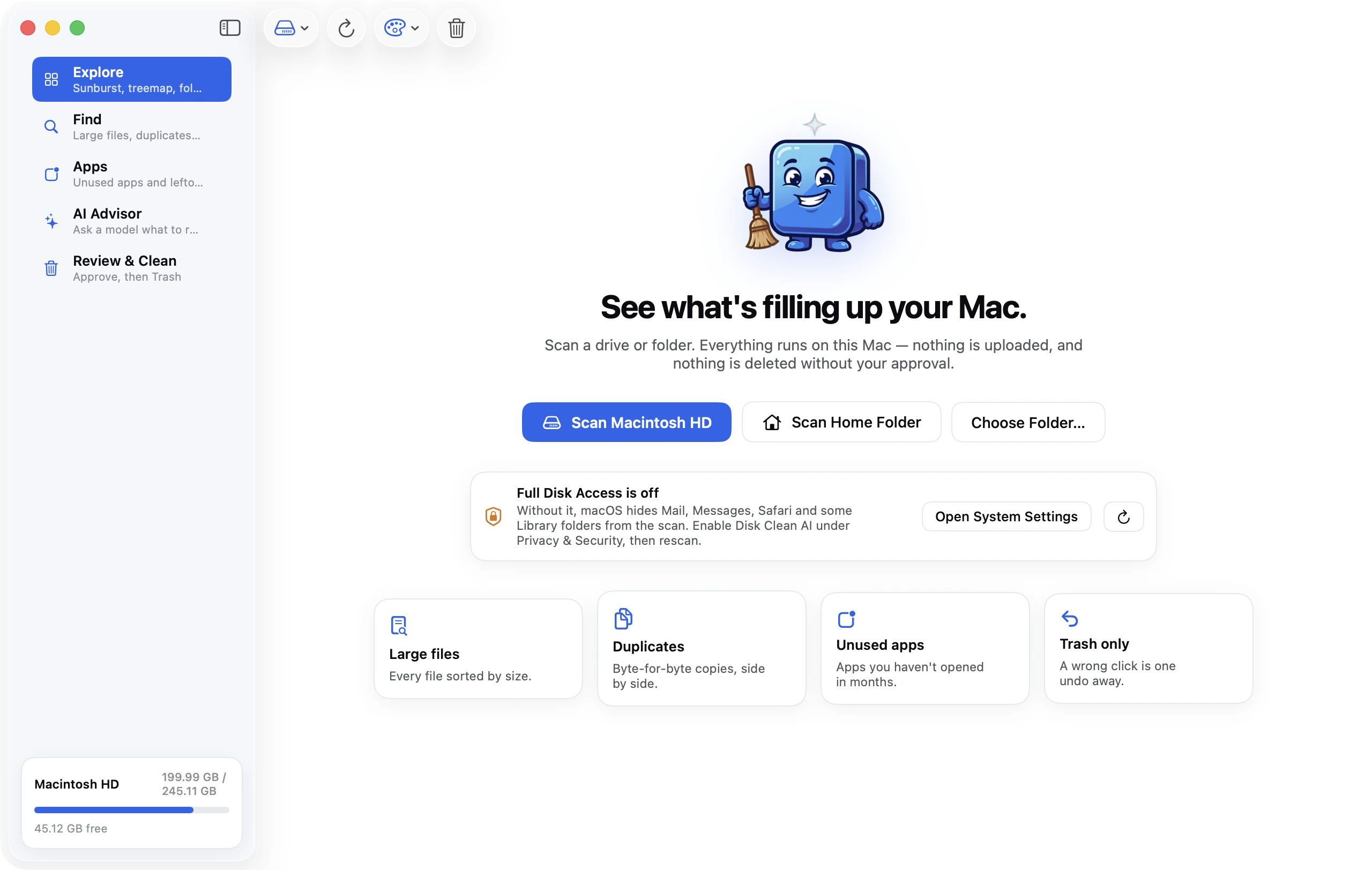
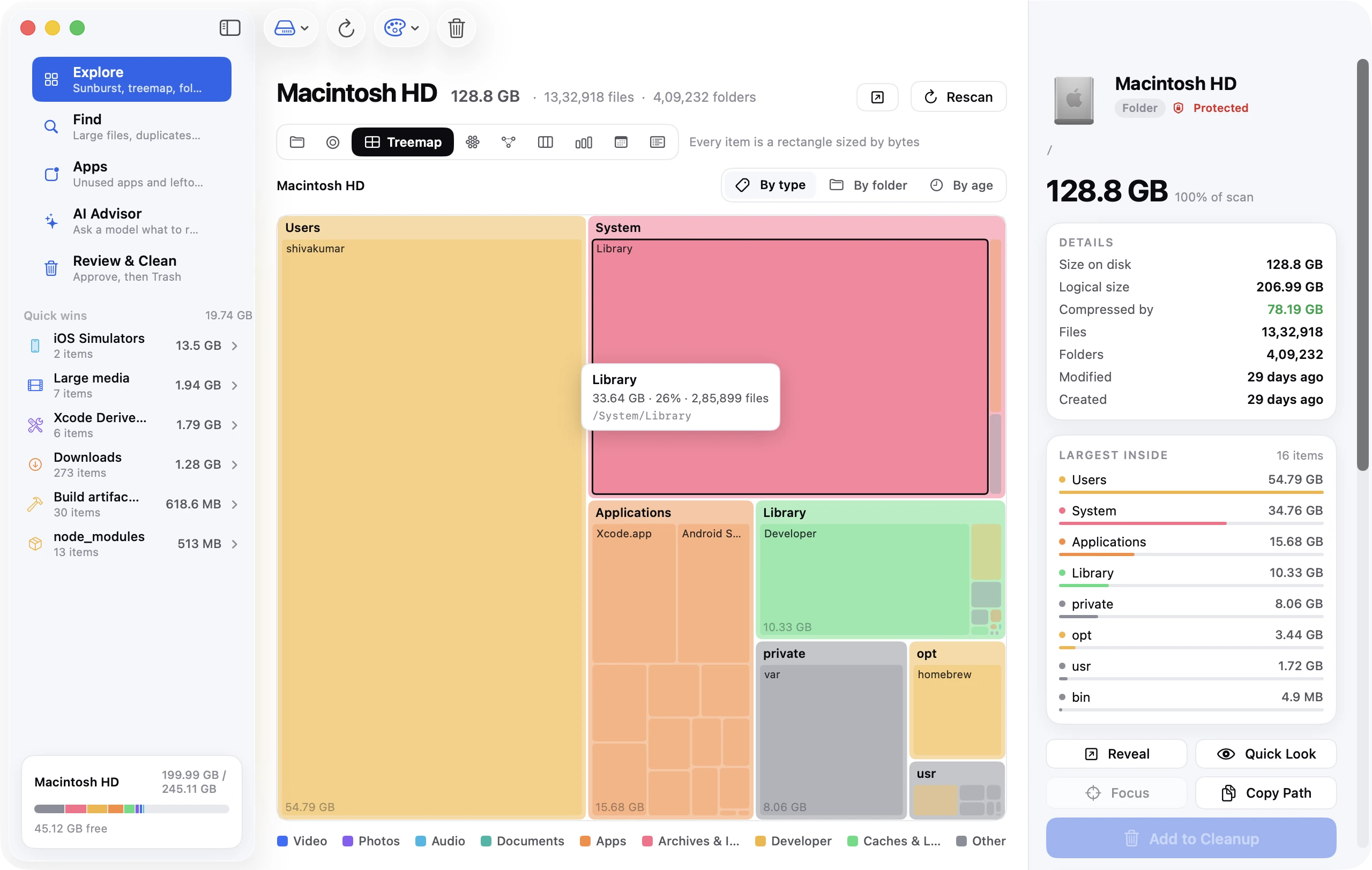
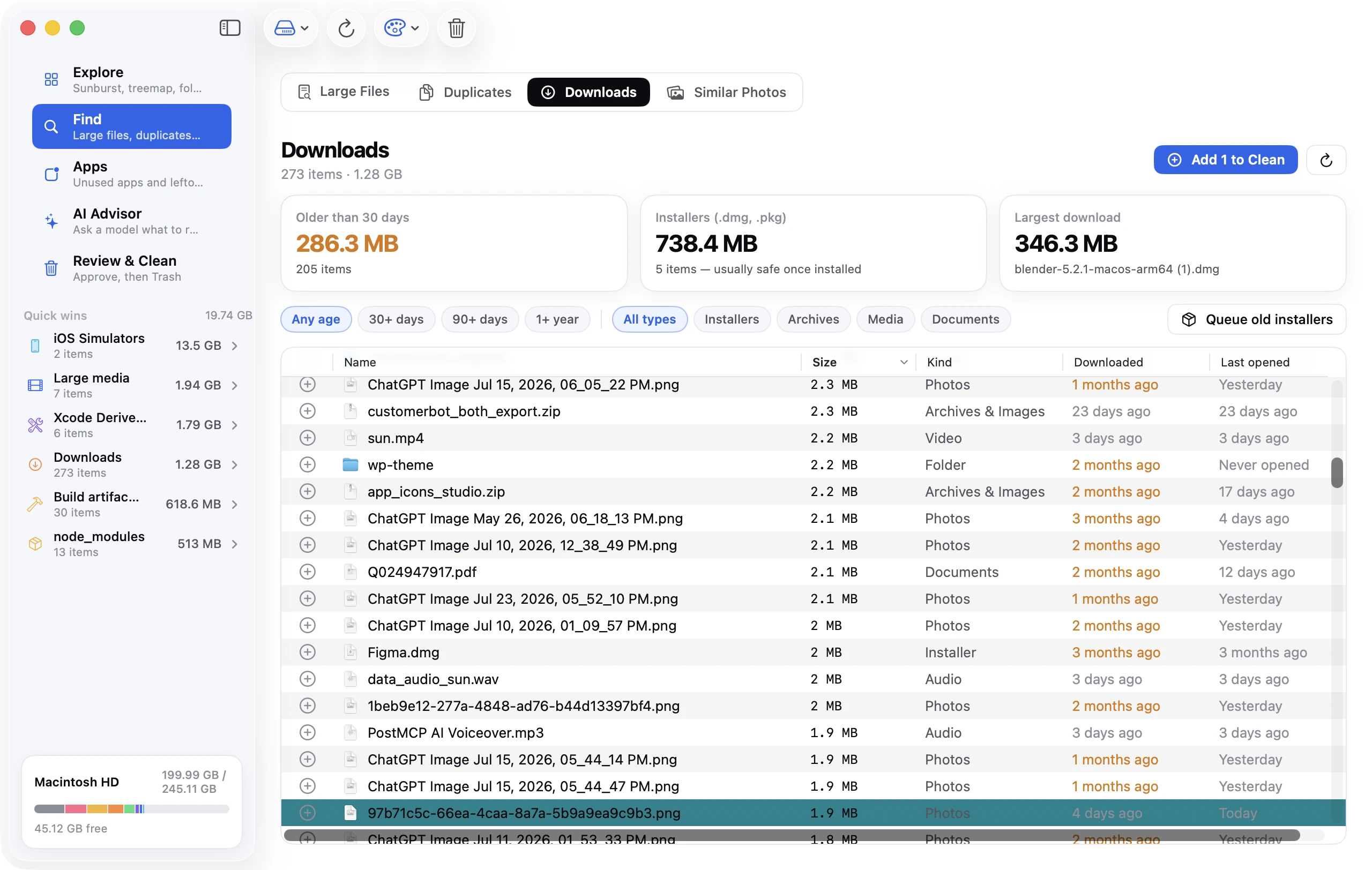
Cause 1 is a disk problem, and that's what Disk Clean AI is built for. It scans your startup disk and shows where the space went in the Sunburst, Top Sizes and List views. Its Quick Wins collect caches and logs, Downloads, the Trash, large media and developer build folders. Everything you approve goes to the Trash with one-click Undo.
Disk Clean AI also has a System Tools screen and a menu-bar monitor. System Tools shows live Memory Used (added up the way Activity Monitor does: app, wired and compressed), compressed memory, swap used and CPU, plus a list of the heaviest processes, sortable by memory or CPU, with Quit and Force Quit. The menu-bar monitor keeps disk free, memory and CPU in view. It doesn't show a memory-pressure colour, so use Activity Monitor for that.
System Tools also has a Free Inactive Memory button, which runs purge after asking for your administrator password. Read the previous section before using it: it empties the file cache and won't fix this error. Freeing disk space will.
FAQ
What does "Your system has run out of application memory" mean?
macOS has nearly run out of RAM, compressed memory and swap space combined, so it can't give apps the memory they're asking for. It pauses some apps and asks you to force quit others. It isn't a hardware fault, and your files are safe.
Can low storage cause the out-of-memory error?
Yes. Swap files live on the startup disk, and when it's nearly full macOS can't create new ones. Apple's kernel source treats a failed swap file creation as a sign that swap is low on space, one of the triggers for the dialog. Keeping at least 20 GB free makes it much less likely.
How do I free up RAM on my Mac?
Quit the apps and browser tabs you aren't using, starting with the largest in Activity Monitor's Memory tab, and restart if swap has grown large. Turn on Chrome's Memory Saver if you use Chrome. Purge commands and memory-cleaner apps only empty the file cache, so they don't help.
What is memory pressure, and when should I worry?
Memory pressure is Activity Monitor's graph of how well your Mac's memory meets demand. Green is fine, however full Memory Used looks. Worry when it's yellow most of the day or turns red, especially with swap that keeps growing.
Is high swap usage bad for my SSD?
Occasional swap is normal and harmless. Heavy, constant swapping does add writes to the SSD, and on most Macs the SSD can't be replaced. In practice the bigger cost is speed: if swap is always several gigabytes, more memory or a lighter workload is the real fix.
Do RAM cleaner apps work?
Not in any useful way. The memory they can free without quitting your apps is mostly the file cache, which macOS hands back instantly when an app needs it. They can't free memory held by a leaking app, and they don't create disk space for swap.