11 min read
Not Enough Space to Update Your Mac? How to Clear Room for macOS 27 Golden Gate
How much free space a macOS update really needs, why the installer ignores 'purgeable' space, and a 20-minute sequence that clears 50 GB or more so the update goes through.
- macOS
- Updates
- How-to
macOS 27 Golden Gate shipped on 14 September 2026, and within a day the same message started appearing in support forums: "macOS Golden Gate can't be installed because there is not enough free space." Sometimes with 30 GB free. Sometimes with the Storage panel showing plenty of space and the installer disagreeing. This guide explains how much space a macOS update really needs, why the installer's idea of "free" is stricter than Finder's, and a 20-minute sequence for clearing enough room to install, ordered by how much space each step typically returns.
The short version
- The Golden Gate installer app is about 19 GB. Apple's stated minimum for the upgrade is roughly 36 GB of free space, and reports from the first week suggest 50 to 60 GB is the comfortable target, because the installer unpacks, stages a new system volume, and takes a snapshot of the old one before it commits.
- If you're on an Intel Mac, Golden Gate won't be offered at all. macOS Tahoe 26.7 is the final release for Intel; you'll still get security updates on Tahoe, which need far less space.
- "Not enough space but there is" usually means Finder is counting purgeable space and the installer isn't, or a Time Machine snapshot is silently holding what you just deleted.
- The fastest way to free 50 GB: empty the Trash, delete old installers, clear Time Machine local snapshots, delete iOS backups, clear caches, and empty Downloads. Everything else is fine-tuning.
- Never fill the disk right to the limit to squeeze an install through. The installer needs headroom during the process, and a failed mid-install is far worse than waiting a day.
How much space does a macOS update actually need?
There are three numbers, and forum arguments happen because people quote different ones.
The download. For a major version upgrade, the full installer (Install macOS Golden Gate.app) is about 19 GB. Software Update sometimes downloads a smaller delta package for Macs on a recent version, but for a major upgrade assume the full size. Point updates (26.6 to 26.7, for example) are 2 to 6 GB.
The working space. The installer expands its payload, writes a new sealed system volume alongside the old one, migrates the Data volume, and creates an APFS snapshot so it can roll back if the install fails. This is why Apple's requirement is roughly double the download. For Golden Gate, that's the 35 to 36 GB figure. Some of it comes back after the install and a restart.
The post-install footprint. Golden Gate's new Siri and Apple Intelligence features download their models after installation. Early reports put the assets at 13 GB on some Macs and up to 35 GB on others, depending on which features are enabled. That's on top of the update itself, and it's why people who scraped together 40 GB find themselves back at zero a day later.
The practical target: 50 GB free before you start, 60 if you can manage it. On a 256 GB Mac that's a real ask, which is what the rest of this guide is for.
Why the installer says there's no space when Finder says there is
Two mechanisms, both common.
Purgeable space is counted by Finder, not by the installer. Finder's "Available" figure is free space plus purgeable space (files macOS could delete if pushed: optimised iCloud copies, some caches). The installer asks for guaranteed free space and ignores the purgeable estimate, which is frequently inflated anyway. Run this to see the number the installer sees:
df -h /
The Avail column is your real free space. If it's under the requirement, the installer is right. The purgeable space guide explains why the two numbers diverge.
Time Machine local snapshots hold deleted files. If you just deleted 30 GB to make room, an hourly snapshot taken before the deletion is still referencing those blocks. Free space doesn't move until the snapshot is removed. This is the single most common reason for "I deleted files and nothing happened," and the fix takes one command (Step 3 below).
The 20-minute clearance sequence
Work through these in order. Check df -h / after each step so you know when you've crossed the line and can stop.
Step 1: Empty the Trash (2 minutes, often 5 to 20 GB)
Obvious, and still the number one answer in Apple's own support thread on this error. Right-click the Trash in the Dock → Empty Trash. If you have external drives connected, their Trash folders are emptied at the same time.
Then turn on System Settings → General → Storage → Empty Trash Automatically so items older than 30 days go on their own.
Step 2: Delete old installers and disk images (3 minutes, 5 to 30 GB)
Every previous macOS installer you've downloaded is still in Applications unless you deleted it. Look for Install macOS Tahoe.app, Install macOS Sequoia.app and similar in /Applications. Each is 13 to 19 GB. Delete them.
Then check ~/Downloads for .dmg, .pkg, .zip and .iso files. Sort by size (⌘2 for list view, click the Size column). Installers you've already run, app disk images you've already mounted, and anything from more than a couple of months ago can go.
If a previous attempt at this update failed, the partial download may be sitting in Software Update's staging area. Open System Settings → General → Software Update; if it shows a partially downloaded update, let it finish or click the ⓘ and remove it, then restart before trying again.
Step 3: Clear Time Machine local snapshots (1 minute, 0 to 100 GB)
Open Terminal and run:
tmutil listlocalsnapshots /
If you see any entries, delete them all:
tmutil deletelocalsnapshots /
Then check df -h / again. On Macs that recently deleted a lot of data this step alone often returns more than everything else combined. Snapshots are a convenience, not your backup; your real Time Machine backup on the external drive is untouched. The snapshot guide explains what they are and how to keep them from piling up again.
Step 4: Delete iPhone and iPad backups (2 minutes, 10 to 100 GB)
System Settings → General → Storage → iOS Files ⓘ. Delete backups of devices you no longer own and older backups of ones you do. If you rely on iCloud Backup for the device, the Mac copy is a spare. Full details, including how to move future backups to an external drive, are in the iOS backups guide.
Step 5: Clear app caches (3 minutes, 5 to 30 GB)
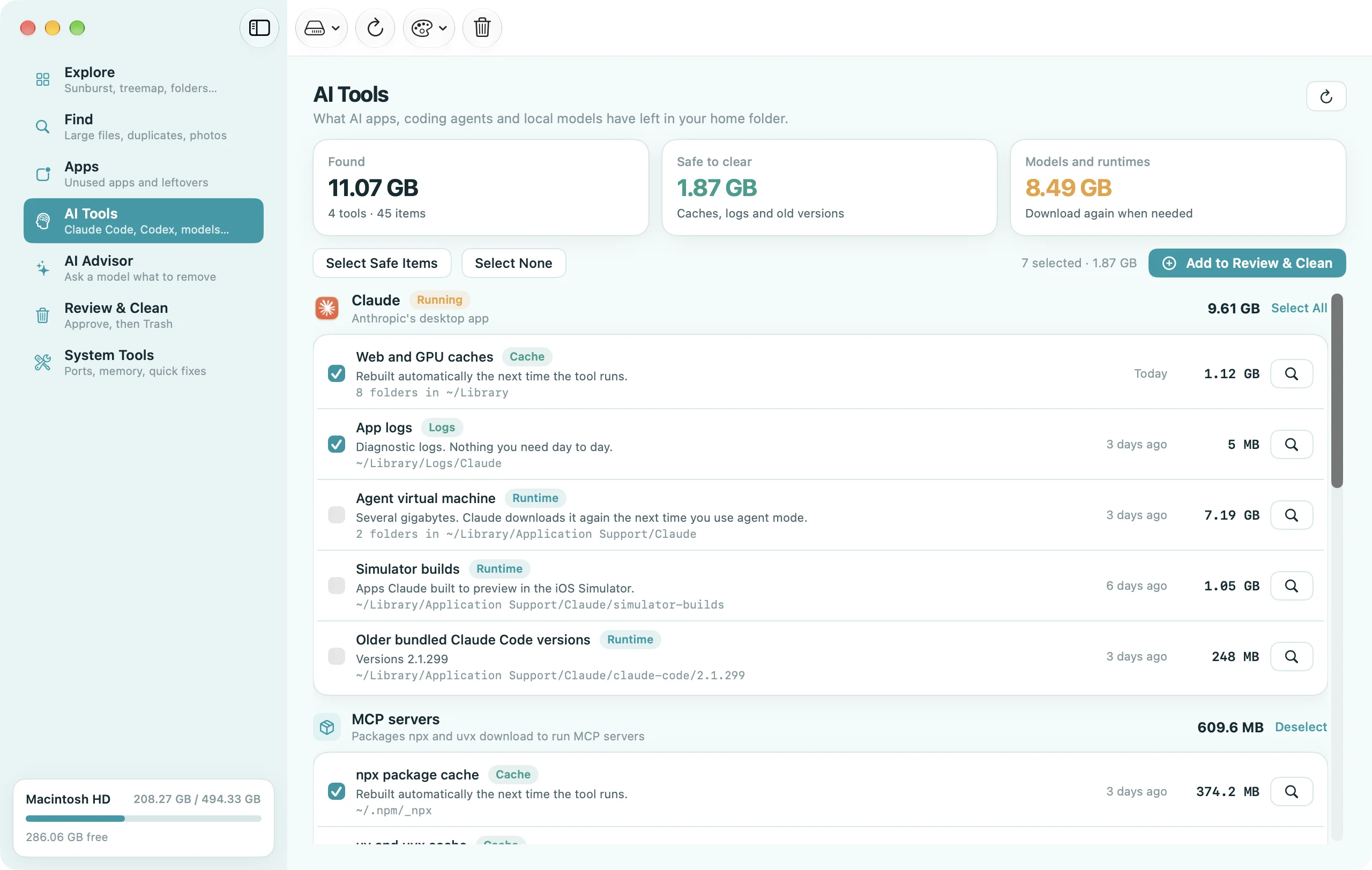
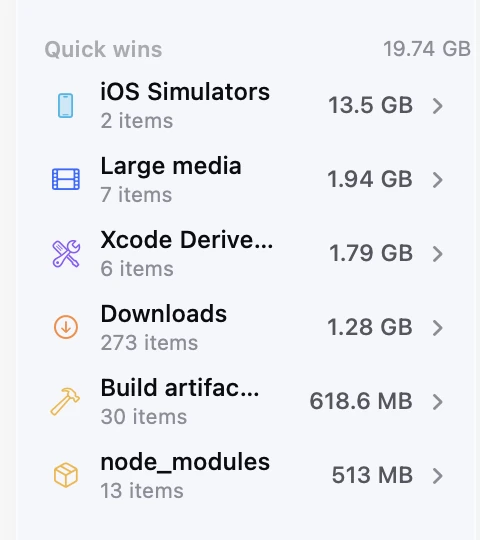
Quit your apps, then in Finder press ⇧⌘G and go to ~/Library/Caches. Sort by size with Calculate All Sizes on (View → Show View Options), and move the contents of the biggest folders to the Trash. Browsers, Spotify, Slack, Teams, Adobe apps and anything built on Electron are the usual leaders. Empty the Trash. Caches rebuild automatically. The cache guide has the per-app details and the developer caches (Xcode, Homebrew, npm, Docker) that can hold far more.
Step 6: Evict iCloud files (2 minutes, variable)
If iCloud Drive holds your Desktop and Documents, files you haven't opened in months can be evicted from the local disk without deleting them. In Finder, right-click a large folder in iCloud Drive → Remove Download. The files stay in iCloud with a cloud icon and download when you next open them. Doing this for an old projects folder can free tens of gigabytes in seconds. The iCloud Drive guide covers the settings that make this automatic.
Step 7: Find whatever's left (5 minutes)
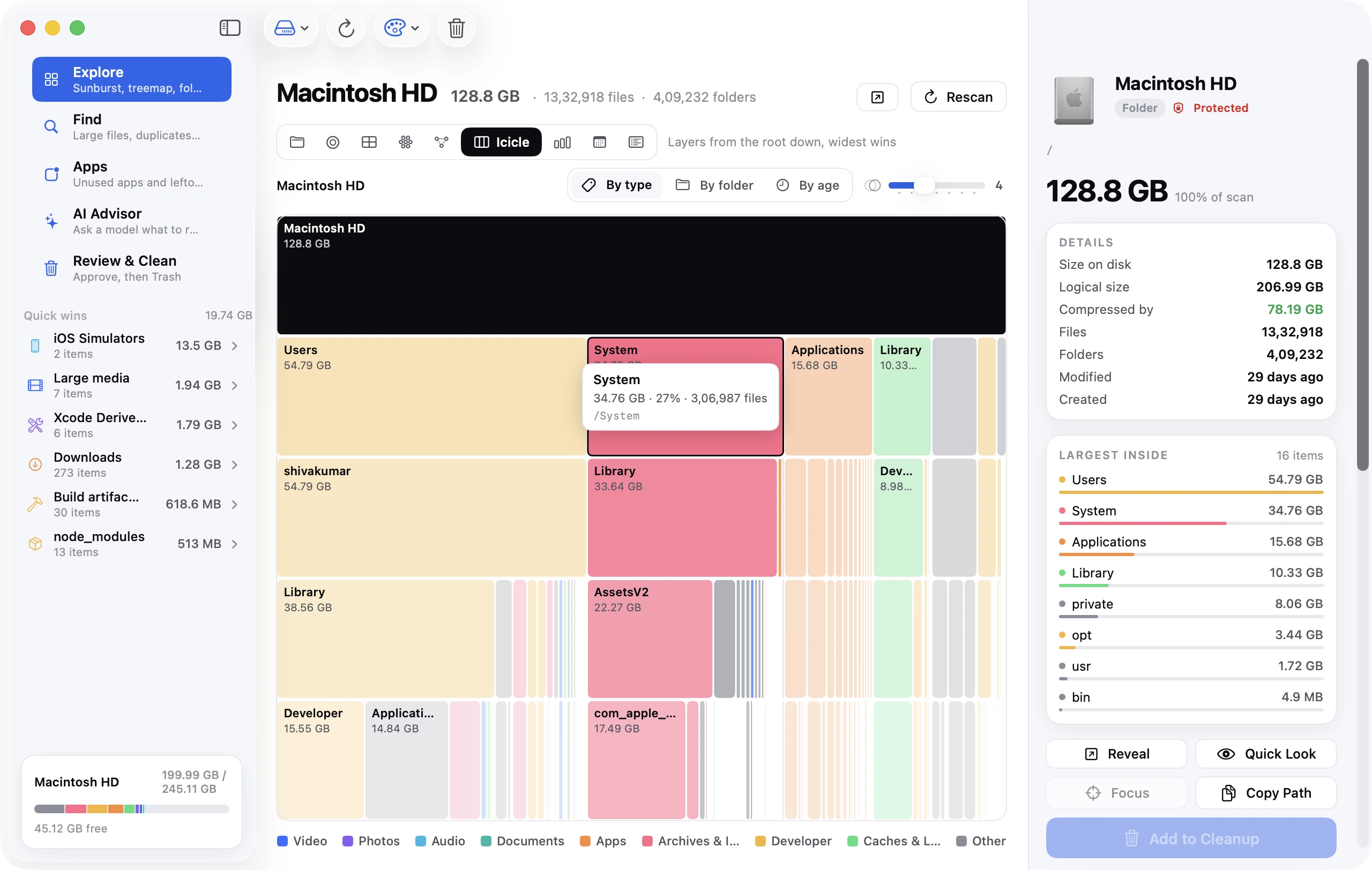
If you're still short, something specific is large. Sort your home folder by size, or use a disk map. The typical finds at this stage: a Photos library that's outgrown the disk (see the Photos library guide), Mail's offline store of every attachment (the Mail guide), Messages attachments, a Docker or Parallels virtual disk, exported video, or a game. The large files guide shows four ways to surface them in a couple of minutes.
If you still can't get there: three alternatives
Install with a bootable USB installer. Download the installer on another Mac or on this one when there's room, and create a USB installer with createinstallmedia. Booting from it lets you install without the 19 GB app sitting on the internal disk, which trims the requirement to roughly the working-space figure. It doesn't eliminate the need for free space on the target volume.
Install from macOS Recovery. Shut down, hold the power button until Loading startup options appears, choose Options → Reinstall macOS. Recovery downloads the installer straight into the staging area rather than into Applications. It still needs the working space, but skips one copy of the download.
Use safe mode to clear caches first. Apple's support article suggests it: shut down, hold the power button until startup options appear, select your startup disk, hold Shift and click Continue in Safe Mode. Safe mode deletes font caches, kernel caches and other system caches on the way up. Restart normally afterwards. It typically frees a few gigabytes, not tens, but it's the officially blessed step when nothing else is available.
After the update: get the space back
Once Golden Gate is installed and you've restarted:
- Delete the installer app if it's in Applications. Software Update usually removes it; the full installer downloaded by hand doesn't remove itself.
- Check snapshots again. The installer takes a snapshot of the old system for rollback. It's usually cleared after a successful boot, but run
tmutil listlocalsnapshots /anddiskutil apfs listSnapshots /to be sure; a stuckcom.apple.os.updatesnapshot can hold 20 GB or more. Disk Utility → View → Show APFS Snapshots lets you delete it if it's more than a few days old. - Check System Data. Reports in the first week of Golden Gate include System Data figures of 200 GB or more immediately after upgrading, which came down after a restart or two as the installer's leftovers and the snapshot cleared. If yours doesn't, the System Data guide covers what's in there.
- Review Apple Intelligence. System Settings → Apple Intelligence & Siri shows what's downloaded. If you don't use these features, turning them off removes the models and returns the space.
Frequently asked questions
How much free space do I need to update to macOS Golden Gate? Around 36 GB is the stated minimum; 50 to 60 GB is the sensible target because Apple Intelligence assets download after install. Point updates within a version need 10 to 15 GB.
Mac says not enough disk space to update but there is. Why?
Finder counts purgeable space; the installer doesn't. Check df -h / for the real figure. Also clear Time Machine local snapshots, which hold recently deleted files.
Can I update macOS with an external drive? You can install macOS onto an external drive and boot from it, but you can't use an external drive as scratch space for updating the internal one. Moving large files (Photos library, projects) to the external drive to free internal space is the practical version of this.
Will deleting the installer app cancel the update?
If Software Update has already staged the update, deleting Install macOS Golden Gate.app from Applications doesn't affect it. If you downloaded the installer manually and haven't run it, deleting it means you'll download it again.
Does safe mode free up space? A little. It clears system caches on boot, typically 1 to 5 GB. It's worth doing when you're close, not as a first step.
My MacBook Air only has 256 GB. Should I even update? Yes; security updates matter, and Golden Gate's requirements are one-time. But a 256 GB Mac needs the cleanup sequence above before every major version, and it's the strongest argument for keeping Photos and iCloud Drive optimised year-round. The complete guide to freeing up space is the maintenance version of this article.
Do it once, then keep it that way
Every major macOS release repeats this cycle: a big installer, a spike in System Data, and a wave of "not enough space" posts. The Macs that update painlessly aren't the ones with the largest disks; they're the ones where snapshots, backups, caches and cloud files are kept in check between releases. The seven steps above take twenty minutes the first time and five minutes every time after.